Kling 4.0 Omni Reference: Motion, Characters and Prompts
Kling 4.0 Omni Reference accepts up to 15 references, including images, motion videos and storyboards. See the limits, prompt templates and test results.
👁 123 reads
Kling 4.0 Omni Reference lets you provide up to 15 references for a single video: character images, motion videos to copy, storyboards and voice samples. In practice, it brings together two features that were separate in Kling 3.0: Omni and Motion Control. I explain the limits from the official release note, share the provider’s examples and give you prompt templates. I tested one template on Kling 3.0 Omni because Kling 4.0 was not yet available in the API.
Updated October 15, 2026: Kling 4.0 with Omni Reference (up to 15 references) is available to everyone, including through the official MCP and CLI (setup guide). Ready-to-use prompts with references: Kling 4.0 prompts; see the Kling 4.0 guide.
Key takeaways
Omni Reference in Kling 4.0 accepts up to 10 images, 5 videos (up to 30 seconds combined), 7 elements and a voice sample, with a maximum of 15 items in one task. New features include reference videos for motion and camera movement, including gray 3D models and depth maps, plus the ability to replace a product or character in an existing video. Omni Reference is also available in the cheaper Kling 4.0 Flash. In my test of a template on Kling 3.0 Omni, the model kept the character’s appearance from the reference and performed the full action in the prompt. The 5-second clip cost $0.56. This could be useful if you make ads or short-form videos and want to repeat a proven format with a new product. If you generate videos from text alone, you can ignore it. That’s my opinion.
What is Kling 4.0 Omni Reference?
Omni Reference is a way to generate video by giving the model not just a prompt, but also materials that show how something should look or move. In Kling 4.0, you add everything in one field on the creation page, alongside text and audio. The provider lists three main uses: controlling characters and scenes, recreating existing videos with new products or characters, and making precise edits to finished videos.
The feature is available in the full Kling 4.0 (as of October 2026) and was already available in Kling 4.0 Flash (early access from September 28; according to the pricing page, only on the Ultra plan). Read more about both versions in my Kling 4.0 guide.
Kling 4.0 Omni Reference limits
| Reference type | Kling 4.0 limit |
|---|---|
| Images | Up to 10 |
| Videos | Up to 5, up to 30 seconds combined |
| Audio | Voice sample only |
| Elements (characters, objects) | Up to 7, including up to 3 built from video |
| All references combined | Up to 15 items |
| Video editing | Up to 5 clips, including 1 main clip; each 3-30 seconds, up to 30 seconds combined |
| Text prompt | Up to 8,000 tokens |
For comparison, Kling 3.0 Omni in the fal.ai API accepts a maximum of 4 images and elements combined when you add a video. Kling 4.0 raises these limits several times over, although I don’t yet know what the API limits will be.
What can you use as a reference?
- Images: a character photo, three-view image, frame grid, infographic, keyframes or a layout sketch (wireframe). These can establish appearance, composition, style and on-screen text.
- Videos: acting, body movement, camera movement and pacing. The release note also mentions videos featuring gray 3D models and depth maps, which offer precise control over motion.
- Elements: a character or object described using several images or a video, with the option to assign it a specific voice.
Reference video motion vs. Kling Motion Control
Kling already has a separate Motion Control tool, which its plans page says can “reproduce complex movements and facial expressions” from motion capture. In Kling 4.0, a similar result comes from combining a reference image with a motion video in Omni Reference, in one task and using the same model as the rest of the scene. The release note doesn’t say whether Motion Control will remain a separate tool.
Using a storyboard as a reference
The most practical example in the release note, in my view, is a storyboard: a set of frames with shot descriptions instead of a long prompt. The provider used two images, a character sheet and a board showing the planned shots.
Kling 4.0 Omni Reference prompt templates
I organized these templates using the categories in the release note. The @Image1 and @Element1 labels come from the Kling 3.0 Omni syntax in the fal.ai API; in the Kling 4.0 app, you add references in the creation field, and the syntax may look different. The prompts are in English because Kling handles spoken dialogue best in English, too. I checked this in a separate test.
- Character in a new scene: “@Image1 is the main character, keep her face, hair and clothes exactly the same. She [action] in [location]. [Camera movement], [lighting]. She says in English: “[dialogue]”. No subtitles, no music.”
- Motion from a video: “@Element1 performs the exact movement from @Video1. Keep the camera angle and timing of @Video1, replace the background with [location].”
- Product replacement: “Recreate @Video1 shot by shot, keep the pacing and camera moves, but replace the bottle with the product from @Image1. Keep the label text readable.”
- Storyboard: “Follow the storyboard in @Image2 panel by panel, one shot per panel, with @Element1 as the hero. Total length [N] seconds, cut on action.”
- Camera movement from a reference: “Use the camera movement from @Video1 (slow orbit, then push-in). Subject: [description]. Keep the subject centered.”
My Kling 3.0 Omni test: character in a new scene
On September 28, 2026, I tested the first template on Kling 3.0 Omni Standard (fal.ai, reference-to-video mode), because it was the latest Kling model with references available in the API. I used a frame from an earlier test clip as the reference, rather than reusing someone else’s material. The full prompt was: “@Image1 is the main character, keep her face, hair and sweater exactly the same. She stands up from the kitchen table, walks to the window and looks outside at the rain. Slow push-in camera, soft daylight, realistic. When she reaches the window she says in English: “It is finally raining.” No subtitles, no on-screen text, no music.”
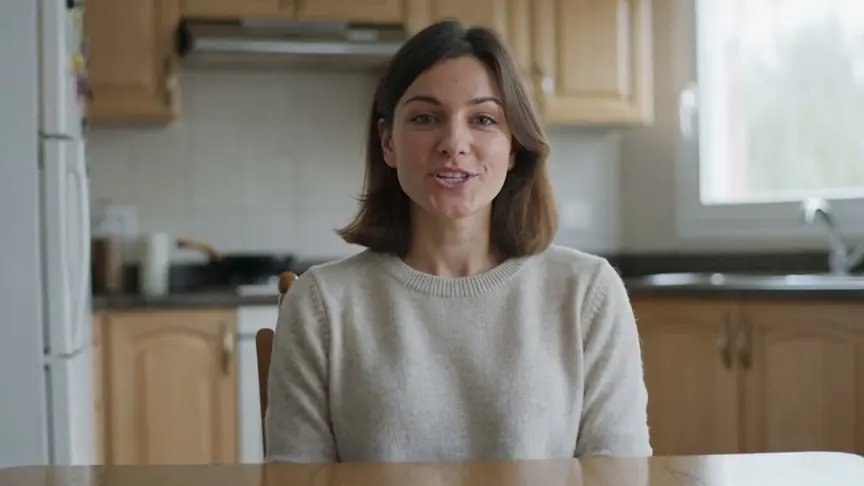
| Metric | Result |
|---|---|
| Cost | $0.56, or $0.112 per second with audio, according to fal.ai pricing |
| Time until file was ready to download | 494 seconds |
| File | 1280×720, 5.04 seconds, with audio |
| Dialogue (faster-whisper) | “It is finally raining.”, no error |
The character’s appearance, hairstyle and sweater match the reference, and the model completed the entire sequence: standing up, walking, reaching the window, rain and dialogue. One drawback: the woman speaks with her back to the camera, so it’s impossible to assess lip movement. If I needed a close-up of her face, I’d add “she turns to the camera before speaking.” That’s my opinion based on one clip. Kling 4.0 promises up to 10 images and motion videos for the same use case, which Kling 3.0 Omni doesn’t support to the same extent, so the 4.0 result may differ.
Kling 4.0 Omni Reference FAQ
How many references does Kling 4.0 accept?
Up to 15 in one task: up to 10 images, up to 5 videos with a combined length of up to 30 seconds, up to 7 elements (including 3 built from video) and a voice sample.
Is Omni Reference available in Kling 4.0 Flash?
Yes. The Kling 4.0 Flash table in the release note lists Omni Reference alongside text-to-video and image-to-video generation.
Does Kling 4.0 replace Motion Control?
The release note doesn’t say. Omni Reference lets you transfer motion from a reference video to a character in an image, but Motion Control was still listed as a separate tool on the plans page on September 28, 2026.
Can I use someone else’s video as a reference?
Technically, yes, but recreating someone else’s ad with a different product could infringe copyright. It’s safer to use your own footage or properly licensed material.
Sources and date checked
- Kling AI: Kling 4.0 release note (September 28
- 2026)
- Kling AI: plans and pricing (checked September 28
- 2026)
- fal.ai: Kling O3 (3.0 Omni) Standard reference-to-video. Checked September 28
- 2026

More on this from QUANTSLANT


 guides·PostHog Step-by-Step: Events, Funnels, Session Replays & FlagsPostHog combines product analytics, funnels, session replays, feature flags and A/B tests in one tool. This tutorial walks you from setup to your first funnel.