Qwen-Image-2.1 Alpha Channel: Native Transparent PNG Test
We measured alpha channel output in Qwen-Image-2.1: 22.7% fully transparent pixels and full 0-255 range. How to prompt for transparency and what to watch for.
👁 118 reads
Transparent backgrounds in AI-generated images usually require two steps: you generate the image, then cut out the background with a separate tool. Qwen-Image-2.1 does it in one pass, because the alpha channel is built into the model. We tested whether it actually works - and we measured it, not just eyeballed it.
Verdict in One Paragraph
It works, and this is measurement, not impression: with a prompt requesting transparency, 22.7 percent of pixels came out fully transparent, and the alpha channel spread across the full range from 0 to 255, meaning soft edges. For comparison, the same model with a regular prompt produced an image with an alpha channel in the 247-255 range, essentially opaque. The model decides based on prompt content what to return - and in our tests it decided correctly. However, the quality of the actual graphics on transparent background was noticeably weaker than with regular images.
How to Enable It
There’s no separate switch or other control. You steer it with prompt content - the maker gives an explicit recommended format and it’s worth sticking to it word for word:
This is an RGBA image with transparency. [object description]. The image has alpha channel and the background is transparent.
The opening and closing sentences are the signal to the model. The object description goes in between. It worked for us on the first try.
What We Measured
We generated three images with the same model in int8 variant and checked the alpha channel distribution in each:
| Image | Alpha Range | Fully Transparent | Fully Opaque |
|---|---|---|---|
| Neon with text, 2048×2048 | 247-255 | 0.0% | 94.8% |
| Sticker, transparency prompt | 0-255 | 22.7% | 0.0% |
| Portrait, 1792×2400 | 251-255 | 0.0% | 70.3% |
Three things that follow from this:

File with true alpha channel - 22.7 percent fully transparent pixels. On the white page background you see only the object.
- Transparency is real. Full 0-255 range means not just a hole in the background, but also smoothed edges - what requires the most work in manual cutouts.
- Regular images also come out with an alpha channel, just nearly opaque. This has a practical consequence described below.
- The model distinguishes intent. You don’t get transparency by accident and you don’t have to fight for it.
Trap: Regular Images Are Not Fully Opaque
Notice the 247-255 range for the neon and 251-255 for the portrait. That’s not 255 throughout. A few percent of semi-transparency scattered across the image doesn’t interfere with viewing, but can make a difference when layering or converting to formats that don’t support alpha.
The workaround is trivial: flatten images that are supposed to be regular to three channels when saving. One line in a script and the problem disappears.
Four More Alpha Channel Tests
To avoid relying on a single sample, we ran four more graphics with the same prompt format. All came back with true alpha channel - on the white page background you see only the object, without a rectangular background.
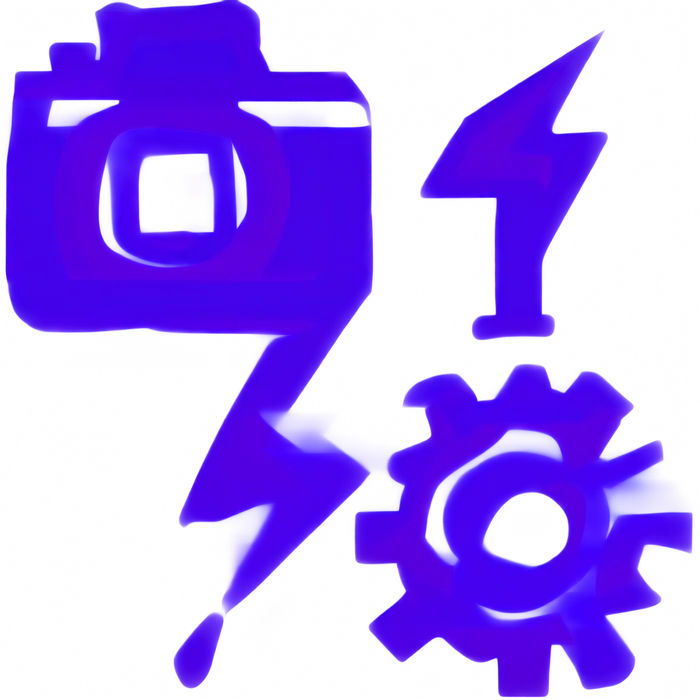
Set of three icons on transparent background: camera, lightning bolt, and gear.
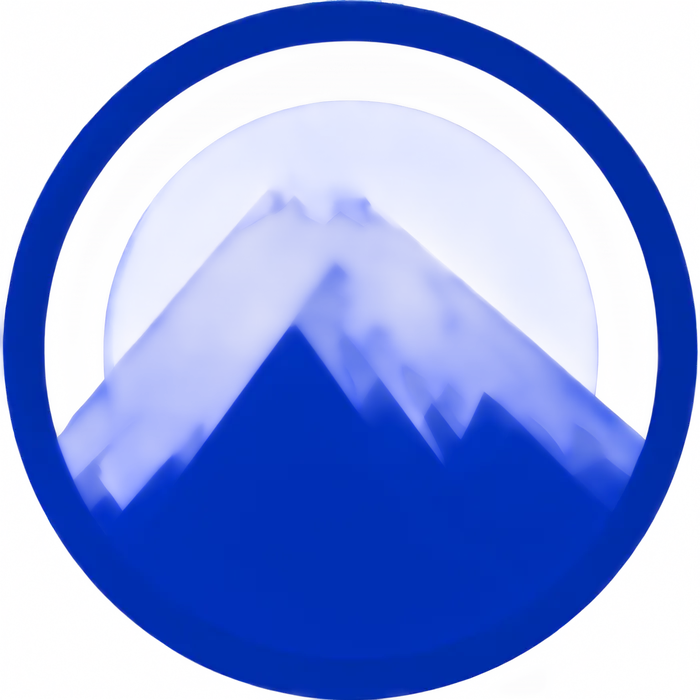
Geometric emblem - mountain in circle, single color, sharp vector edges.
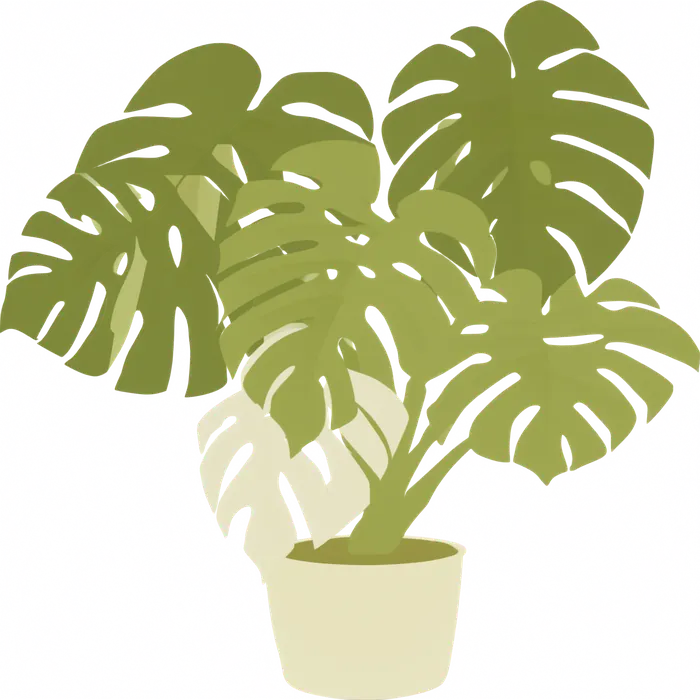
Monstera in pot, flat illustration with clean edges.
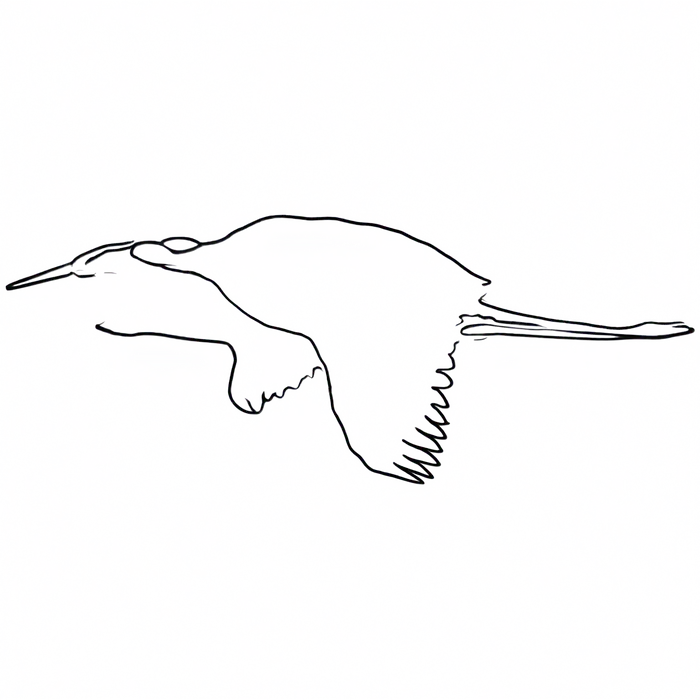
Crane in flight drawn with one continuous line - the hardest edge test.
Conclusion from these four: the simpler the form, the cleaner the edge. Icons and emblem came out sharp, the illustration with shading has a delicate outline at the edges that needs correction when overlaying on dark backgrounds.
What This Is Actually Useful For
| Use Case | What You Save |
|---|---|
| Stickers, icons, badges | Entire background removal step |
| Video overlays | Alpha channel ready for editing |
| Elements for compositing graphics | Layers instead of flat images |
| Product cards | Object without background straight from model |
| Cutting object from photo | Model returns layer with transparent background |
The last row is a separate function: you provide a regular photo and ask to extract an object, and the model returns it as a layer. The maker also shows editing of the transparent layer itself - changing facial expression or replacing text while preserving the transparent background.
Where This Came From
This isn’t a feature invented with this release. In December 2025 the maker released a separate model specialized in transparent images. In the 2.1 release this capability was pulled into the main model, so you no longer load a second set of weights - the prompt alone decides.
Practically this means one thing: the GPU memory cost doesn’t change, because it’s the same model.
What We Couldn’t Achieve
Honestly: graphics on transparent background came out noticeably weaker for us than regular images from the same model. We asked for a flat vector sticker with a fox - we got a shape with correct alpha channel, but the frame was cropped and the drawing was blurry and lacking the clear outline we requested.
The same model in the same run made a flawless neon with text and a photorealistic portrait. This is a conclusion from one sample, not a series: we suspect transparent mode needs different settings or a longer description, but we didn’t test this on enough samples to assert it. If you expect results like the maker’s examples, count on longer prompt tuning.
Three Rules for Working with Transparency
- Stick to the maker’s prompt format. The opening and closing sentences are a signal, not decoration.
- Check the alpha channel, not the appearance. An image opened on white background looks the same regardless of whether it has alpha. Count pixels.
- Flatten regular images when saving. The 247-255 range can surprise you only at the compositing stage.
Frequently Asked Questions
Does Qwen-Image-2.1 Generate Transparent PNGs?
Yes, natively. In our test 22.7 percent of pixels came out fully transparent with alpha range 0-255.
How Do You Request Transparency?
By putting it in the prompt: a sentence about RGBA image with transparency at the beginning and about alpha channel and transparent background at the end.
Do You Need to Load an Additional Model?
No. This capability is in the main model, so memory usage doesn’t change.
Will the Model Cut Out an Object from My Photo?
The maker lists this function: from a regular photo the model extracts a specified object as a layer with transparent background.
Why Do Regular Images Also Have an Alpha Channel?
Because the model always returns four channels. With regular images alpha is nearly opaque - 247-255 in our case.
Does the Quality of Transparent Graphics Match Regular Ones?
In our one sample, no - the sticker came out blurry and cropped, while regular images from the same run were very good.
Sources and Verification Date
- Feature description and recommended prompt format from the model card Qwen/Qwen-Image-2.1 and the release announcement on qwen.ai
- accessed September 22
- 2026. All numbers regarding alpha channel are our measurements on images generated locally on RTX 4090 in int8 variant - calculated from alpha channel histogram
- not assessed by eye. The note about lower quality of transparent graphics comes from one sample and should be treated as such
More on this from QUANTSLANT

 benchmarks·Qwen-Image-2.1 Benchmark: Full Rankings of 29 Image ModelsThe maker published a chart comparing 29 image models. We extracted the numbers and matched them with model sizes - a 7B model beats an 80B one by over nine points.