AI Transcription: How to Prepare and Check Your Audio Files
We explain how to turn recordings into text and verify quotes, names, and speakers. Ready-to-use prompts and official documentation included.
👁 119 reads
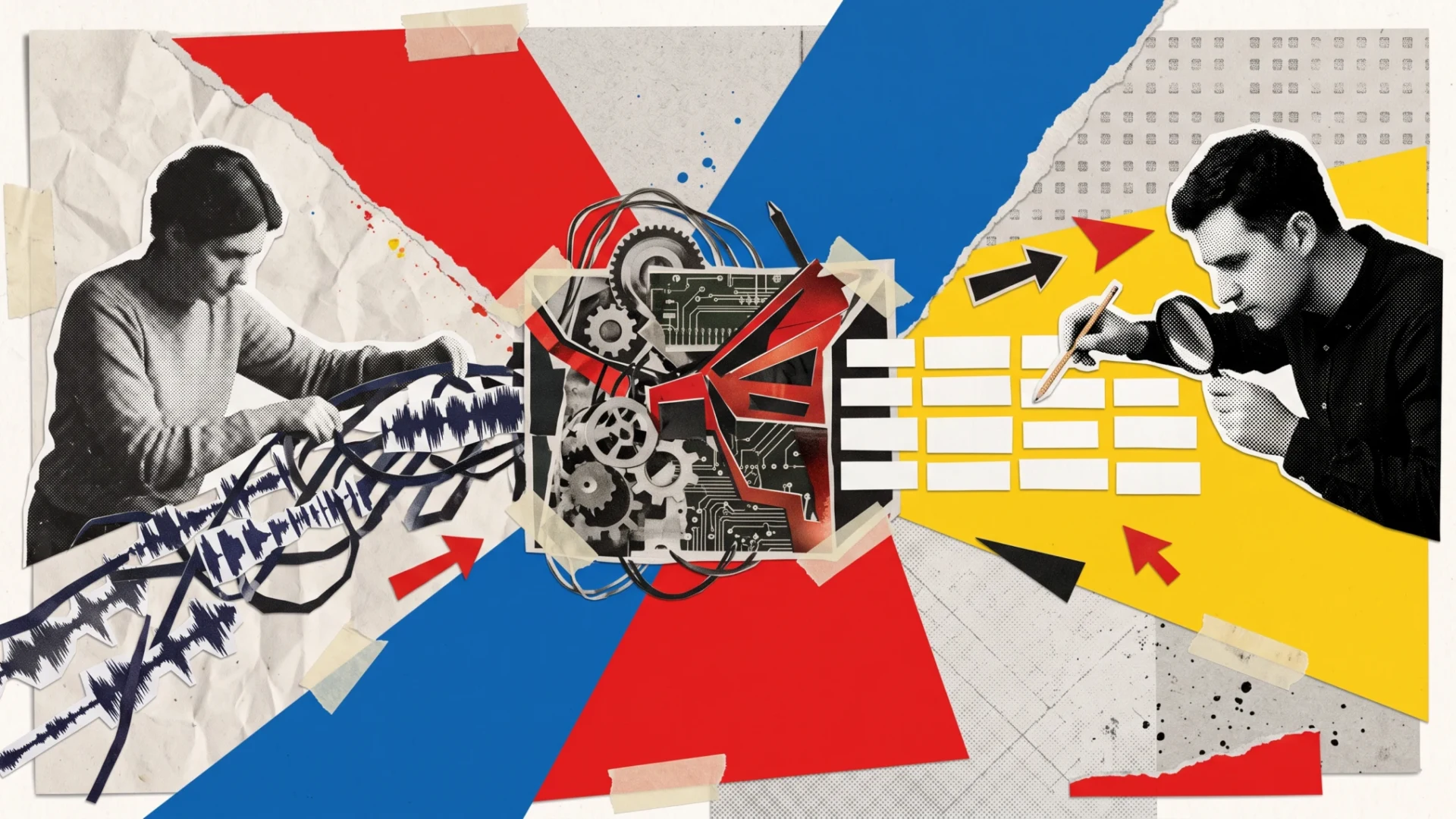
You choose AI transcription when you need a text version of a recording. Start with audio quality and decide whether you want a verbatim transcript or a cleaned-up version. Compare the result with the recording. Pay special attention to names, negations, and agreements - a correct-looking sentence may convey different content than the speaker’s voice.
Transcription, notes, and subtitles are different files
We treat transcription as a record of what you hear. You prepare notes based on that, selecting the most important information. Subtitles require additional segmentation and timing to match the video. A single paragraph of text doesn’t solve all these tasks.
Before uploading material, establish the scope. Do you need the entire meeting, a selected interview, or just the segment with a decision? Don’t request a summary if you plan to quote the speech later. Don’t call a transcript verbatim if you’re removing repetitions and restructuring sentences.
What to check in your tool
ElevenLabs describes speech-to-text conversion, timestamps, and speaker diarization in their Speech to Text documentation. Voice separation is not proof of identity for us. You should assign names only after checking the recording or a reliable participant list.
Microsoft describes recording or uploading audio for transcription in Word, editing the transcript, and returning to specific moments in the recording. Check the details in the Word transcription instructions. Before working, confirm the feature’s availability on your account and how the recording is stored.
Don’t choose based solely on the list of supported languages. Look for convenient playback, speaker label editing, and the ability to export the file format you need. If the goal is subtitles, check your video editor’s requirements. If the goal is an interview archive, the ability to find quotes will matter more.
How we would prepare a recording
- Keep the original file. Use a copy for processing.
- Listen to the beginning and difficult sections. Check whether the voices are intelligible.
- Establish the language, scope, and expected type of transcript.
- Upload only material you have permission to share.
- Run transcription in a tool that supports audio files.
- Compare the transcript with the audio and mark unresolved sections.
When voices overlap, don’t add meaning from context. Leave a marker for unintelligible speech. Do the same with abbreviations you don’t know. A plausible expansion of an abbreviation can still be wrong. Treat a project glossary as a listening aid, not permission to replace every similar sound.
Ready-to-use prompts
The first prompt requires an assistant with audio support. The rest help organize text. Simply pasting a prompt doesn’t give an application the ability to play audio files.
We tested these prompts in Polish (a heavily inflected language); adapt them for your language or use them as-is for multilingual transcription:
I want to prepare a transcription of a recording. First, check whether you can read audio in this conversation. If so, ask me for the file and ask whether I need a verbatim transcript or a cleaned-up version. Don't guess speaker identities. Mark unintelligible sections descriptively. Provide timestamps only when you can determine them from the recording.Help me edit a raw transcription. Ask for the text. Correct punctuation and paragraph breaks, but don't change the meaning. Preserve negations, qualifications, and markers for unintelligible sections. Don't add names or expand abbreviations. List separately the sections requiring another listen. Don't call the result a verified transcription.I want to prepare a transcription checklist before using quotes. Ask me for the conversation transcript and information about how I'll use it. Point out names, titles, numbers, negations, and statements assigned to speakers that need to be compared with the audio. Don't correct them based on guesswork. Separate editorial notes from content doubts.What not to expect
- Don’t expect accurate transcription of words you can’t hear yourself.
- Don’t assume correct separation of people speaking simultaneously.
- Don’t treat a speaker label as a confirmed name.
- Don’t consider automatic punctuation a record of the speaker’s intent.
- Don’t expect a summary to preserve all qualifications from the conversation.
How to receive the finished transcript
For longer recordings, give sections readable labels. Maintain the connection between text and the source file and its correct version. If you receive corrected audio, recheck the sections intended for quotation. Don’t assume the earlier transcript matches the material just because both files have similar titles.
First check the sections you intend to use. Compare quotes directly with the audio. If the text is meant to be full meeting documentation, spot-checking isn’t enough to consider the whole thing verified. Describe the scope of your review according to what you actually did.
When the speaker changes, also listen to the transition moment. A misattributed sentence may look linguistically correct. In a cleaned-up transcript, keep the original so you can verify that editing didn’t turn a proposal into a decision. This is especially important for agreements about responsibility.
Before sharing the file, check its title, scope, and speaker labels. Add information about whether the transcript is raw, language-corrected, or verified against the recording. Don’t leave the recipient having to guess what stage of work they received. If you removed a section, mark that action clearly for the person using the document.
When you need text on screen, move to the guide on AI for subtitles. If you want to extract decisions and tasks, use the process described in AI for notes. A verified transcript remains the foundation for both tasks.
We would use AI transcription to prepare a draft version of a recording in text. Choose a tool with convenient playback and editing, and personally verify important statements. Only such a transcript is ready for quotation or further work.
 Audio to Text Transcription: Free Tools & When They FailGuides
 AI Voiceover: How to Prepare Text and Check PronunciationGuides
 ElevenLabs Voice Changer: AI Voice Swap Test & ResultsAI Tools
The link to ElevenLabs is a partner link: if you buy through it, QUANTSLANT earns a commission and you pay the same price. It has no influence on the content, including where the coverage is critical.
More on this from QUANTSLANT

 guides·ChatGPT Limits: How to Check Your Account RestrictionsLearn how to check ChatGPT limits on your account by reading error messages and documentation. Separate conversation, tool, and file upload restrictions.