How to Generate Images in ChatGPT: Step-by-Step Guide
Create images in ChatGPT by typing a prompt or using the Images tab. Edit with Select, transform photos, and work within Free, Go, Plus, or Pro limits.
👁 124 reads
You can create images in ChatGPT two ways: type what you want in a regular chat, or open the Images tab in the sidebar and start from a template. Since September 8, 2026, images are generated by the ChatGPT Images 2.5 model (GPT Image 2.5 in the API), and it works in every plan, including Free. Below is a step-by-step guide: creating, editing sections, limits, and what to do when an image won’t generate. Everything about the model itself and API pricing is in our GPT Image guide.
Step-by-Step: Your First Image
- Log in at chatgpt.com, in the desktop app, or on your phone. You can’t create images without logging in.
- Choose your starting point. The simplest way is to type in chat “Create an image: …”. The second route is Images in the sidebar - there you’ll find templates (poster, logo, icon, product photo, merchandise) and examples of popular prompts.
- Describe the image in four parts: what’s in the image, what style, what format, and what text should appear. Example below.
- Wait from several seconds to over a minute. In the Free plan, images render more slowly.
- Edit or download. Click the image to open the editor, or save the file with the download button.
The prompt template I use:
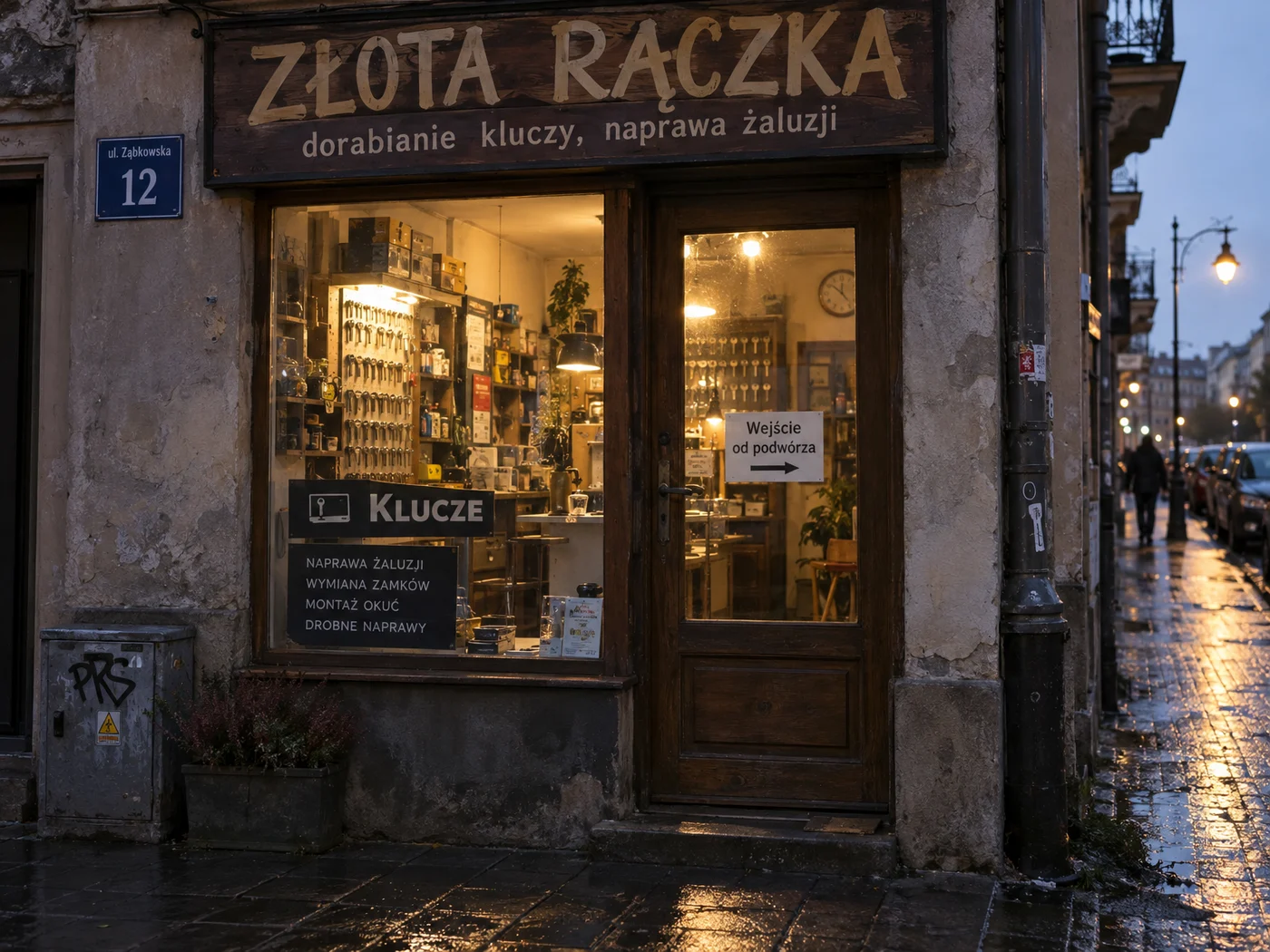
[What]: photo of a small service shop storefront in an old tenement building, early evening after rain. [Style]: realistic photo, warm light from inside. [Format]: horizontal 4:3. [Text]: sign above the door reading “GOLDEN HANDYMAN”, sticker on window “Entrance from courtyard”. No other text.
Here’s what the result looks like with the same model in the API (GPT Image 2.5 Sunburst, “high” quality, October 3, 2026) - we tested it in Polish:
How to Edit an Image Without Starting Over
The most common beginner mistake is writing “make it again, but…”. The model then generates the entire image from scratch and changes things that were good. It’s better to use the editor:
- Select - you mark a section (e.g. face, text, cup on table) and describe the change. Everything else stays unchanged. On mobile: tap the image, choose Select, mark the area and tap Next.
- Comment on image - you click a specific spot and write a note, like in graphic review software.
- @Sketch - you draw a layout or shape by hand, and the model fills in the rest. I described this in the Sketch in ChatGPT article.
- Aspect ratio - you can change the format of a finished image, e.g. from square to 9:16 for stories.
- Undo and redo - each edit is a separate step, so it’s easy to return to a better version.
I measured how much edits can change parts you didn’t touch in a test of eleven comment-based edits.
Transforming Your Own Photo
- Add a photo with the paperclip or drag it into the chat window.
- Write what should change, and specify what should stay: “Change background to beach at sunset. Face, hair and clothing unchanged”.
- If the face comes out different, select only the background in the editor and change only that.
Ready-made prompts for photo transformations are in the articles How to Transform Photos in AI for Free and ChatGPT Prompts for Photos. Remember that OpenAI blocks deepfakes and images that could harm real people.
Limits: How Many Images in Each Plan
| Plan | Images |
|---|---|
| Free | yes, but with low limit and slower |
| Go | according to plan announcement 10 times more than Free |
| Plus | higher limits, “Images with thinking” mode |
| Pro 200 | unlimited (with abuse protection) |
OpenAI doesn’t publish specific image counts for any plan. Numbers like “2-3 images daily in Free” circulating online come from user observations, not official sources. When your limit runs out, ChatGPT shows the time when you can create again. “Images with thinking” mode (the model first writes out the composition, then draws) is only in Plus, Pro and Business. Prices for all plans are in the ChatGPT 2026 Pricing article.
When an Image Won’t Generate
- “Limit reached” - wait until the time shown in the message or upgrade to a higher plan. I described how to check limits in the ChatGPT Limits guide.
- Refusal due to policy - most often with real people, famous characters from movies, and company trademarks. Describe the person without a name or use your own character.
- ChatGPT replies with text instead of drawing - start the prompt with “Create an image:” or go to the Images tab.
- Image won’t load - refresh the page. If the problem affects everyone, check OpenAI service status.
Five Prompts to Get Started
- “Create a square Instagram graphic: flat illustration of a cyclist against a river backdrop, large text ‘Bike to Work’, no other text.”
- “Create a vertical 4:5 poster for a concert at a community center, 1970s style, text ‘Jazz in the Basement, October 25’.”
- “Create a product photo of a mug with my company logo (attached) on white background, soft lighting.”
- “Create an app icon for meal planning: rounded square, green carrot, flat style.”
- “Turn this photo into a watercolor-style illustration, keep the layout and faces.”
Frequently Asked Questions
Is image generation in ChatGPT free?
Yes, in the Free plan you can create ChatGPT Images 2.5 images, but with a low daily limit and slower than in paid plans.
How do I create an image in ChatGPT on mobile?
In the app, type in chat “Create an image: …” or open Images from the side menu. Editing works the same way: tap the image, choose Select, mark a section and describe the change.
What model does ChatGPT use for images?
ChatGPT Images 2.5, which is GPT Image 2.5. OpenAI doesn’t specify whether the chat uses the Sunburst or Flare variant.
Can I use a ChatGPT image for business?
OpenAI’s terms grant you ownership of the output. However, you’re responsible for ensuring the image doesn’t violate others’ trademarks or likeness rights. More in the article AI Images and Copyright.
Are ChatGPT images marked as AI?
Yes. They have C2PA metadata and an invisible SynthID watermark, which platforms and tools can use to recognize AI images.
Google · Your sourcesQuantslant higher in your Google - one clickAdd to preferred sources →Sources and Verification Date
Status verified October 3, 2026.
More on this from QUANTSLANT
 ai tools·Leonardo AI Guide: Models, Pricing & Tokens (2026)Leonardo AI offers its own Lucid models plus GPT Image 2.5, Nano Banana Pro, FLUX. 2 Pro and more - all for one token currency. Free plan: 150 tokens daily.