AI Product Photography: New Backgrounds, Accurate Products
How to use AI to change product backgrounds while keeping the item accurate. Prompts, documentation, and a framework for checking consistency.
👁 116 reads
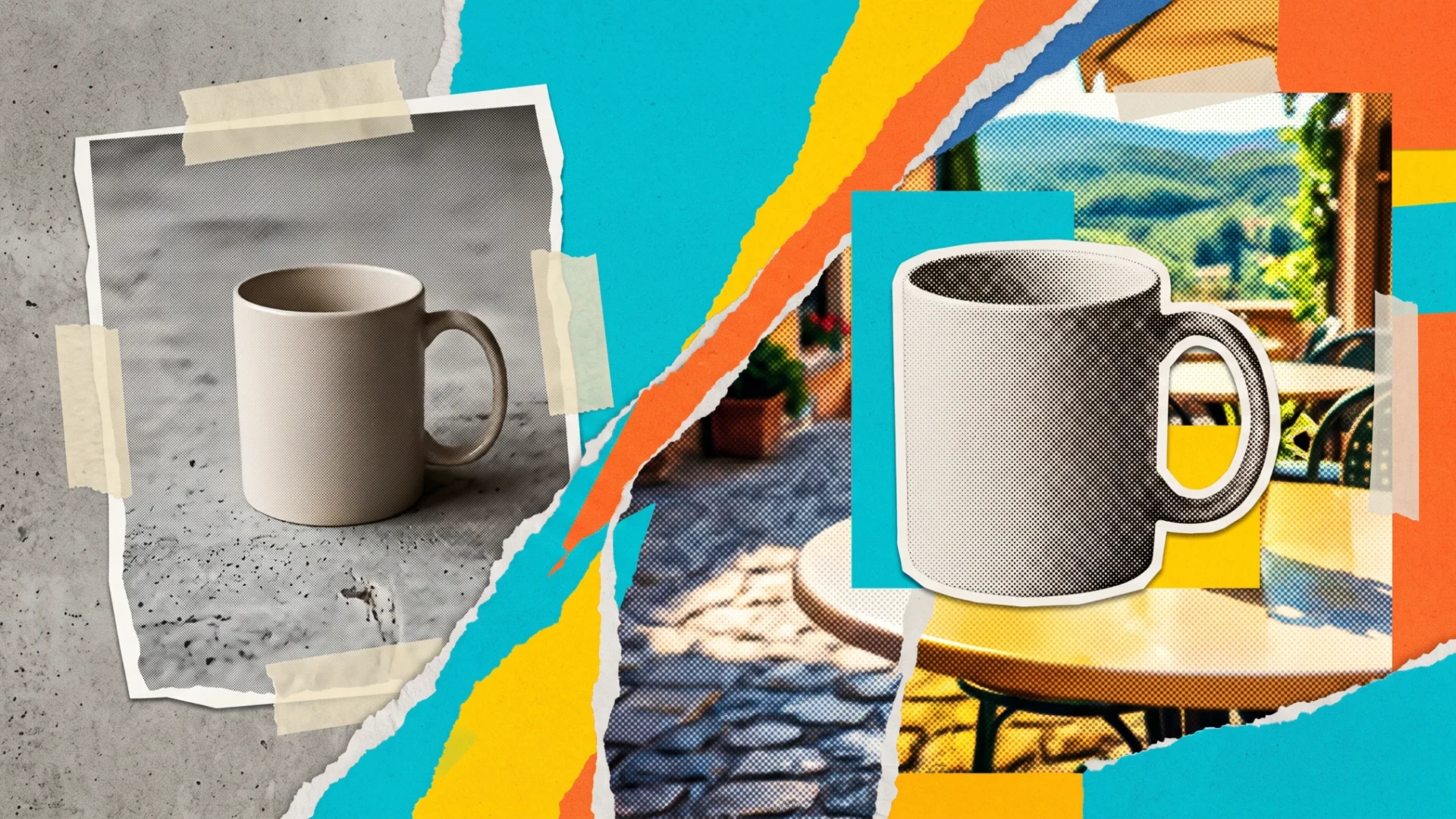
For AI product photography, we’d primarily use it to work on the environment around a real item. We’d start with our own photograph, then change the background or presentation style. We wouldn’t ask a generator to recreate a product purely from description. We need an image showing the item we’re actually offering, with its shape, color, and details.
What Should Stay Accurate
Before editing, we record the product features that must not change. These include labels, proportions, texture, equipment elements, and visible signs of wear. If we’re preparing a photo of a used item, we don’t remove flaws just to make everything look neater.
We separate a photo of a specific item from an illustration of an idea. An imagined arrangement can show how something is used. It shouldn’t suggest that accessories are part of the set if they’re not. That’s why we choose props deliberately and control the description accompanying the image.
Which Tool We’d Consider for Backgrounds
Photoroom describes an AI Backgrounds feature that prepares backgrounds based on description, selected theme, or reference image. The starting point is a source photo. We’d consider it for testing with our own product and simple environment. Source: Photoroom, AI Backgrounds instructions.
We don’t equate a new background with automatic product fidelity. The study “An Evaluation Framework for Product Images Background Inpainting based on Human Feedback and Product Consistency” describes the problem of evaluating product consistency and the fit of generated environments. These are specific criteria we’d include in checking our own image. Source: study on evaluating generated product photo backgrounds.
We don’t transfer the results of this study to every contemporary application. We also don’t provide an effectiveness ranking. We take from it a useful question: did improving the environment’s appearance change the item? We look for answers through comparison with the original.
How We’d Prepare Input Material
- We choose a sharp photo showing the entire product and necessary details.
- We keep the original and a description of elements included in the set.
- We indicate fragments intended for change and areas to preserve.
- We choose a simple background consistent with the item’s character.
- We compare the generated image with the source photograph.
- We check the finished graphic together with the caption and offer description.
With transparent or shiny items, we’d pay more attention to edges and reflections. We don’t consider them unnecessary background. They’re part of the product’s appearance. If editing damages them, we limit the scope of change or choose a different input photo.
Ready-Made Prompts
We apply editing prompts in an assistant that handles images. When using just the background field in Photoroom, we pass it a scene description prepared in conversation. We don’t assume that every application field handles full dialogue.
Preparing Scene Description
Help me prepare a background description for a product photo. First ask about the product type, publication location, and elements included in the set. Wait for a response. Then suggest a neutral environment without additional items suggesting equipment. Return a short description for the background generator and a list of product features I must preserve.Editing Real Photos
Ask me for a product photo and wait for the attachment. Then replace only the background with a light matte surface and calm neutral environment. Preserve the shape, color, proportions, labels, and visible features of the item. Don't add accessories. Don't remove product flaws. If you don't have an image editing tool, say so instead of declaring you'll make the change.Comparison Before Use
Help me compare the original product photo with the edited version. Ask for both images and indication of the original. Check outline, proportions, color, text, equipment, shadows, and reflections. List visible differences and places you can't evaluate. Don't guess the content of small labels. Don't treat more attractive appearance as proof of product consistency.What Not to Expect
- We don’t expect recreation of invisible product detail from description alone.
- We don’t assume that a prompt to preserve a label replaces checking its content.
- We don’t treat a new arrangement as proof of the item’s actual size.
- We don’t accept identical appearance of an entire series without comparing individual photos.
- We don’t use generation to hide features important for evaluating the product.
How We’d Prepare a Consistent Series
Before accepting, we compare the item’s outline at magnification, but we also view the entire frame. A minor background correction can look good up close but disrupt the product’s placement on the surface. We describe the broader editing control process in AI for photo editing. Here we additionally monitor the image’s consistency with the offered product.
After accepting the first image, we record the light direction, substrate type, and framing method. We evaluate subsequent photos next to it. We check whether the product doesn’t look like a different size just because the perspective changed. We also don’t force all items into identical framing if it hides an important feature.
We’d add a logo from an approved file. We describe preparing such a mark in the guide on AI for logos. We’d adapt the publication version to text developed with help from AI for social media. Image and description should talk about the same product.
Before saving, we’d check whether we also have a version without additional text. This allows us to prepare a different frame or material without re-editing the product. We’d keep the source photo together with the accepted graphic, so that during later corrections we don’t compare only successive generations.
We’d choose AI for product photography to change environments and prepare presentation variants. We’d only consider an image correct if it’s faithful to the item. If we can’t confirm an important detail, we return to real photography instead of accepting the generator’s guess.
Google · Your sourcesQuantslant higher in your Google - one clickAdd to preferred sources →Ready-Made Frames to Copy
If you’re looking for specific prompts instead of method, we have separate sets: the same product in ten advertising frames, product in hand, and the same packaging in three price segments.
More on this from QUANTSLANT
 ai tools·Which Work Tasks Can AI Help With? CalculatorCheck which of your work tasks AI can support today. Select your activities and see real AI capabilities. All calculations run locally in your browser.