AI Image Generator: How to Create Images from Text Prompts
We explain how to prepare an image from a description in Firefly or ChatGPT, with ready-to-use prompts and criteria for evaluating generated images.
👁 114 reads
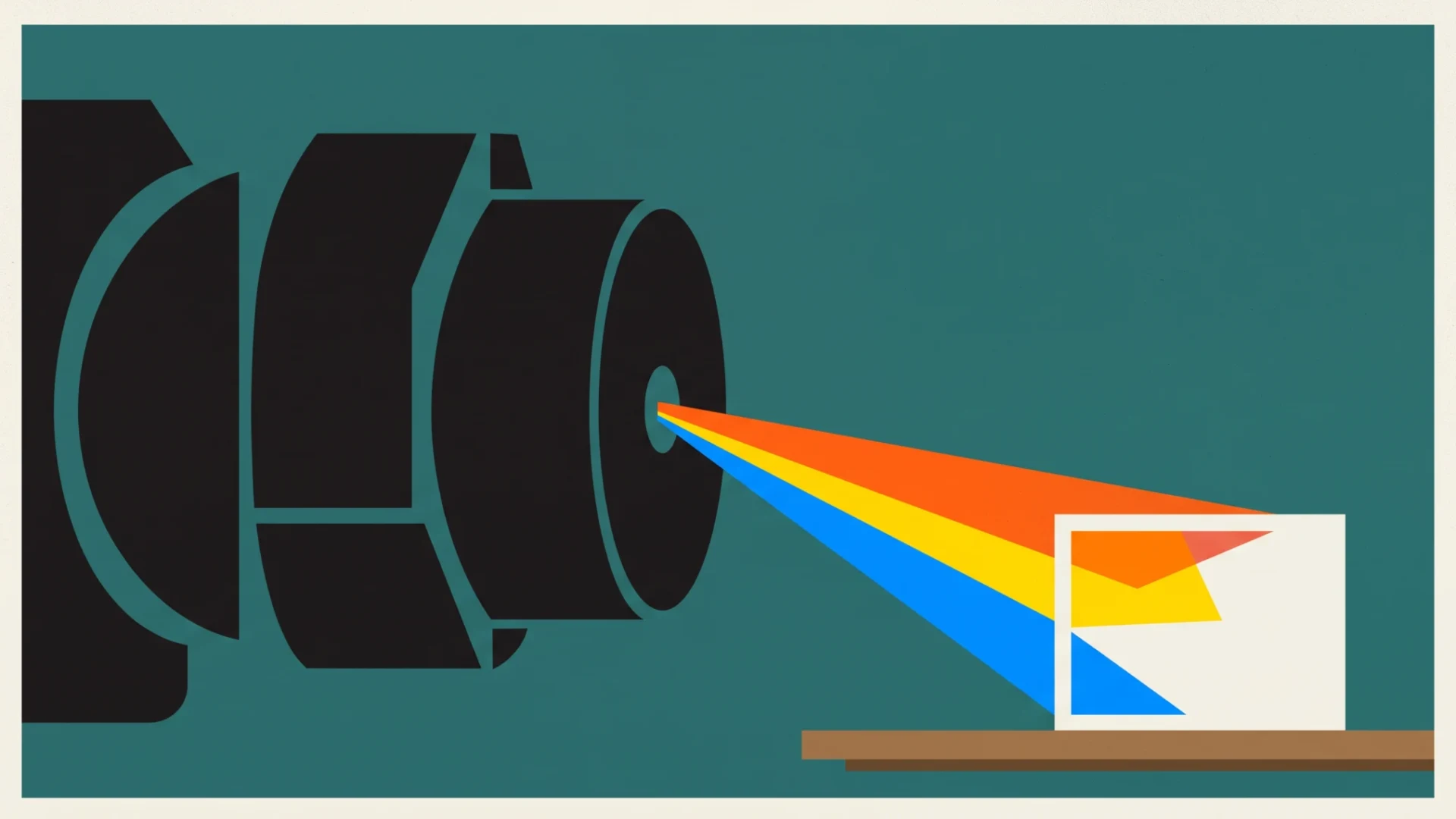
We treat AI image generators as tools for creating visuals from text descriptions. Before choosing an application, we determine whether we need an article illustration, a concept visualization, or a photorealistic image. This distinction matters to us. Realistic appearance doesn’t mean the depicted person, product, or place actually exists. Below, we show how we would prepare a prompt and evaluate the result.
Camera Photo vs Generated Image
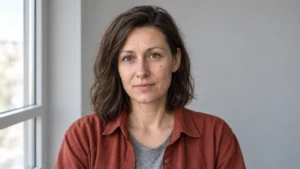
When we write about image generators, we include photorealistic visuals. We don’t treat them as event documentation. For a conference report, we would choose actual photographs. For an article about office design ideas, we could prepare a clearly described visualization.
We also separate generation from editing. If we have a photo of our own product and want to change the background, we start with that photo. We don’t ask the model to recreate the item from memory. If we need an imaginary scene for illustration, we can start with just a description.
Which Tools We Would Consider
Adobe Firefly describes creating images from text. We would consider it for tasks where we want to specify the subject and appearance of a scene. We find confirmation of features in the manufacturer’s documentation. We don’t draw conclusions about quality superiority over other applications from this.
Feature source: Adobe, “Adobe Firefly overview”, helpx.adobe.com
The second example is ChatGPT. OpenAI’s documentation describes image generation and editing, as well as attaching reference material. We would consider this route when we want to discuss corrections in conversation. We would check feature availability on our own account.
Feature source: OpenAI, “Image generation”, learn.chatgpt.com
We don’t create rankings based on names. For comparison, we would prepare the same scene and criteria. We’re interested in adherence to description, usable framing, and the ability to correct results. We don’t need a winner in all categories. We need an image that fits our material.
How We Would Describe an Image Before Generating
We start with a sentence explaining the graphic’s purpose. Then we indicate the main object and its position. We add surroundings, type of lighting, and needed space for text. We skip terms like “amazing” or “most beautiful.” They don’t say what specifically should appear.
- We choose a subject that can be recognized without additional explanation.
- We specify what should attract attention and what should remain in the background.
- We describe the frame: close-up, overhead view, or wider scene.
- We indicate lighting and materials if they matter for the project.
- We exclude text and brand marks when they’re not needed.
- We view the result in its intended location, including as a small thumbnail.
We start our own evaluation with composition. Is the main object clear? Does the background compete with the subject? Only after accepting the layout do we move to minor corrections. We don’t refine the surface of an object we’ll ultimately crop out of the frame.
Prompt for Article Illustration
Create a photorealistic image for an article about remote work.
Show a small home desk by a window, open notebook, and lamp.
Place the main object on the right side of the frame.
Leave calm, bright space on the left for a title to be added later.
Daylight, neutral colors, ordinary home furnishings.
No people, readable text, or brand marks.
We treat this description as a task proposal. Not as a promise of a specific result. If we received too many decorations, we would ask to remove specified items. If lighting were the problem, we would correct precisely that element.
Prompt for Preparing a Variant
Prepare a variant of the accepted image.
Keep the desk layout, notebook position, and empty space on the left.
Change the time to a cloudy morning and limit warm tones.
Don't add any objects.
If you can't preserve the indicated element, note this in your response.
After the change, we would compare the entire scene with the previous version. We wouldn’t limit our check to the element mentioned in the prompt. We would also keep the earlier file so we can return to the accepted composition.
What Not to Expect
- We don’t expect proof that the shown place or event is real. We use generated images as creations.
- We don’t assume flawless text. Adobe indicates problems with text and symbols in Firefly’s limitations documentation.
- We don’t assume accurate appearance of a specific product without comparison to source material.
- We don’t expect that simply increasing size will remove composition or anatomy errors.
- We don’t treat the availability of a download button as an answer to all questions about image usage.
Source of text limitations: Adobe, “Known limitations in Firefly”, helpx.adobe.com
What We Would Check Before Using Graphics
First, we view the enlarged image. We check object edges, reflections, shadows, and repeating elements. With figures, we pay attention to hands, face, and contact with surroundings. Then we reduce the graphic. We check whether its subject is still readable.
We separately evaluate consistency with content. For an article about a specific device, we wouldn’t choose an illustration suggesting a function the device doesn’t have. For an interior design guide, we wouldn’t add a caption suggesting we’re showing a completed project. The image description should match its origin.
We save the prompt and accepted file. If we later need a similar illustration, we have reference material. We don’t need to recreate decisions from memory. For a series of graphics, we also note common features: palette, light direction, and framing method.
We would choose an AI image generator to create an illustration or visualization that we don’t need to present as an authentic photograph. To start, we would compare Firefly and ChatGPT on our own task. We would consider a good result to be an image consistent with content, correct in details, and ready to use in the planned frame.
Related Topics
If you’re looking for a neighboring application, we have separate articles: AI for photo editing and AI video generators. Each has a section on tool limitations, because that usually determines whether it’s worth implementing something.
Ready-to-Use Prompts for Specific Applications
Above we describe the method. If you prefer to start with ready-made examples, we have series with specific prompts to copy: eight prompts for product photos, one face in ten emotions, and interior design in six styles.
Google · Your sourcesQuantslant higher in your Google - one clickAdd to preferred sources →Text in Graphics
The most common mistake with graphics containing text is garbled characters. We tested how models handle this and showed ready-made prompts: text in AI graphics. Separately, we compared two graphics models on the same frame.

More on this from QUANTSLANT


 guides·AI Photo Editing: Change Backgrounds and Remove ObjectsHow to use AI for controlled photo edits: background replacement and object removal with specific prompts and quality checks.