How to Animate Photos with AI Without Losing Their Character
Learn how to add subtle motion to portraits, landscapes and interiors while preserving the details that make a photo feel authentic.
👁 113 reads
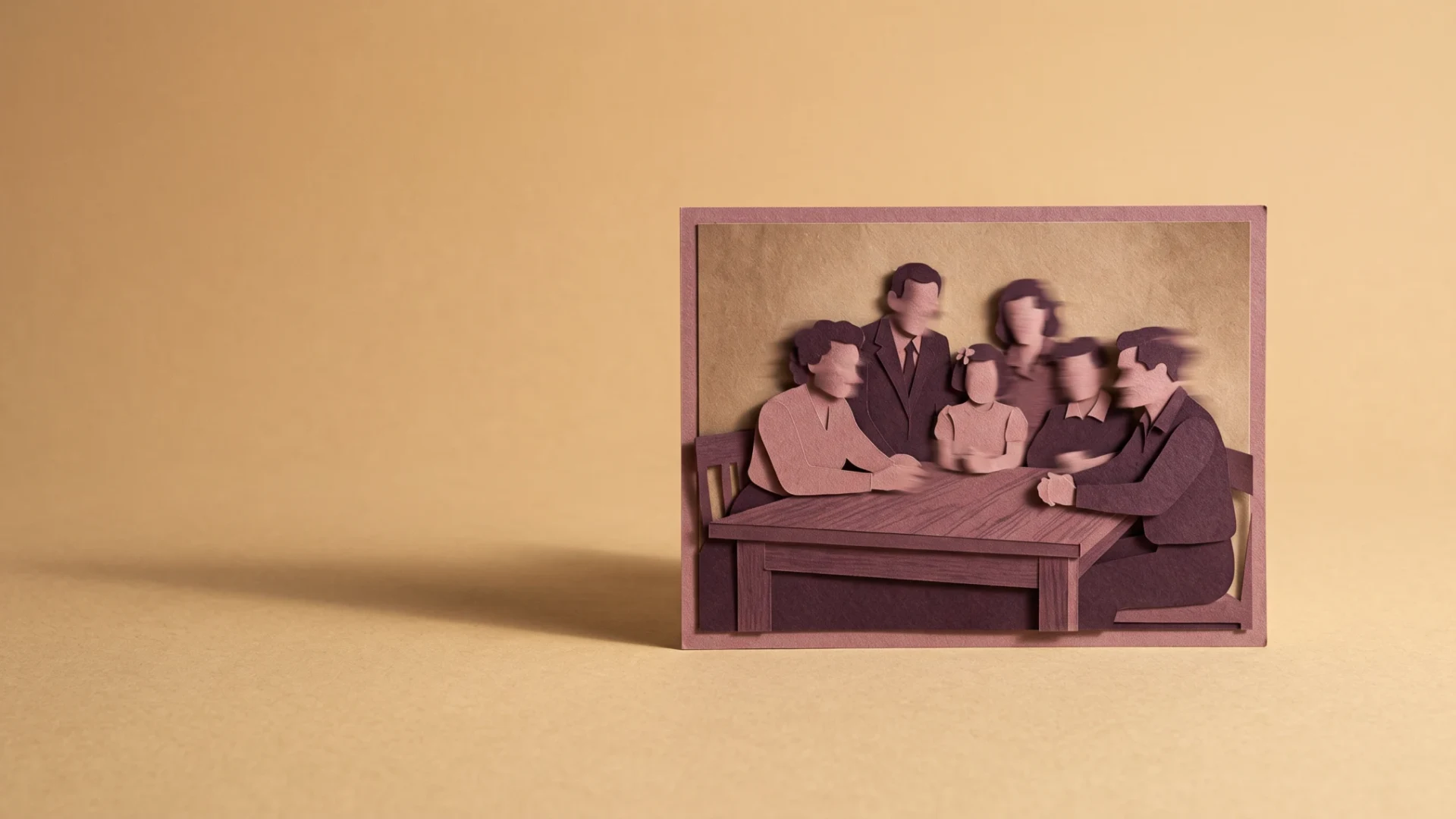
AI photo animation adds motion to a scene in a still image - a subtle glance, rippling water or moving leaves, for example. A small change is often the most convincing: it preserves the photo’s character instead of trying to tell an entire story in a few seconds.
Start with the mood of the photo
Not every photo needs a smile, a turn of the head or camera movement. An image can work because of its stillness, symmetry or a moment frozen in time. Before adding animation, decide what you want to preserve. If a portrait feels focused and serious, a broad smile can change its meaning completely.
For a landscape, consider which elements could move naturally. Water, grass, clouds and branches offer good starting points. A building or rock should usually stay still. You don’t always need to move the whole frame. Sometimes a moving curtain is enough to give a still image a sense of time and depth.
Think about your audience, too. A subtle animation for a personal album calls for a different treatment from a more noticeable effect for a short social post. The goal isn’t to make the motion intense; it’s to suit the context. A small movement may read clearly on a large screen but be almost unnoticeable on a phone.
Choose motion that fits the photo
The easiest place to start is with movement suggested by the image. Someone looking to the side might shift their gaze slightly. Steam might rise from a hot drink. Gentle waves might disturb reflections on the water. It’s much harder to recreate an action the photo doesn’t show enough to support, such as a full turn or someone emerging from a room that isn’t visible.
A photo shows just one view. If you ask a character to turn their back, the generator has to invent the unseen parts of their clothes and body. It might do so convincingly, but that doesn’t mean the result is accurate. If preserving a particular person or place matters, limit how much the AI has to guess.
| Photo type | Suggested motion | What to watch |
|---|---|---|
| Adult portrait | A subtle glance and gentle breathing | Facial features and natural-looking eyes |
| Lake view | Small waves and shifting reflections | A stable shoreline and horizon |
| Flowers in a vase | A slight movement of the petals | The number of flowers and the shape of the vase |
| Street scene | Subtle changes in light or moving leaves | Building geometry and signs |
| Interior | A moving curtain | Furniture and walls staying still |
Prepare your photo for animation
Choose the best available copy. A screenshot from a messaging app may include compression, interface elements and cropped edges. If you have the original file, start there. When scanning a printed photo, crop out the table frame or any part of a hand that accidentally made it into the shot. The generator doesn’t need to know that these details came from the way the photo was captured.
Don’t try to fix everything at once. Heavy face smoothing or aggressive sharpening can change the image before you animate it. If the result later looks less like the original, it will be hard to tell whether the cause was the photo editing or the animation. Keep the original and work on a separate copy.
Decide on the crop in advance. For a portrait, leave some room around the head. For a landscape, don’t crop out the element you want to move. If you plan to animate the image vertically, preview it in that format first. Cropping the finished video later could remove the very detail that gives the scene its meaning.
Three AI photo animation prompts to adapt
The first example is for an adult whose likeness you’re allowed to use. It doesn’t call for speech or expressive gestures. The aim is to preserve the portrait’s character, so the prompt keeps the movement small. Don’t present the finished video as authentic footage of the person. The prompt below is an English translation of the original Polish example, not a prompt retested in English.
A person in the photo stays in the same position. They subtly shift their gaze toward the camera and breathe naturally. Neutral expression, no speaking or broad smile. The camera stays still, and the clothing and background remain unchanged.
The second prompt animates the surroundings while preserving their structure. Check the shoreline, the number of boats and the outlines of the buildings. Rippling water shouldn’t make stationary elements appear to float along with it. This is a common kind of error that can be easy to miss in a small preview. The prompt below is an English translation of the original Polish example, not a prompt retested in English.
The calm surface of the lake in the photo ripples gently. Reflections of light move naturally. The shoreline, trees and mountains remain still. Don’t move the camera or add new objects. Preserve the time of day and the photo’s colors.
The third example works well for an interior. It animates one element instead of moving everything in the frame, making it easier to check whether the scene’s geometry holds up. If the curtain moves too much, adjust just the intensity rather than rewriting the entire prompt. The prompt below is an English translation of the original Polish example, not a prompt retested in English.
A light curtain by the window moves very gently in a faint breeze. The furniture, pictures and plants stay in place. The camera remains steady. Preserve the natural light, calm pace and room layout shown in the photo.
How to tell if an animation works
A successful animation doesn’t have to be dramatic. It should preserve the photo’s most important qualities, and the motion should feel like part of the scene. For a portrait, check the eyes, mouth and jawline. For architecture, check vertical and horizontal lines. For plants, check the number of leaves and how they connect to the stems.
Review the result in two ways. First, watch the whole clip without pausing to judge the overall impression. Then check a few frames for detail. A video may look good as a still image but have unnatural flickering. It may also play smoothly while the face gradually starts to look like someone else.
- Is the subject of the photo still recognisable?
- Is the right element moving?
- Do the stationary parts of the frame stay stable?
- Does the motion feel natural?
- Is the ending usable?
How to fix an artificial-looking result
First, reduce the amount of movement. A forceful head turn combined with a smile may be harder to generate than a calm shift in gaze. Don’t try to rescue the result by adding words such as “photorealistic,” “perfect” or “professional.” They don’t explain what needs to change. Describe the problem directly.
If the background bends, limit camera movement. If the face loses its resemblance, choose a clearer photo and use less motion. If the scene introduces new objects, simplify the prompt and specify which elements should stay still. Keep successive versions so you can check whether a change helped instead of relying on memory.
Sometimes the best choice is to leave the photo as it is. That’s especially true when its value comes from its authenticity or from a specific moment. You can include it in a video with a subtle pan during editing, without generating new facial expressions or actions.
FAQ
Does AI photo animation preserve a person’s face?
It can preserve a likeness, but there’s no guarantee it will be identical. Check several moments in the video, particularly when the head turns or the expression changes. If likeness is essential, reject any result that alters the person’s features.
Can I animate an old photo?
You can start with a scan or a photo of a print, but the quality and permitted uses depend on the material and the tool. Don’t present an animation as authentic footage that has been rediscovered.
Does an AI photo animation need a voice?
No. Movement in the water, a plant or a person’s gaze may be enough. Add a voice only if it serves the video’s purpose. Don’t attribute words to the person in the photo that they never recorded.
How can I animate a photo with AI for free?
Why does the photo warp during animation?
The generator may change the geometry from frame to frame. Try a stationary camera, less movement and a clearer image. If fixed elements still warp, choose another version or leave the photo unanimated.
Related guides
All Higgsfield guides: pricing, free plan, Soul, MCP, Genjutsu and more in one place - Higgsfield AI guide 2026
 Viggle AI: Animate Photos and Create Memes with AIAI Tools
 Vidu Q4 Image to Video: Prompts, API, and Full WorkflowGuides
 Automate Your Weekly Newsletter Without Losing Your VoiceGuides
The link to Higgsfield is a partner link: if you buy through it, QUANTSLANT earns a commission and you pay the same price. It has no influence on the content, including where the coverage is critical.
More on this from QUANTSLANT
 ai tools·Gemini Agent: Google’s Universal Work Agent, Pricing & FeaturesGoogle unveiled Gemini agent: an autonomous work agent that runs in the background, coordinates tools, and collaborates as a teammate across Workspace.