Ideogram 4.5 Image Editing: 10 Before & After Examples
10 real edits in Ideogram 4.5: label changes, banner translation, menu prices, time of day, text removal. Precise mode vs regular mode tested.
👁 124 reads
We ran ten image edits in Ideogram 4.5: label change, autumn to winter, vegetarian dish, banner translation, menu price increase, new hat, brand recolor, time of day shift, product placement, and text removal. Precise mode leaves 79 to 98.5% of pixels untouched and works best for text swaps, while regular mode handles mood changes across the entire scene better. Average score: 4.2 out of 5, with the most common error being partially completed changes.
Editing matters more to us than generation from scratch, because we rarely need an image from zero in real work. More often you need to fix a price, translate a banner, or adapt a photo to the season. For each example we show the before and after image, the prompt, the precision mode, and what changed versus what broke when it shouldn’t have.
How We Tested Ideogram 4.5 Editing
- Model: Ideogram 4.5 (released September 30, 2026), via fal.ai API, endpoint
ideogram/v4.5/edit. - Source images: frames generated earlier by
ideogram/v4.5in our galleries of photography, brands, and projects. - Quality: “high”, no mask, changes described with words only.
- Precision (
edit_precision): “high”, meaning Precise Edit, which should leave unchanged pixels untouched, or “regular”, which lets the model redraw more. - One edit per prompt, no retries.
- Date: October 1, 2026.
- Cost: editing costs the same as generation on fal.ai, by quality tier: very_low $0.008, low $0.03, medium $0.06, high $0.22. 10 high-quality edits cost $2.20.
- Measurement: we compared each pair pixel by pixel and calculated what percentage of pixels remained practically untouched (difference up to 2 out of 255).
Ideogram understands commands in Polish too, but we wrote them in English to make the test reproducible. Polish and German text that should appear on the image is given in quotes inside the prompt.
1. New Label and Juice Color
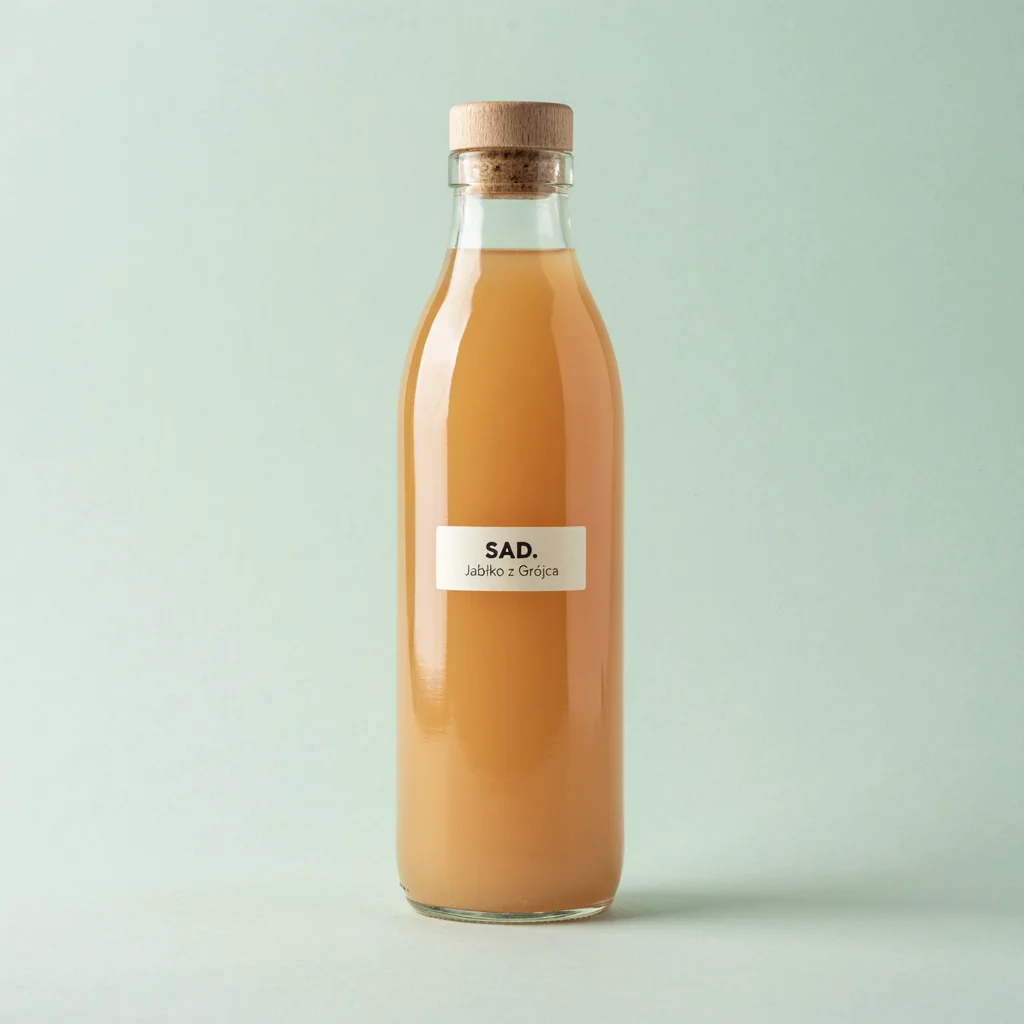
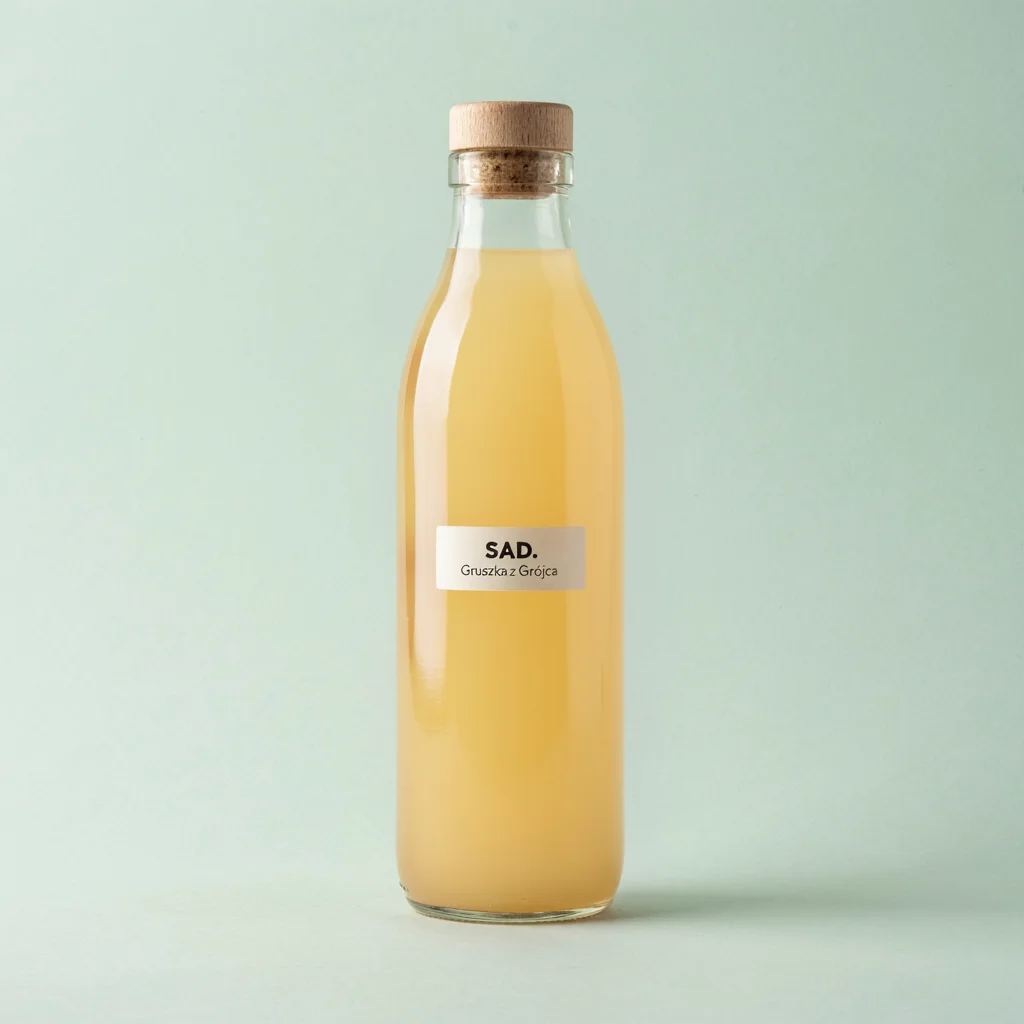
Change the label text to "SAD. Gruszka z Grójca" and make the juice pale yellow like pear juice. Change nothing else.- Mode: high (Precise Edit), 84% of pixels untouched.
- What changed: text now reads “Gruszka z Grójca” (Pear from Grójec) with correct Polish diacritics, same typeface and size, and the juice turned pale yellow.
- What broke: practically nothing. The space between “Gruszka” and “z” is minimally narrower than the original.
Textbook product edit. This is how you create flavor variants from one photo without a new shoot.
2. Winter on the Tram
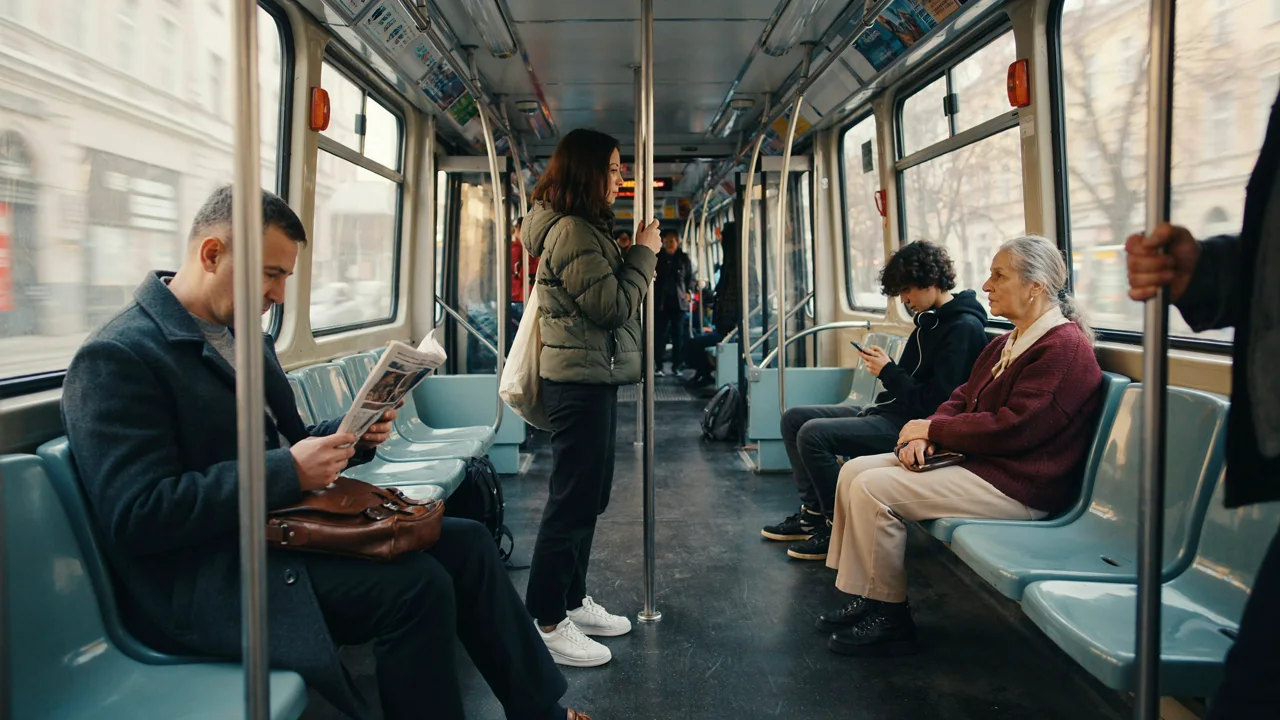
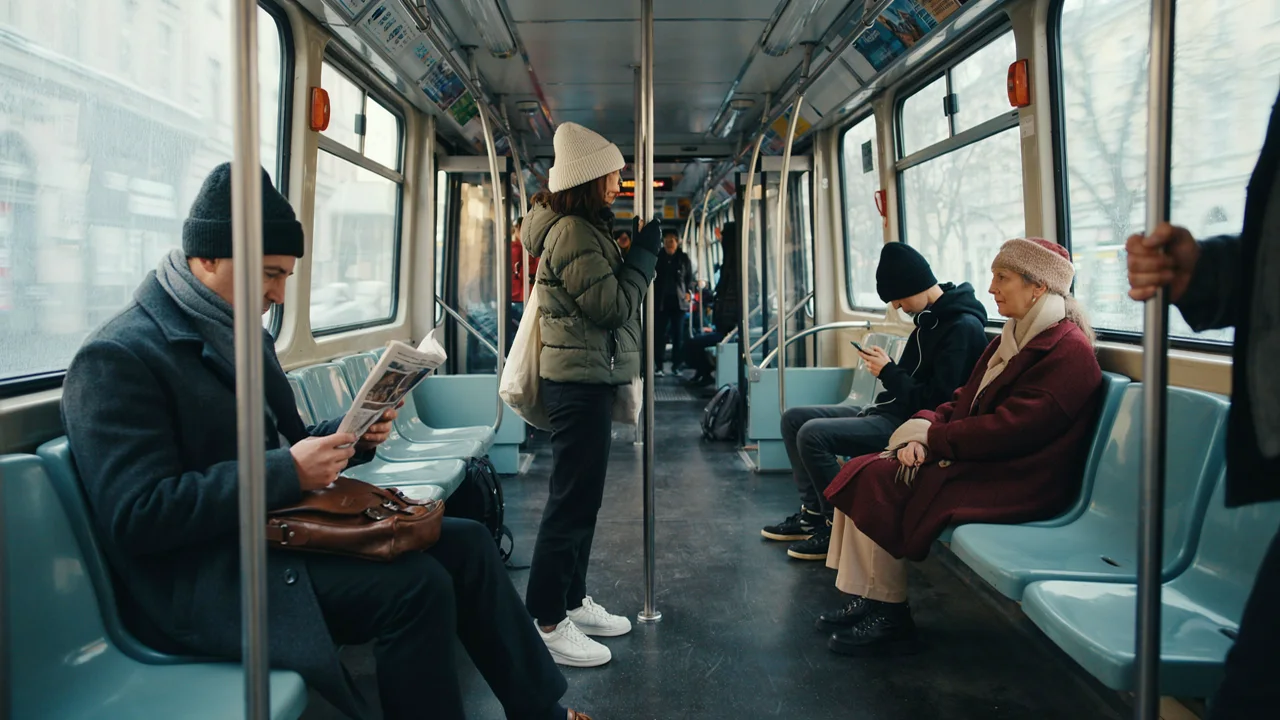
Make it a snowy winter morning: people wear winter coats and hats, snow visible through the tram windows. Keep the composition identical.- Mode: regular, 13% of pixels untouched.
- What changed: all passengers got hats, scarves or gloves, the older woman got a winter coat, and faces and poses stayed the same.
- What broke: outside the windows there are still bare trees and a gray street, no snow at all. The lighting didn’t change either.
The model executed half the instruction, the part about people. The background needs stronger description, for example thick snow on the street and rooftops outside, snowflakes on the window glass.
3. Cauliflower Instead of Pork Chop
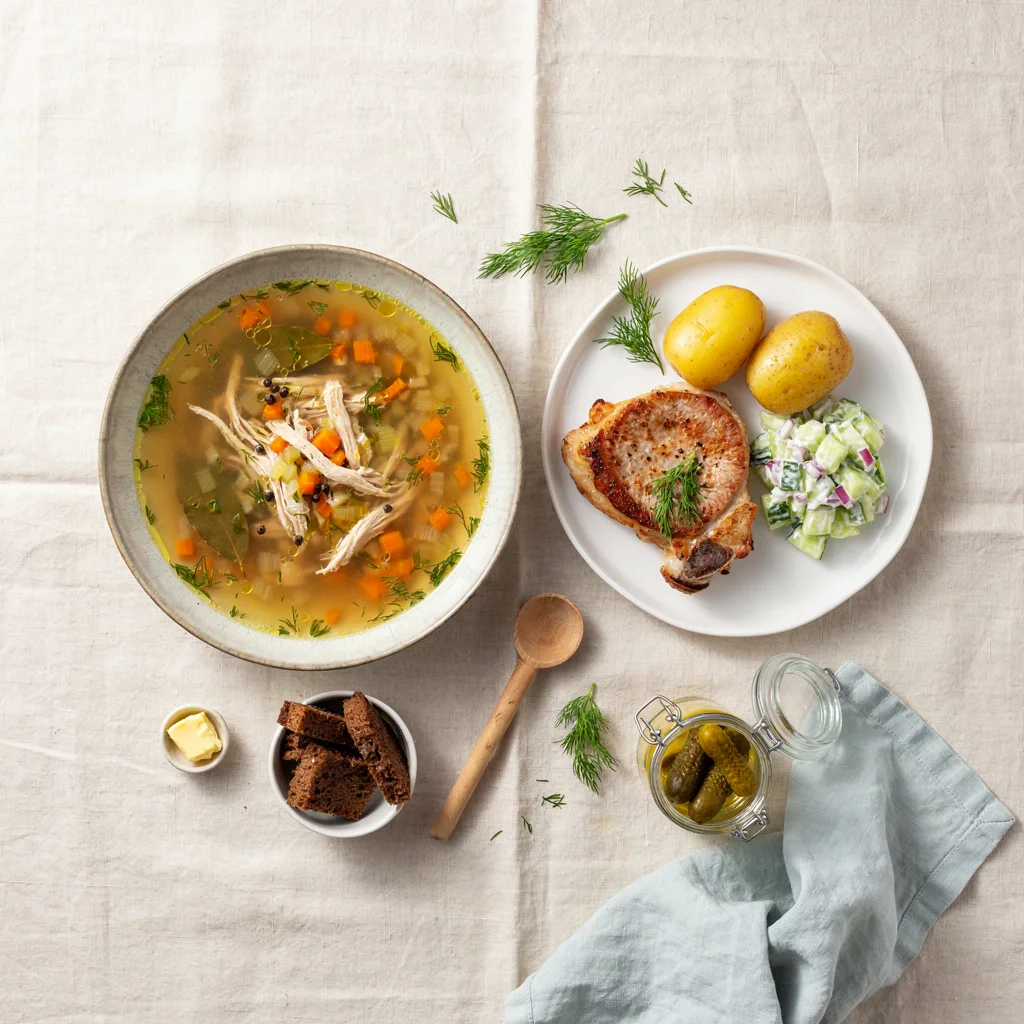
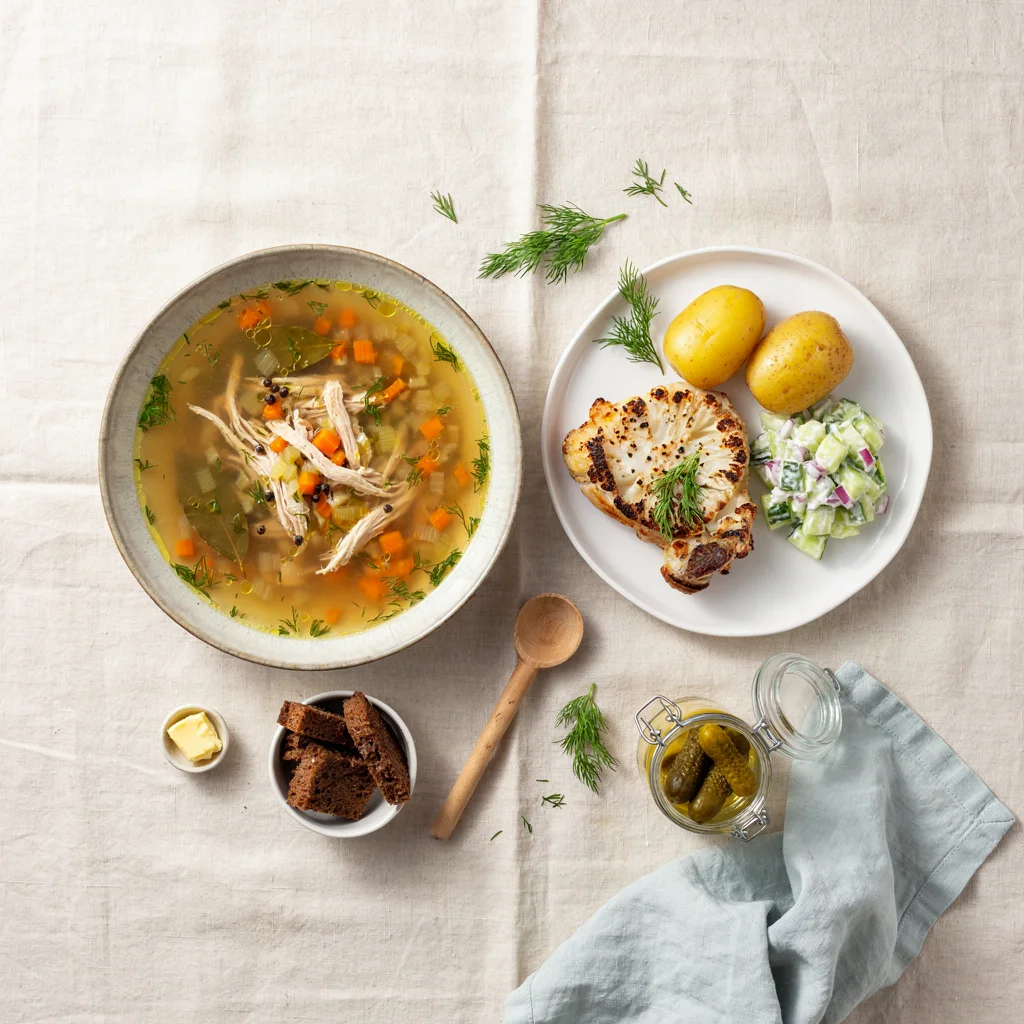
Replace the pork chop with a grilled cauliflower steak. Change nothing else.- Mode: high (Precise Edit), 96% of pixels untouched.
- What changed: a grilled cauliflower slice with dill sits on the plate in the same spot as the chop.
- What broke: the cauliflower kept the outline of the chop including the dark piece of bone at the bottom, which now looks like a burnt corner.
Precise Edit sticks to the shape of the replaced object. If the new object has a different shape, add remove the bone too, the cauliflower steak has its own round shape.
4. Banner in German
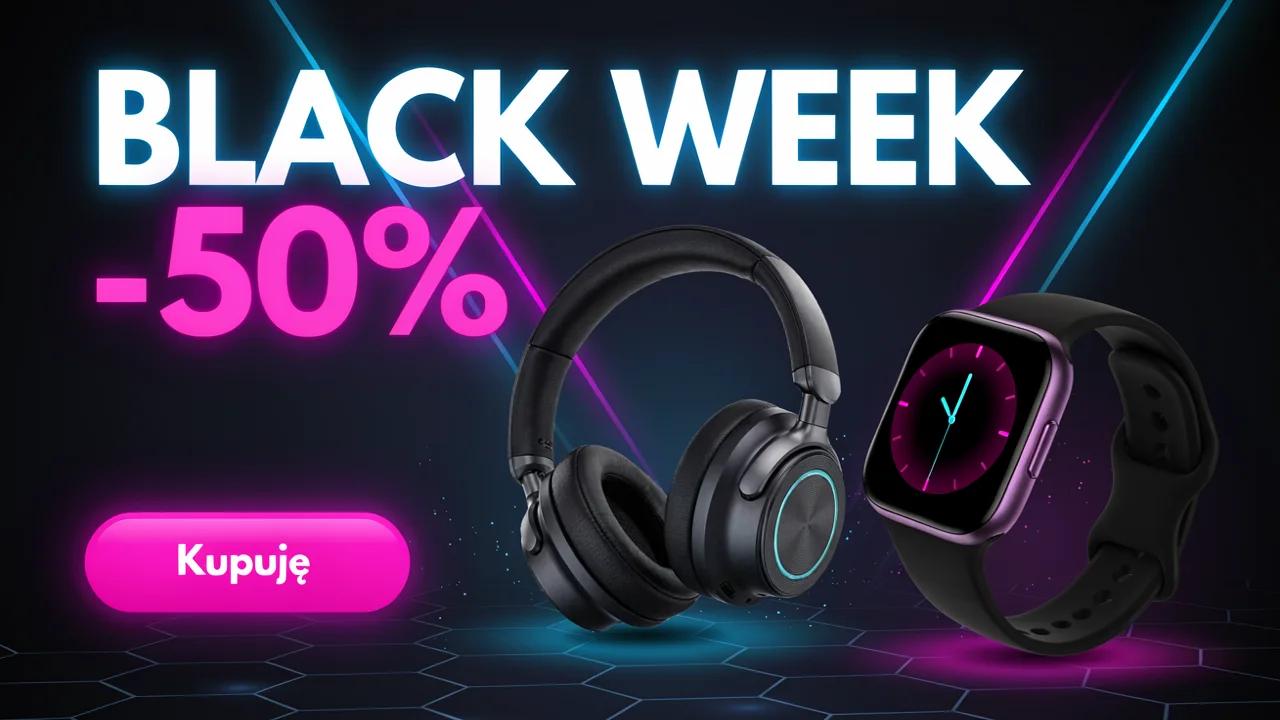
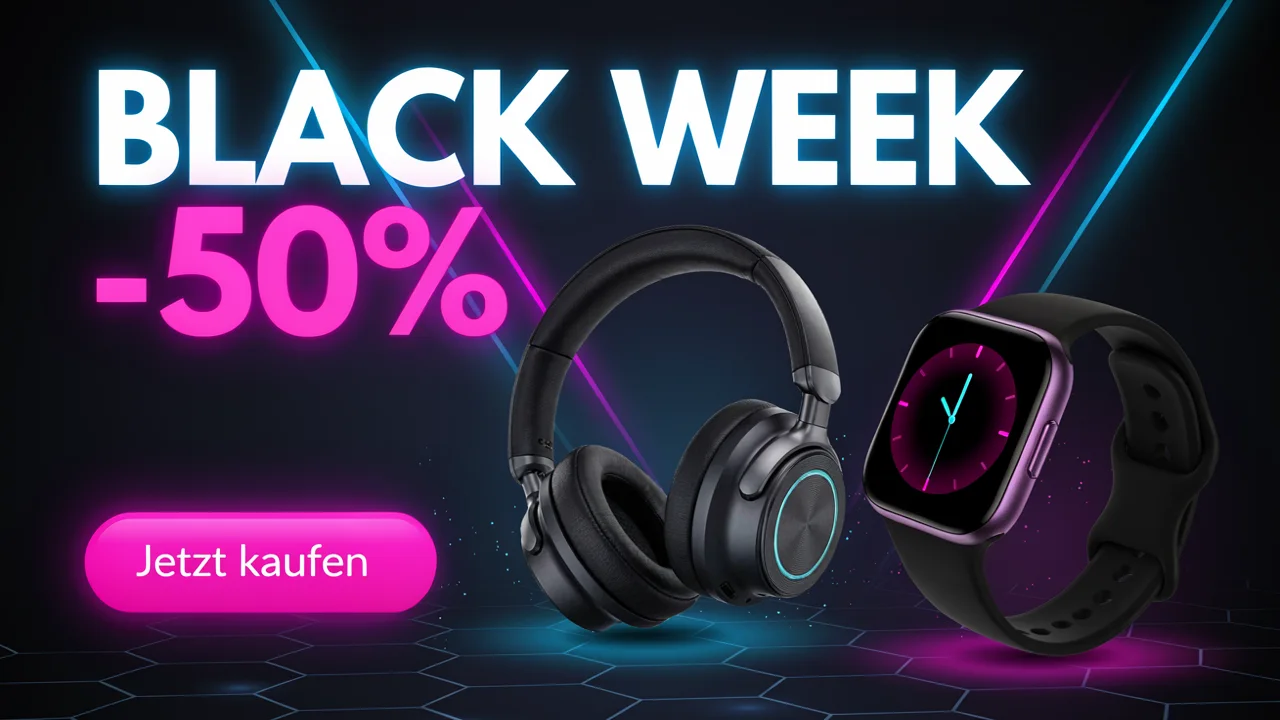
Translate the banner to German: "BLACK WEEK -50%" stays, button text becomes "Jetzt kaufen". Change nothing else.- Mode: high (Precise Edit), 96% of pixels untouched.
- What changed: button now reads “Jetzt kaufen” and is slightly wider to fit the longer text.
Campaign localization works, but you should add same bold font weight as the original button.
5. Raise Every Menu Price
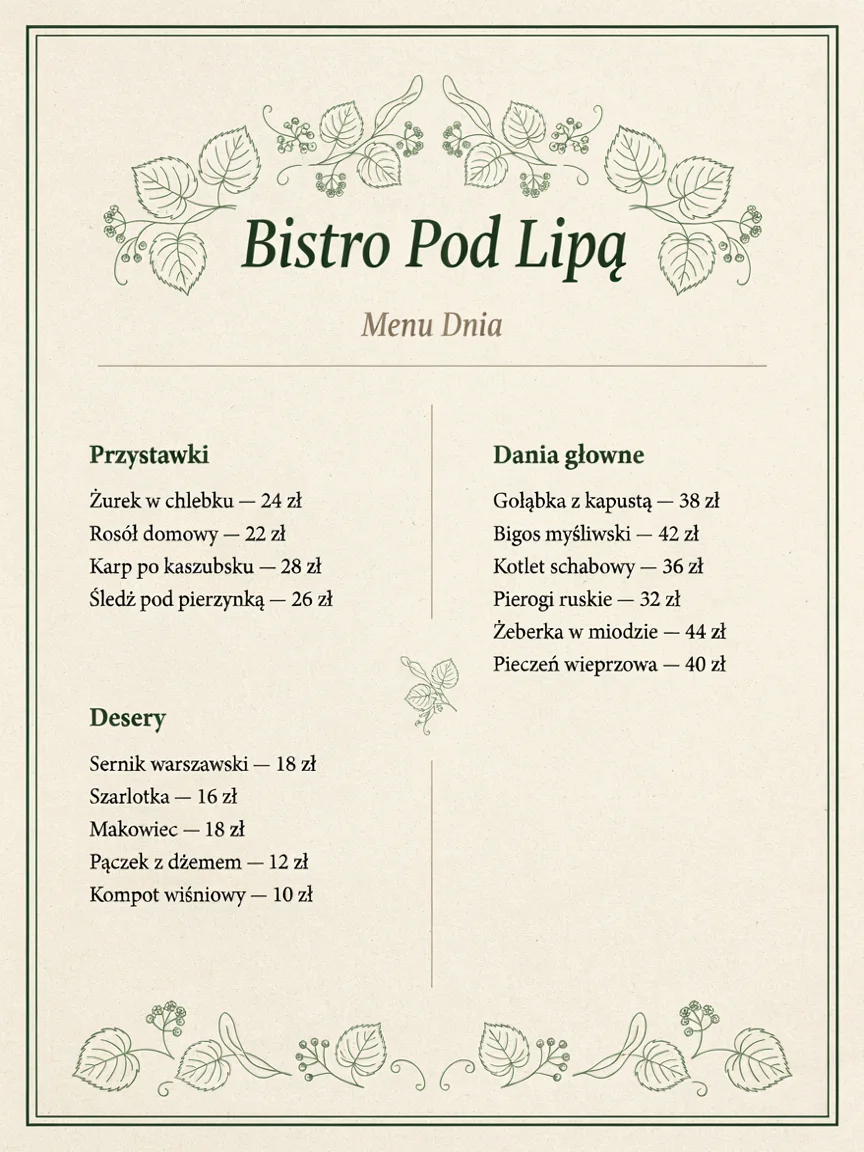
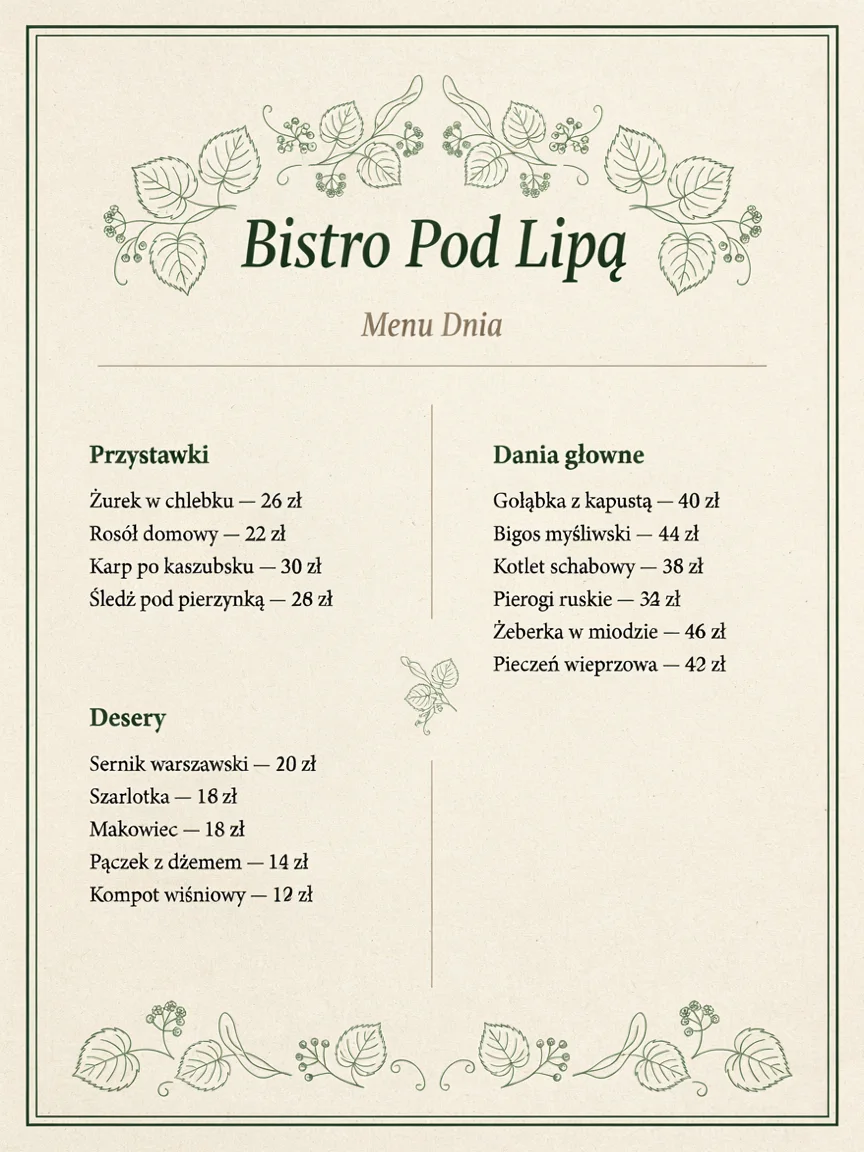
Increase every price on the menu by 2 zł, keep the same font and layout. Change nothing else.- Mode: high (Precise Edit), 98.5% of pixels untouched.
- What changed: 13 out of 15 prices increased by exactly $2, in the same typeface.
- What broke: “Rosół domowy” (Homemade broth, $22) and “Makowiec” (Poppy seed cake, $18) remained unchanged. In the pierogi price, digits “2” and “4” overlapped, and several new digits have a slightly different shape than the rest.
The trickiest edit in the set, because the model has to calculate, not just swap text. It’s safer to specify each new price explicitly, for example "Rosół domowy - 24 zł", and check the entire menu after editing.
6. Highlander Hat
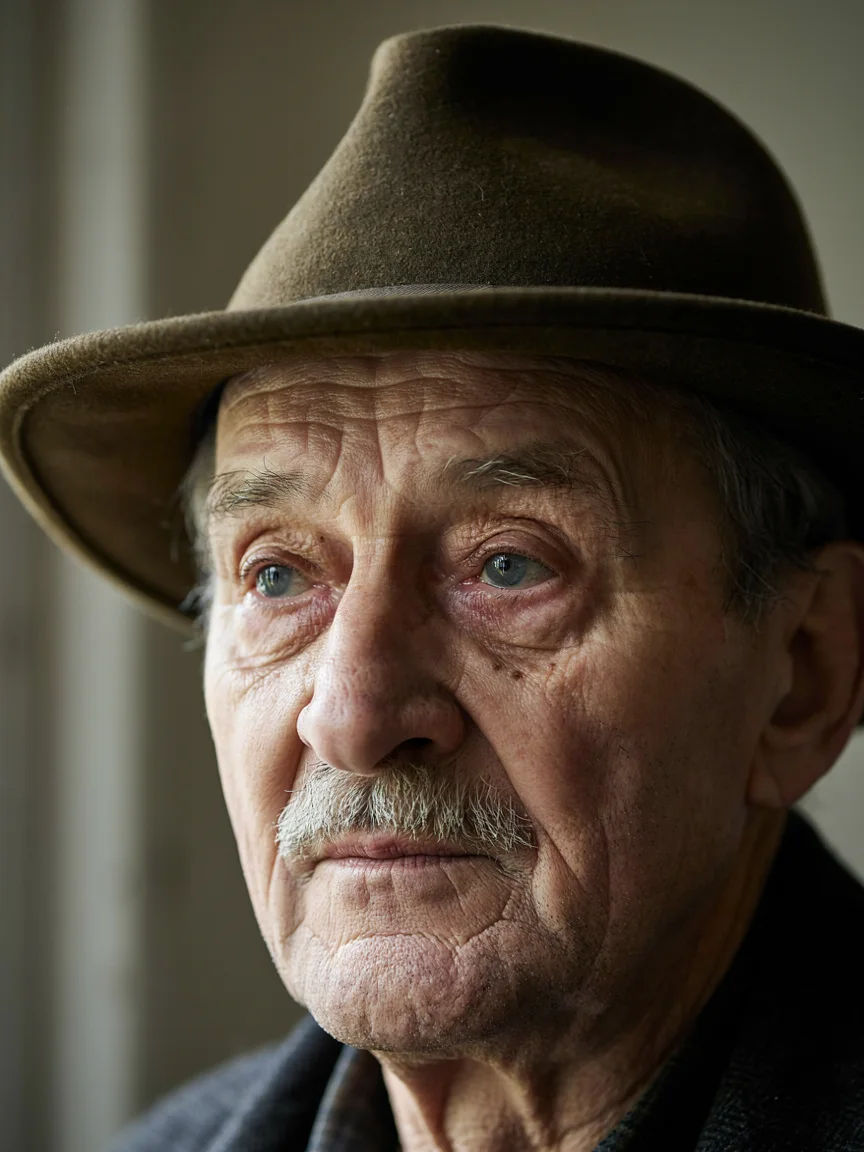
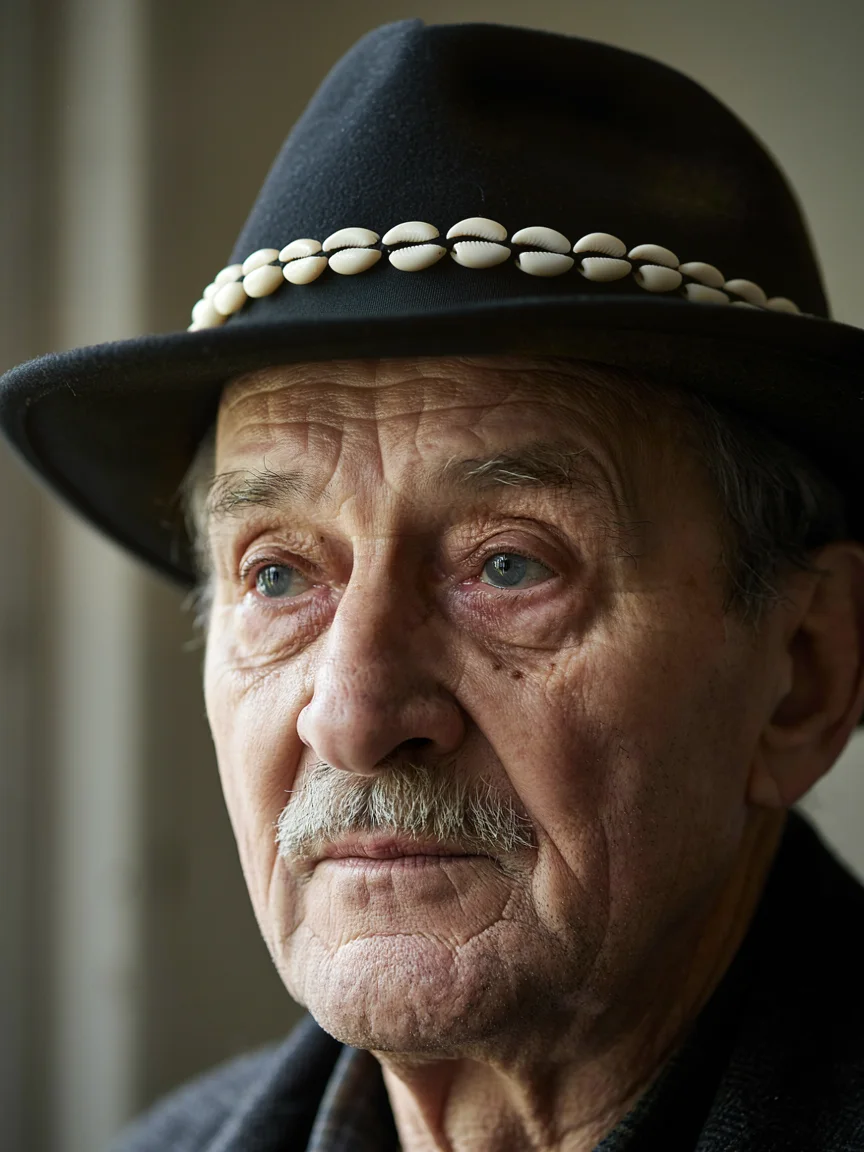
Replace the felt hat with a traditional highlander hat with small shells on the band. Keep the face identical.- Mode: high (Precise Edit), 79% of pixels untouched.
- What changed: black hat with a band of white shells, and the face, wrinkles and gaze remained identical.
- What broke: the crown of the hat is tall like a fedora, while a real highlander hat has a low, flat crown. The shells are too large.
The face survived unchanged, which is most important for portraits. You can refine the shape by adding low flat crown, narrow brim, many tiny cowrie shells.
7. Brand from Terracotta to Green
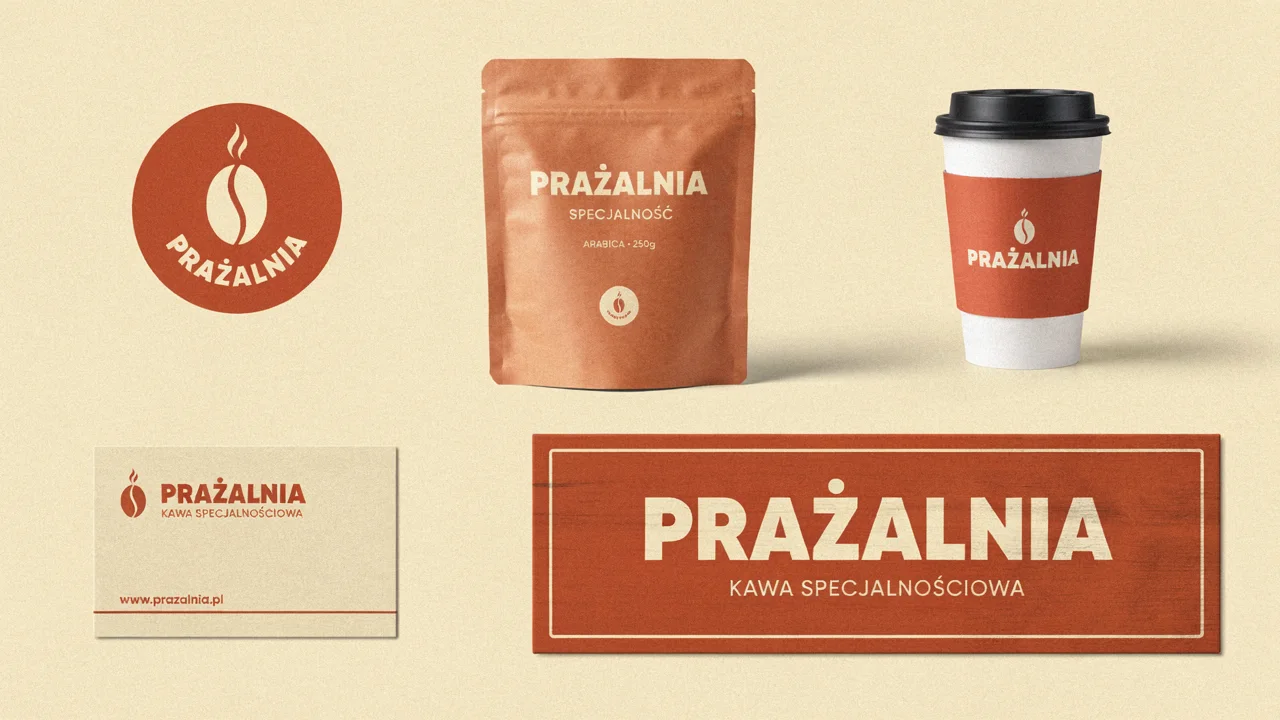
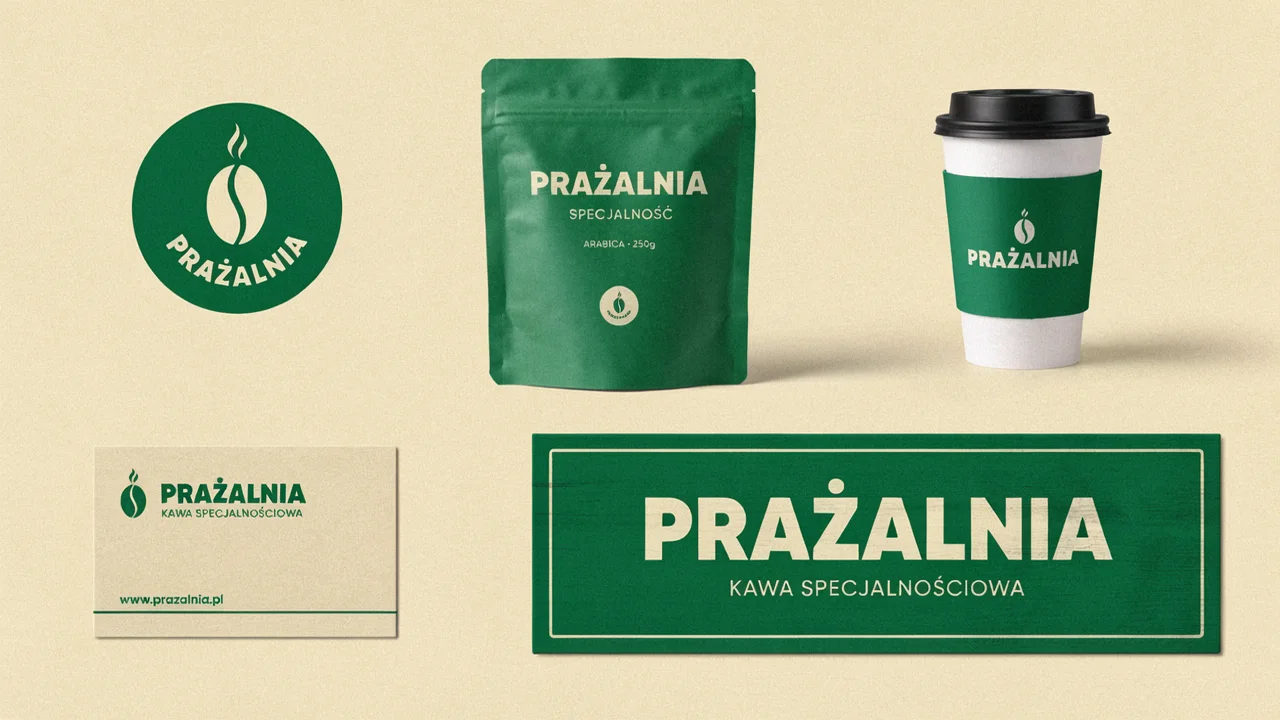
Recolor the whole brand system from terracotta to deep forest green, keep every element, text and layout identical.- Mode: regular, 12.5% of pixels untouched.
- What changed: logo, bag, cup sleeve, business card text and sign are now in deep green.
- What broke: nothing noticeable. Even though the model redrew almost the entire image, all text with Polish diacritics is identical, and the cream background stayed cream.
Best edit in the test. Regular mode allowed changing the color across the entire board at once, and the text didn’t suffer.
8. Building in Sunlight Instead of Blue Hour
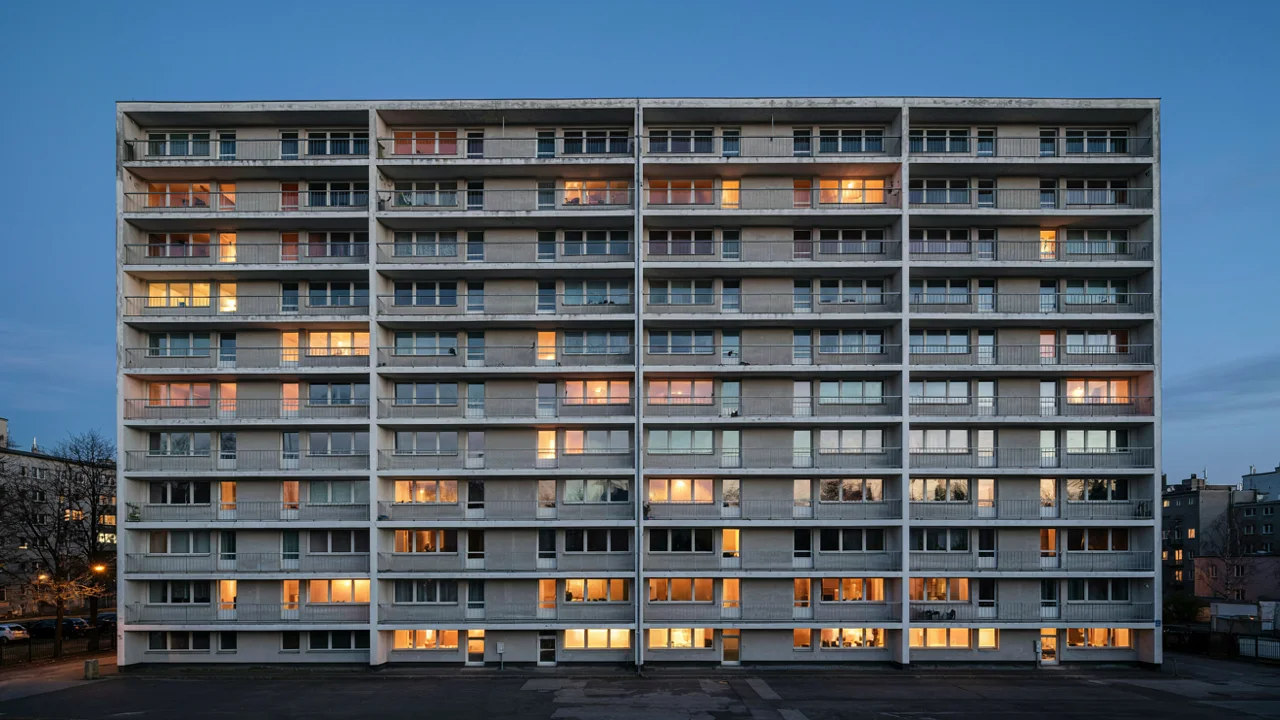
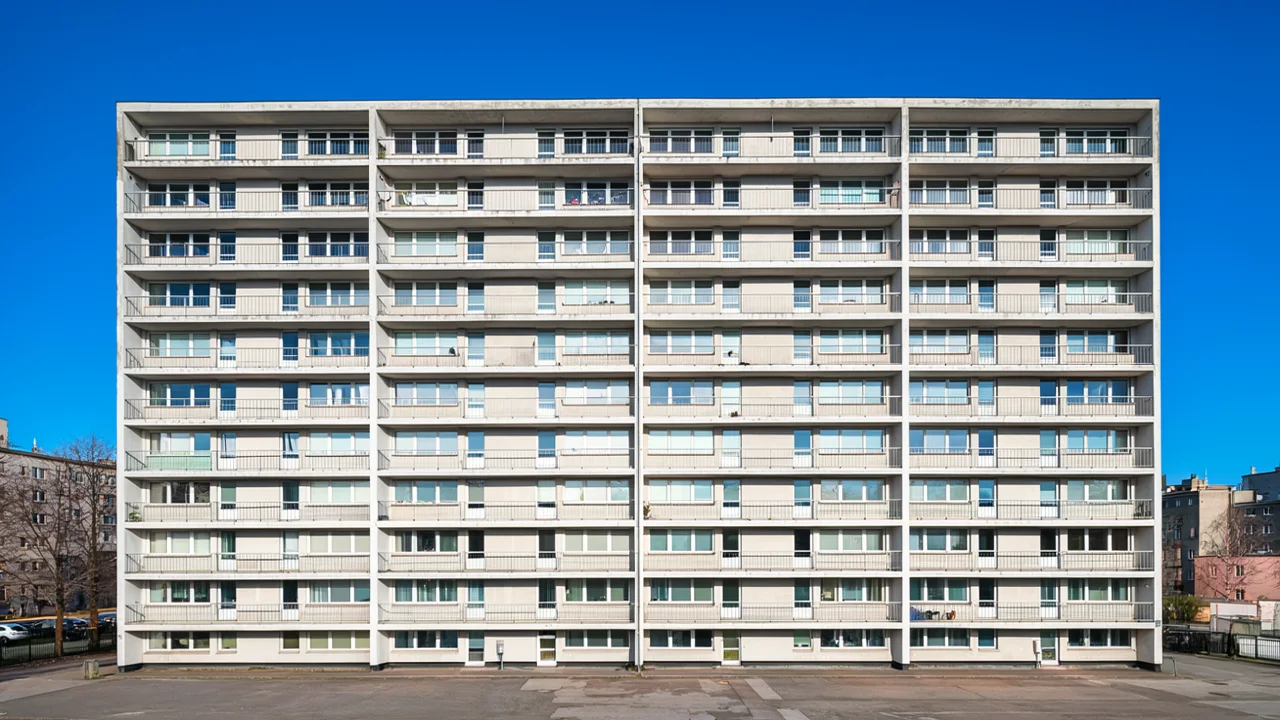
Change the time to a sunny midday with clear blue sky, windows unlit. Keep the building identical.- Mode: regular, 0% of pixels untouched (lighting changes across the entire frame).
- What changed: sky is blue, windows are dark, and the layout of balconies, windows and neighboring buildings matches.
- What broke: the sky is a uniform, oversaturated blue like a fill in graphics software, and the facade is lit evenly, without shadows under the balconies, which couldn’t be missing at noon.
Add the sun direction: sun from the upper left, hard shadows under every balcony, natural gradient sky.
9. Product from Reference Placed in Scene
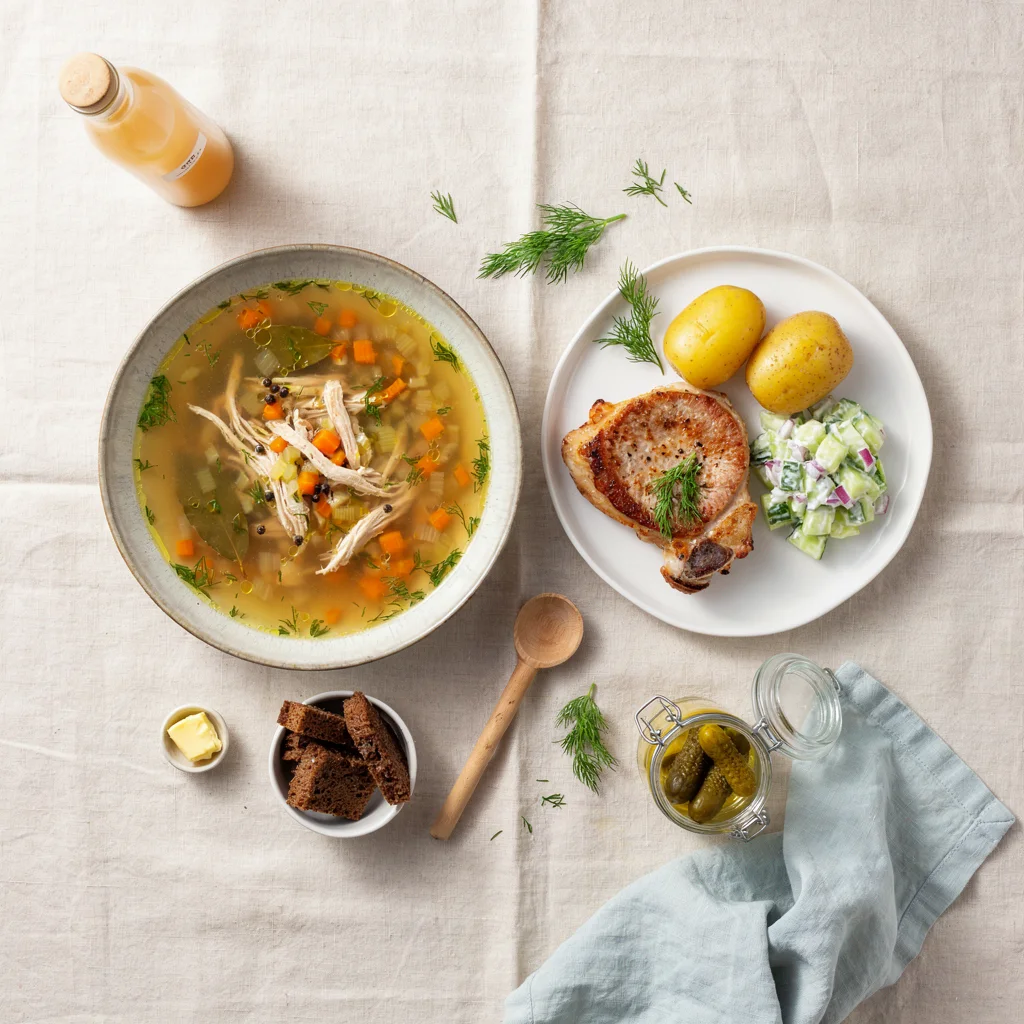
Place the juice bottle from the reference image on the table next to the soup, matching the lighting and shadows.Reference: juice bottle packshot (parameter reference_image_urls).
- Mode: regular, 28% of pixels untouched, but only 5.6% significantly changed.
- What changed: bottle with wooden cork and cloudy juice lies in the upper left corner, with shadow matching the scene lighting.
- What broke: the bottle is shown from the side as if lying down, even though the photo is taken from above, so the perspective doesn’t match. The label is unreadable and stands too far from the soup.
For flat lay, describe how the product should look from above: bottle lying on its side next to the soup bowl, label facing the camera and readable.
10. Removing Text from Thumbnail
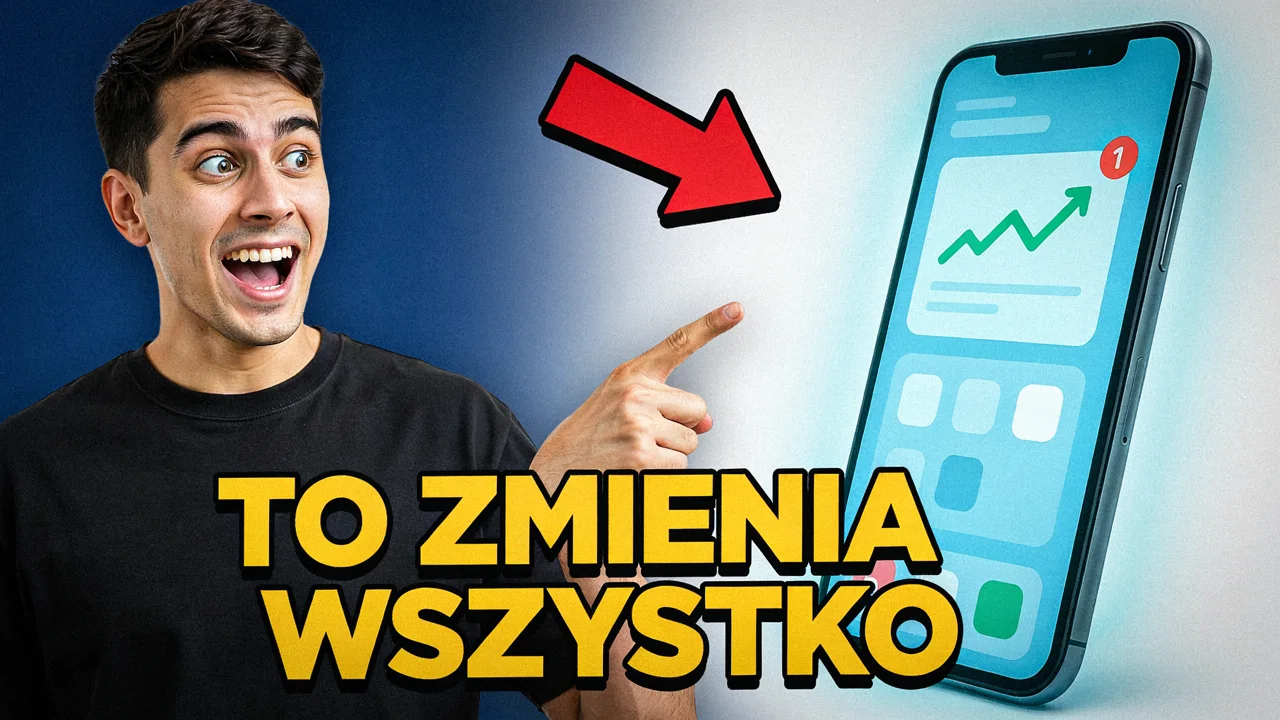
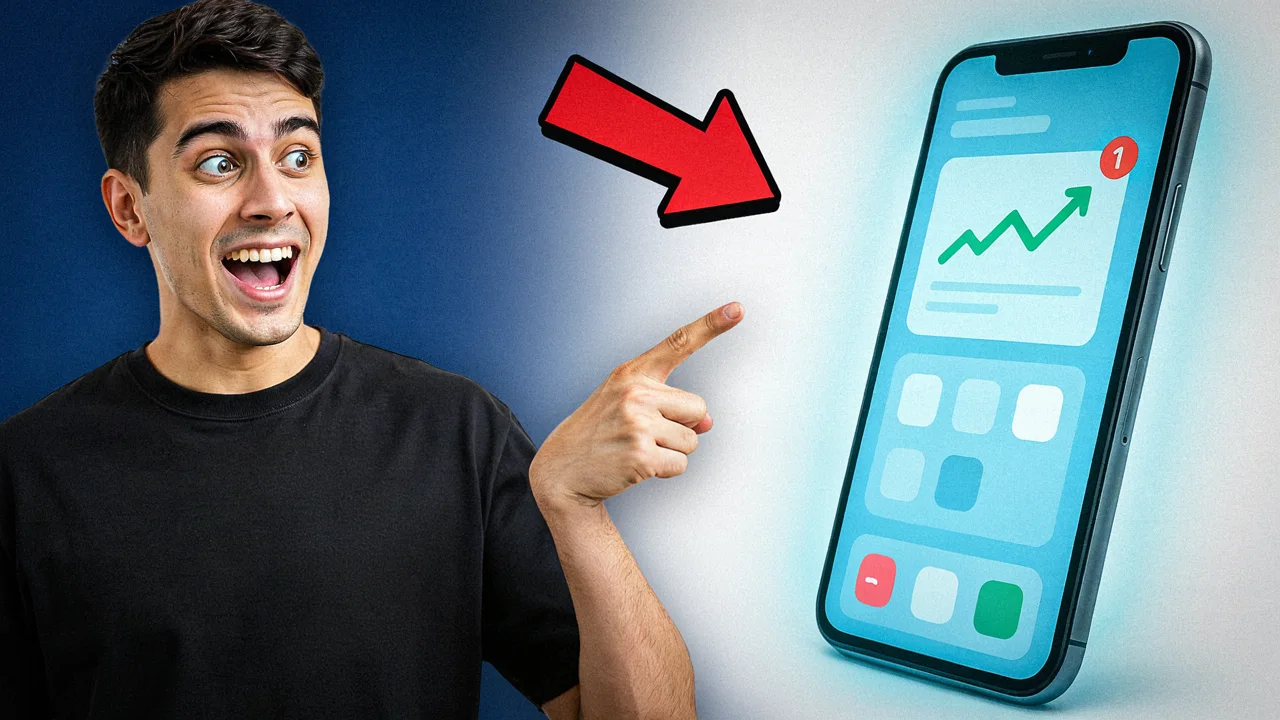
Remove all text from the image and fill the background naturally. Change nothing else.- Mode: high (Precise Edit), 79% of pixels untouched.
- What changed: text disappeared, and the model drew in the covered part of the shirt, hand and bottom bar of the phone.
- What broke: a white line with no meaning appeared on the revealed red icon in the phone. The red arrow remained because it’s not text.
Good way to make a clean version of a thumbnail for a different title or language. You can remove the arrow by adding remove the red arrow too.
Summary: Ratings of 10 Edits
| Edit | Score 1-5 | Text error-free | Notes |
|---|---|---|---|
| Label and juice color (high) | 5 | yes | textbook swap |
| Winter on tram (regular) | 4 | n/a | no snow outside windows |
| Cauliflower instead of chop (high) | 4 | n/a | bone remained |
| Banner in German (high) | 4.5 | yes | thinner typeface on button |
| Menu prices (high) | 3 | no | 2 prices unchanged, merged digits |
| Highlander hat (high) | 4.5 | n/a | face identical, fedora shape |
| Green brand palette (regular) | 5 | yes | text untouched |
| Building at noon (regular) | 4 | n/a | flat sky, no shadows |
| Product in scene (regular + reference) | 3.5 | no | wrong perspective, unreadable label |
| Text removal (high) | 4.5 | yes | artifact on icon |
Most Common Errors and How to Avoid Them
- Instruction executed halfway. People got hats, but no snow fell outside the window. Describe each change in a separate sentence, and name the background and surroundings explicitly.
- Calculations instead of swaps. “Raise prices by 2 złoty” skipped two items. Provide ready values, not an operation to perform.
- Old object’s shape remains. In precise mode, the new object inherits the outline of the old one, including the bone. Write that the new object should have its own shape.
- Typeface change with longer text. When the new text is longer, the model can change font weight. Add that it should keep the same typeface and weight.
- Wrong mode chosen. Choose high for text swaps and single objects, regular for color changes, time of day and mood. Results are worse the other way around.
- Perspective of inserted product. The reference doesn’t tell the model what angle to show the product at. Describe it in the prompt.
FAQ
What’s the difference between precise and regular mode in Ideogram 4.5?
In our test, edits in “high” mode left 79 to 98.5% of pixels untouched, while “regular” mode left 0 to 28% untouched. Precise is for point changes, while regular redraws the entire image but can preserve composition and text, as shown by the brand palette change.
Does Ideogram 4.5 edit text on graphics well?
It executed text swaps given explicitly (label, button) flawlessly. The problem appeared when it had to calculate new values itself. More text corrections one after another, compared to 7 other models, are described in our editing test.
How much does editing in Ideogram 4.5 cost?
On fal.ai the same as generation: $0.22 per image in high quality, $0.06 in medium, $0.03 in low and $0.008 in very_low. Our 10 edits cost $2.20.
Do you need to draw a mask?
No. We did all edits in this article with text description only, without a mask. A mask can help where the model changes too much, but precise mode was sufficient in most cases.
Google · Your sourcesQuantslant higher in your Google - one clickAdd to preferred sources →More About Ideogram 4.5
More on this from QUANTSLANT
 guides·Ideogram 4.5 for Social Media & Print: 10 Projects with PromptsWe created 10 social media and print designs in Ideogram 4.5: YouTube thumbnail, Instagram carousel, wedding invite, business card, and more.