90s Style Photos on Your Phone Free with Gemini
Turn your photos into 90s-style snapshots using Gemini on your phone without a subscription. Here's how to edit images with the right prompts.

👁 114 reads
You can create 90s-style photos on your phone without buying a subscription. Upload your photo to Gemini and describe the change you want. You’ll need a logged-in account and access to image editing. We can’t promise a specific number of free attempts: the documentation we reviewed doesn’t specify a fixed quota we could assign to every reader.
We’re talking about regular point-and-shoot snapshots: a bright kitchen, a simple room, flash pointed at a person. Not neon photo shoots or face aging. For a wider selection of scenes and an explanation of this aesthetic, see our guide 90s-style photos. Here we’ll walk through the actual editing process on your phone.
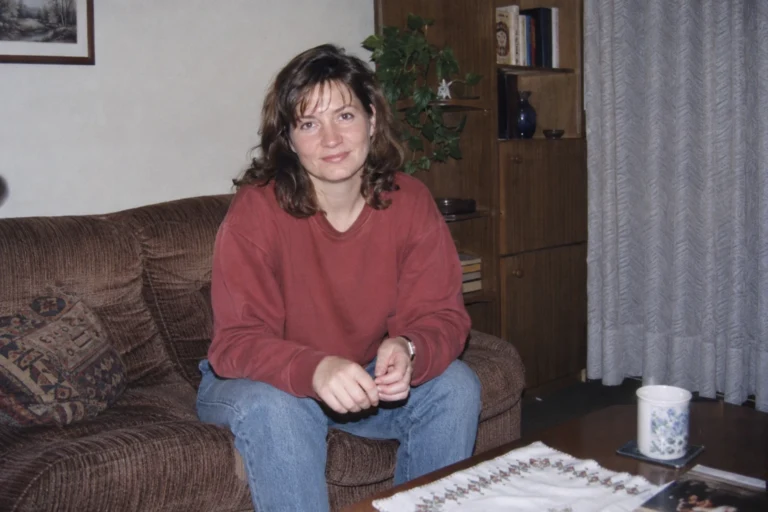
The eight images in this guide were generated as illustrations of the editing direction. They show fictional people. They are not archival photographs or results from testing a free Gemini account.

What Works Without a Subscription
Google describes creating images and editing uploaded photos in Gemini, as well as downloading results without a Google AI plan. Access depends on factors including account type, country, and age. This is the foundation of our instructions, not a promise of unlimited use. Source: creating and editing images in Gemini, checked September 14, 2026.
The absence of a published number doesn’t mean there are no limits. When your account stops working, you’ll see a message in the app. We don’t assume the next attempt will be available in an hour or that edits cost less than new images. We found no basis for such assurances in the documentation for this feature.
You Can’t Do This Without Logging In
You cannot edit photos in Gemini without logging in. Google requires login for this feature; image editing on personal accounts is available to adults. Simply opening the chat field doesn’t confirm access to editing. So check your account before looking for problems with your photo. These conditions are stated in the Gemini image documentation.
A free account and a paid subscription are two different things. For these instructions, you need the former. If you don’t see the feature on a work or school account, check the access policies for that account. We’re not providing a universal workaround that the provider doesn’t confirm.
How We Prepare a Photo on the Phone
We start with the original file in the gallery. Not a thumbnail downloaded from a messaging app and not a screenshot where half the space is taken up by the interface. We zoom in on the face: we want to see the hairline, eyes, nose, and mouth. If the source is blurry, we choose a different one instead of expecting the generator to guess missing features.

- Choose one clear person. A calm portrait is enough to start. Don’t add complicated gestures and new expressions.
- Leave space above the head. Crop unnecessary parts of the surroundings, but don’t cut off hair, beard, or ears.
- Skip previous beautification. If you have an original without face shape changes, use that one. Leave glasses and facial hair as you want them to appear in the result.
- Keep a copy of the source. With subsequent corrections, you need to know which photo shows your actual appearance.
Don’t brighten skin to white and don’t crank up sharpness. Our goal is a readable source. We describe this same preparation in more detail in our guide on editing your own photo with AI.
How to Edit a Photo to 90s Style Step by Step
- Open Gemini and check that you’re logged into the right account.
- Add your chosen file using the photo attachment function. Make sure you see its thumbnail.
- Paste the complete prompt from the next section. You’re ordering an edit of the attachment, so just the words “90s style” won’t be enough.
- Open the received image at full size and compare the face to the source.
- Save the successful version before ordering another change.
In the mobile app, you can add a photo from the gallery or files. Button names and positions may change; current attachment handling is described in Gemini app help. You don’t need to connect your entire photo library for this.
Ready-to-Use Prompt for Your First Try
We chose a simple room and one type of lighting. We want a recognizable person, so we’re not ordering a new hairstyle, wide smile, and different head pose all at once. This makes it easier to assess what actually changed in the image.
Edit the attached photo into a fictional photograph styled as a regular home print from the second half of the 1990s. Preserve the person's identity, current age, facial proportions, skin color, hairstyle, glasses, facial hair, and distinguishing marks. Preserve the head position and expression. Do not make younger or beautify.

Change the surroundings to a small, ordinary room: simple armchair, wooden shelf, curtain. Clothing: solid cotton sweater without text. Frame from waist up, with extra space above the head and on the sides. Light like a built-in point-and-shoot flash: direct, flat, with a subtle shadow behind the person. Natural colors and subtle grain of a color print.

No neon, colored haze, sepia, artificial wrinkles, date stamp, text, or frames. Don't add a modern phone or additional people. Face match to source is more important than strong stylization.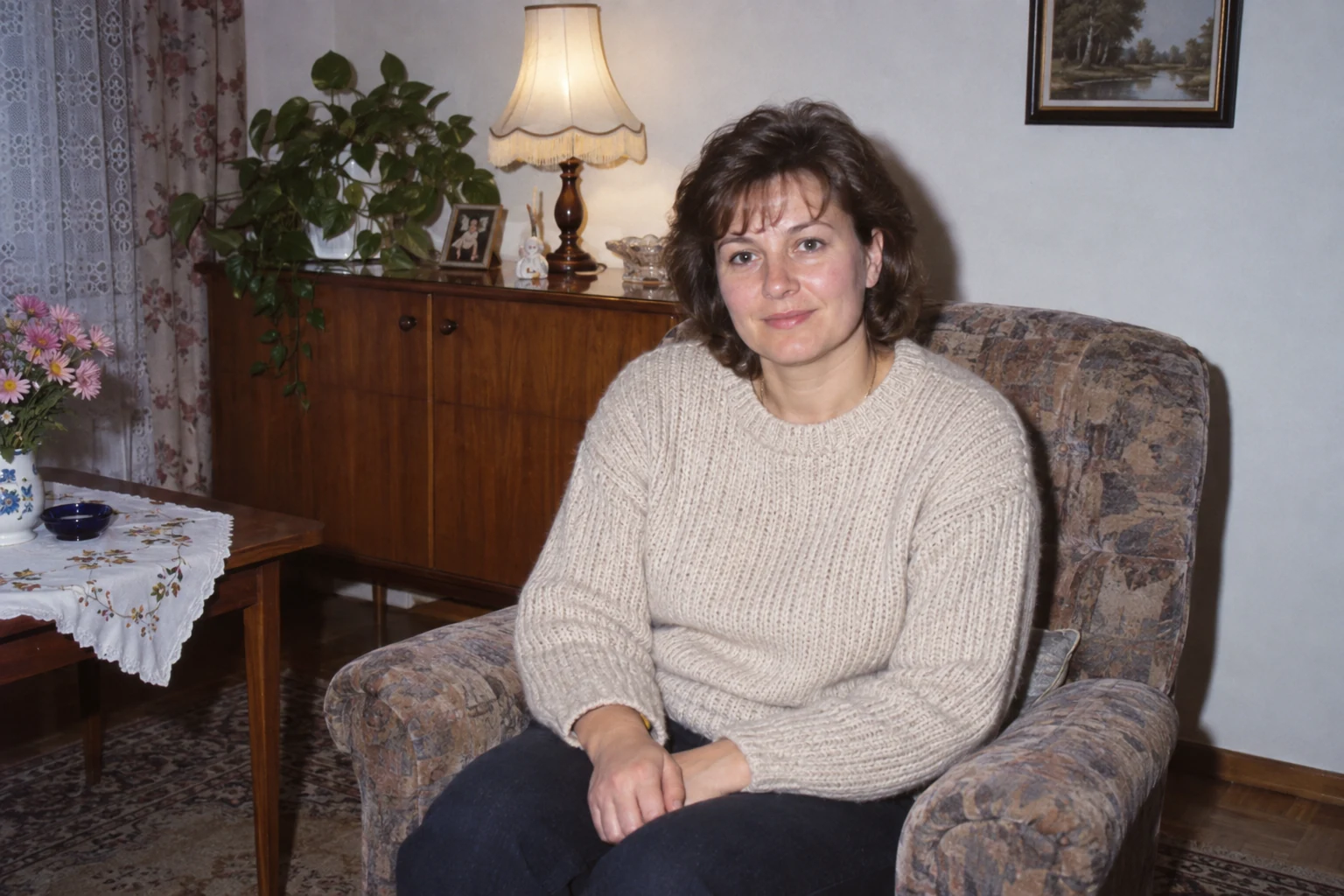
Prefer a photo by the window? Replace the sentence about flash with the prompt below. Don’t leave both conflicting instructions at once.
Use soft, flat daylight from a window. No flash, sunset, or colored glow. The face should remain clear, and the interior ordinary and bright.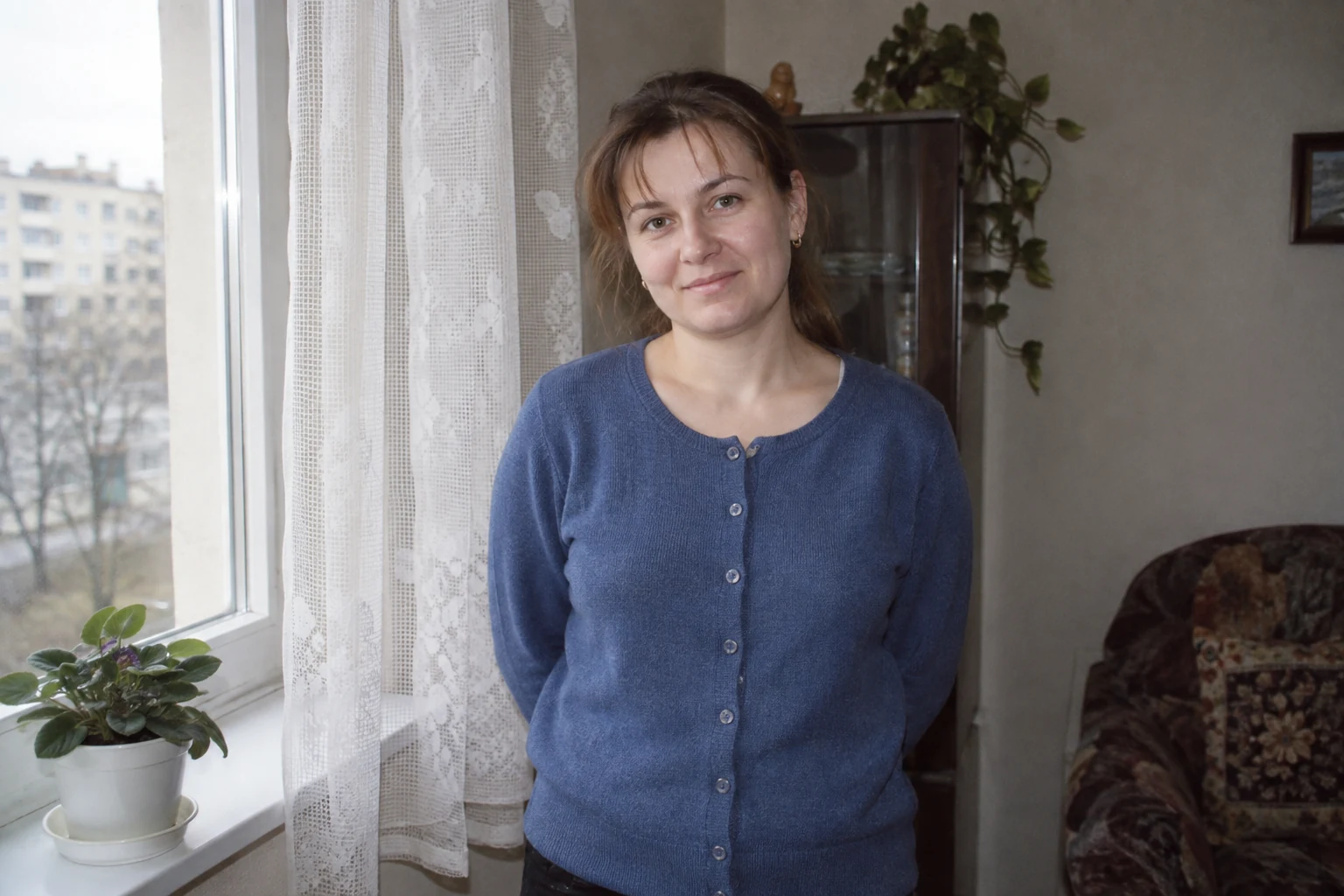
Corrections: Change One Thing at a Time
We don’t write “more retro” if the problem is orange skin. We name what’s wrong. When the face matches the source but the clothing is too modern, we change the clothing. When the image shows a different person, we return to the original reference.
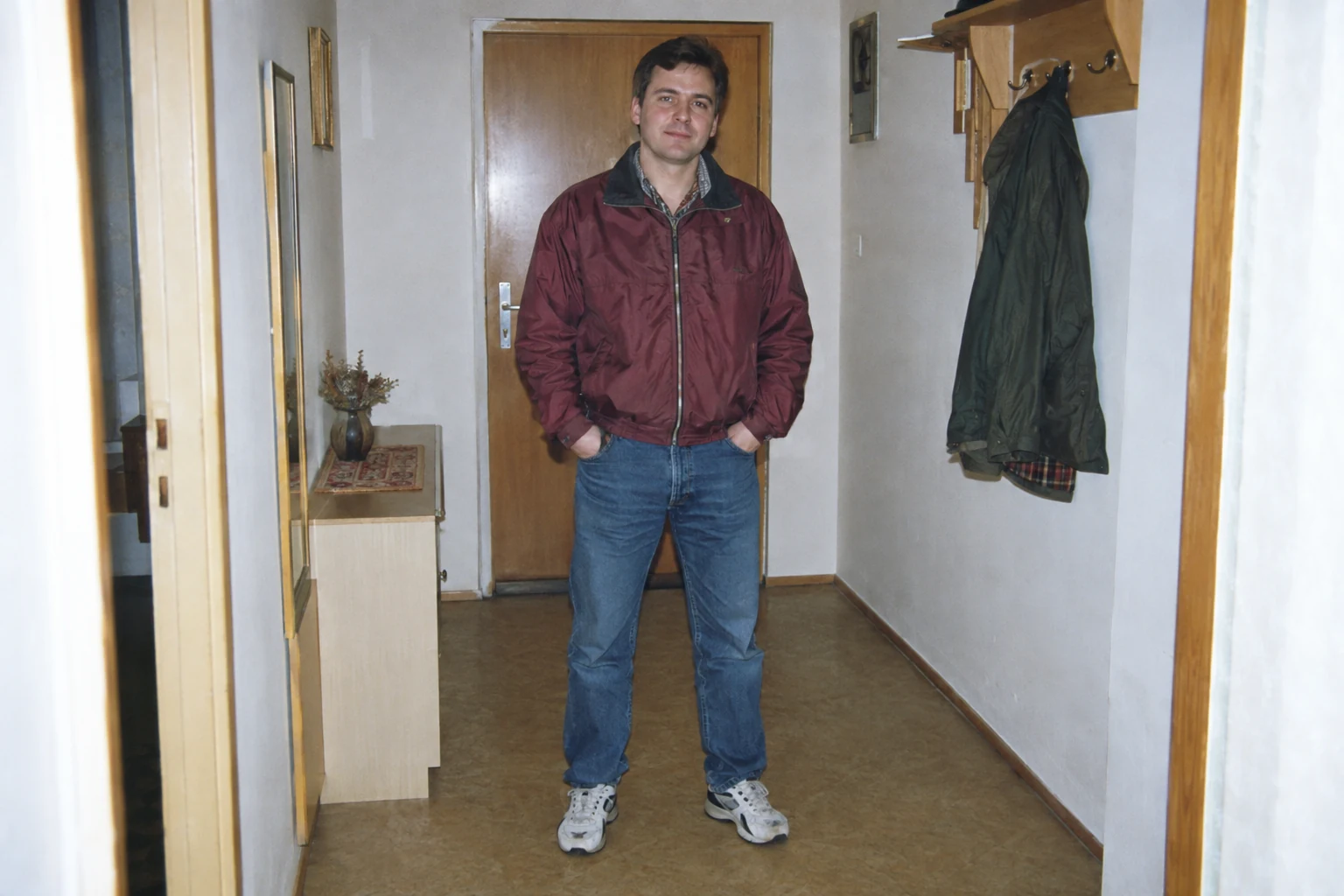
Too Much Neon and Artificial Aging
Preserve the person, expression, and composition. Remove colored glow, sepia, wrinkles, and excessive grain. Restore ordinary skin and interior colors. This should be an everyday point-and-shoot photograph, not a retro poster. Do not change facial features.Face Stopped Resembling the Source
The attached original photo is the only identity reference. Return to its facial proportions, age, expression, and characteristic details. Do not use the face from the previous generated version as a reference. Limit changes to clothing, background, and lighting. No beauty retouching.Such a prompt doesn’t guarantee a fix. If the resemblance continues to drift, we choose a simpler scene or clearer source. We’ve collected examples of problems in our article why AI changes your face.

Before saving, we look at eyes, ears, glasses, and hands. With a mug, we check whether the fingers are actually holding it. On clothing and in the background, we look for random pseudo-text. The style may look convincing in thumbnail view, even though up close you can see an error.
iPhone vs Android: What You Need to Do Differently
Gemini has an app for both systems. On Android it can also work as the phone assistant; on iPhone, for these instructions we open the Gemini app. You don’t need to change your default assistant to apply the idea described here. Device and app availability is described by Google.
- On iPhone we check the app’s access to the selected photo and that we’re attaching the right file from the gallery. We don’t assume every file from an iPhone has the same format.
- On Android we also choose the original in the gallery or files. The appearance of the system picker may depend on the phone.
- On both we paste the same prompt. If the file is rejected, we check the message and prepare a copy in a supported format, instead of changing the decade description.
In the sources we reviewed, we found no comparison of this edit’s quality between iPhone and Android. So we’re not declaring a better system. We start our assessment with the source photo and received image, not the phone brand.
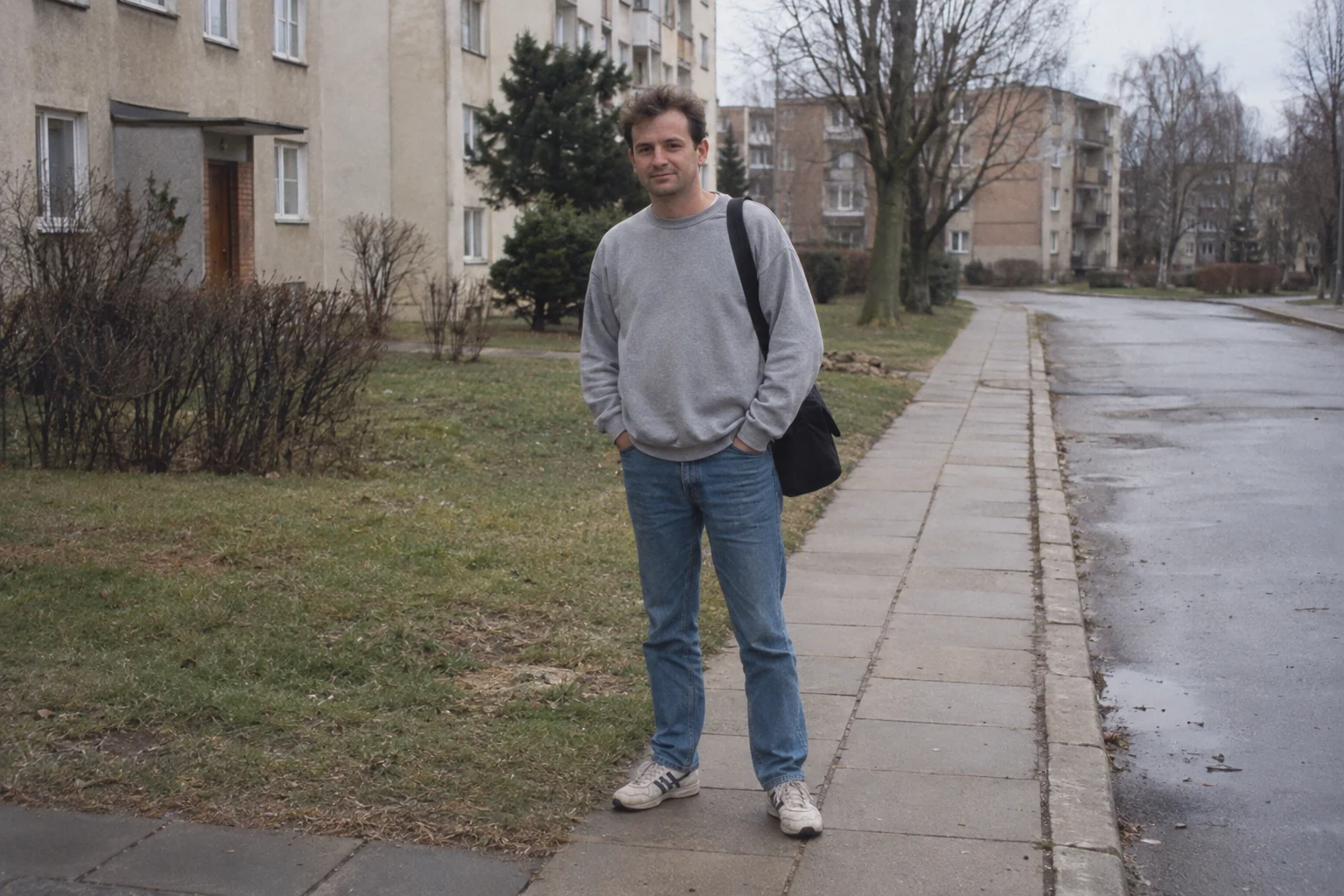
When Free Access Is Enough and When You Need to Wait
For the first attempt, we choose a free account without assuming we need to create an entire gallery today. If the result is good, we save it. If the limit stops us before a necessary correction, we have an unfinished photo, not proof that a paid plan will automatically fix the face.
We don’t copy the number of attempts from someone else’s account screenshot into the guide. We check the message on our own account, access to editing, and ability to download the file. We save the generated image using the download function, not as a screenshot of the conversation.
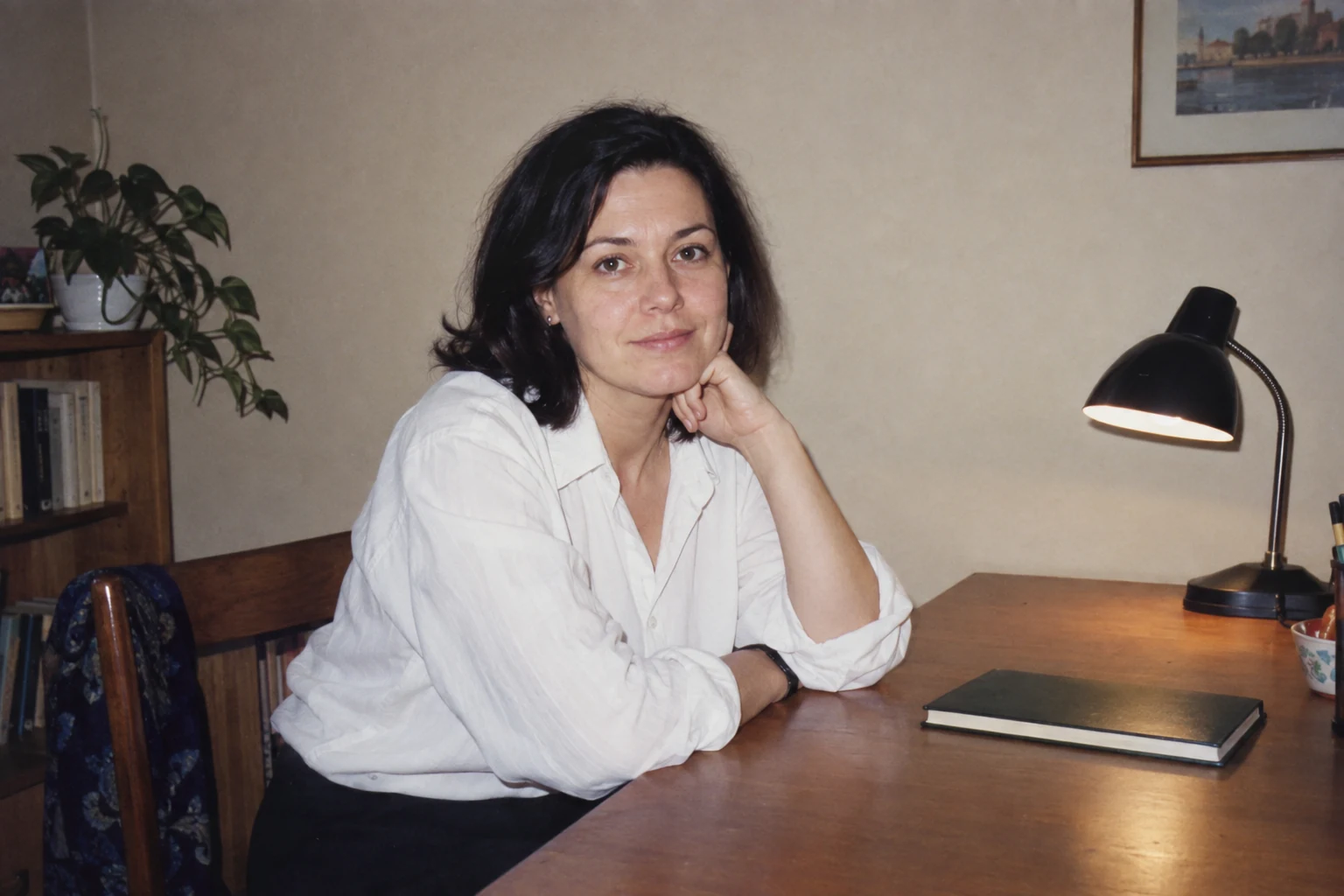
When the first variant is ready, check whether you need another scene change or just calmer colors. In our guide 90s filter and old photo effect we show when a regular correction is enough and when you need AI editing.
More on this from QUANTSLANT


 guides·90s Photo Filter: How to Create a Vintage Photo EffectA 90s photo filter makes sense when you want to change how a photo looks while keeping the same scene. See how to get the old print effect right.