Free 80s Photo Edits on Your Phone: What Actually Works
We checked which AI tools let you create 80s-style photos on your phone without a subscription, what the real limits are, and how to fix results.
👁 123 reads
You can create 80s-style photos on your phone without buying a subscription. We’d start with a tool that lets you upload your own photo and describe the change. But we can’t promise a specific number of free attempts. In documentation checked on September 11, 2026, several providers describe access as limited, without a public, fixed number of generations.
A universal prompt and five styles beyond the 80s are in our guide on how to transform a photo with AI; ready-made prompts for multiple people in frame are in the main article about 80s-style photos.
This matters for portraits. Simply generating an image doesn’t finish the job if the face stops resembling the person in the source. You also need the ability to make corrections. That’s why we separate free access to features from the freedom to revise a photo multiple times. We did not perform a comparative quality test of these services on mobile.
What’s Actually Available Without a Subscription
| Tool | What We Confirmed | What’s Known About Free Limits |
|---|---|---|
| ChatGPT | Image creation and file uploads on the Free plan. Images are available in mobile apps. | Separate feature limits. No fixed number of free images in the referenced FAQ. |
| Gemini | Image creation and editing of uploaded photos, also in the mobile app. | Documentation describes limited access. Does not provide a universal number of free photo edits. |
| Adobe Firefly | Limited free generation; mobile app allows editing of uploaded photos. | Current FAQ describes a limited daily pool without stating a fixed number. |
| Midjourney | No free trial period on the website or in Discord. | We don’t treat this web service as a free starting point. |
We checked the table status on September 11, 2026 in documentation: ChatGPT Free, images in ChatGPT apps, Gemini limits, image editing in Gemini on mobile, Adobe pools, Firefly mobile editing and Midjourney trial information.
We don’t enter numbers found in old guides or in another user’s screenshot. When the limit depends on current access, the proper place to check is the message on your own account. The absence of a public number doesn’t mean there’s no limit.
How to Prepare a Photo on Your Phone
Choose the original from your gallery instead of a screenshot of a conversation with a thumbnail. Check that the face is clear and doesn’t have a previous beautifying filter. If you want to keep glasses and facial hair, choose a reference showing exactly that appearance.
Then add the photo through the attachment or image editing function. Button names may depend on the app version, so we won’t describe an unconfirmed menu layout. Look for the ability to use your own file, not just a field for creating images from text.
We describe reference preparation more broadly in the guide on how to transform a photo with AI. On mobile we don’t change this rule: first establish who the person is, then order the scene. A small screen shouldn’t make you skip the similarity check.
Ready-Made Prompt for Your First Try
Paste this block after uploading the photo. We chose a simple room and keeping the pose to limit the scope of the task. This isn’t a measured way to save your limit. It’s our decision not to order a new face, complicated scene, and difficult gesture all at once.
Transform the attached photo into a fictional photograph styled like the eighties. Preserve identity, current age, facial proportions, glasses, facial hair, and visible distinguishing marks. Don't change the head pose or facial expression.

Change the clothing to a simple sweater and the surroundings to an ordinary room with a curtain. Apply the look of a color print with direct flash, without neon, sepia, or artificial grain. Don't beautify the skin and don't invent invisible teeth. No text or date stamp. Facial accuracy is more important than stylization intensity.
Open the result in full size. Check the eyes, mouth, face outline, and hands. Don’t evaluate the portrait only in the message thumbnail. If the face is correct, save this variant before making further changes.
Corrections Instead of Starting Over
If the problem is excessive stylization, ask for a change in aesthetics. When the problem is the face, go back to the original. Don’t combine these corrections into an unclear “do better”.
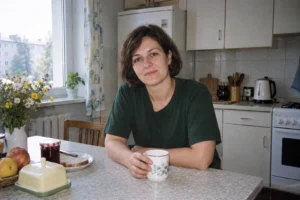
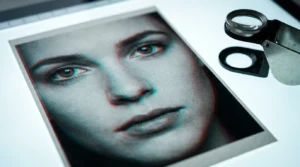
The three images below are prepared illustrations of how the result changes after successive prompt corrections. This is not a measurement of the number of attempts, a test of the free plan, or proof they were created on a phone. They only show what you see when the prompt becomes more precise.
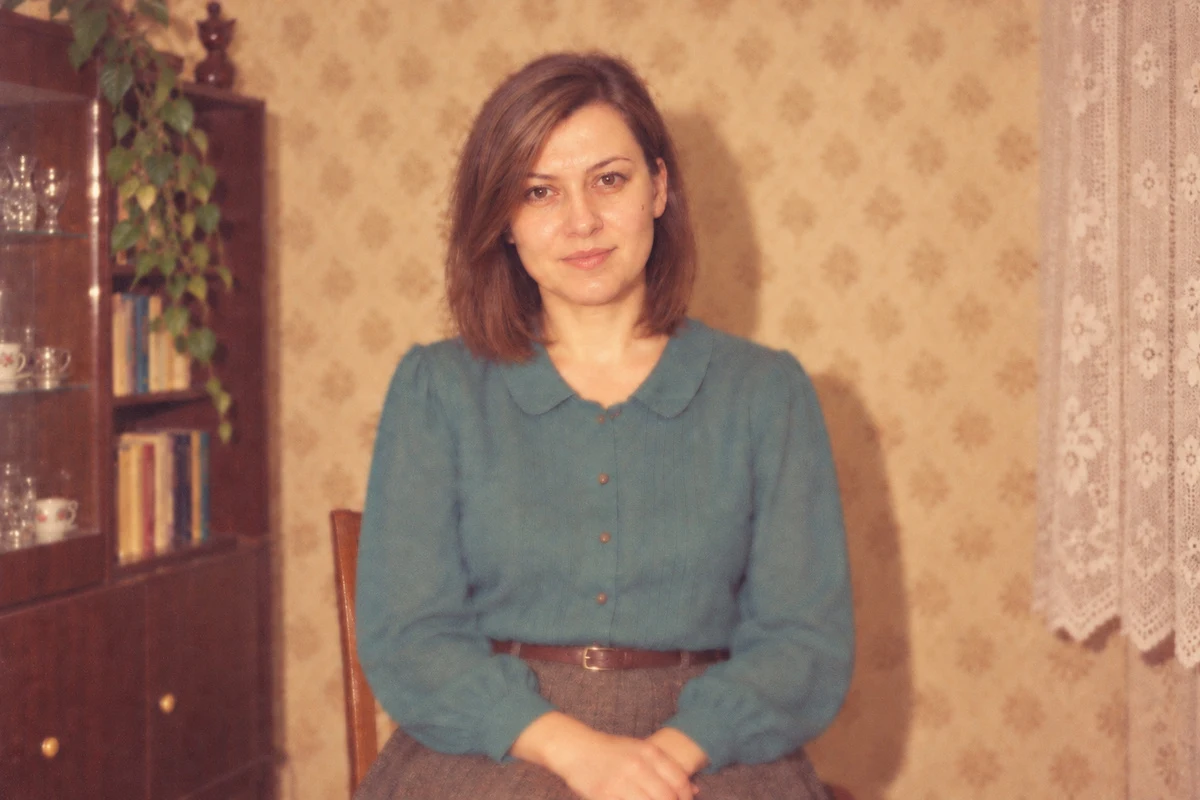
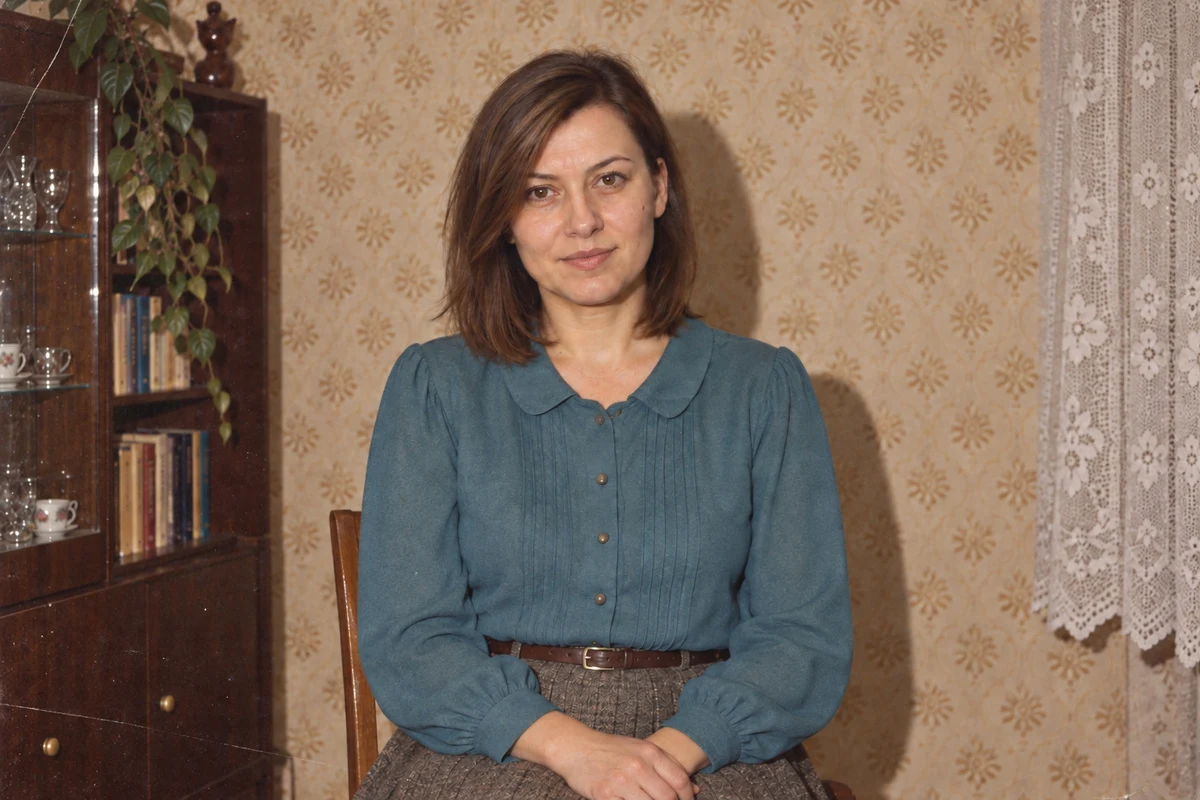
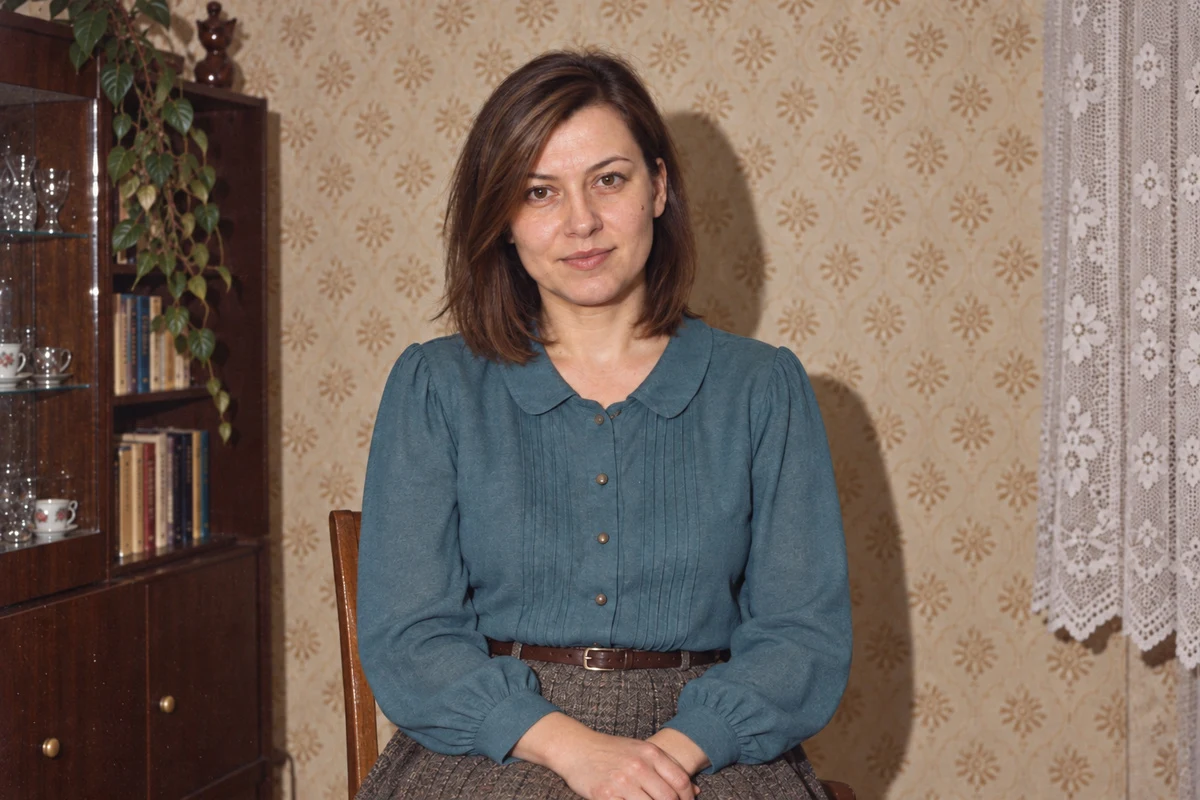
Keep the current composition and face matching the reference. Limit only the stylization: remove the color haze, artificial scratches, and excessive smoothing. Restore ordinary colors and the look of a home photograph. Don't change the person, expression, or head position.Return to my original photo as the source of appearance. Keep its face, age, and expression. Limit editing to the background and clothing. Don't treat the face from the previous generated image as a model and don't add another beauty retouch.We’ve collected more such distinctions in the article why AI changes the face. We don’t assume that a corrective prompt will always use fewer resources than a new generation. The documentation doesn’t give us grounds for such a promise.
How to Compare Tools Before You Pay
The table above answers the question about access without a subscription. When choosing a working method, we also check whether the tool changes the entire photo or lets you indicate a fragment. These are different tasks: replacing just the background isn’t comparable to regenerating the person, clothing, and room from scratch.
Fragment Changes vs. Portrait Regeneration
In ChatGPT you can describe a correction in conversation or mark an area for editing. The selection isn’t a tight boundary: the producer warns that the change may extend beyond the chosen area. So after correcting the sweater, we check the previously accepted face again. Source: ChatGPT image editor documentation, checked September 14, 2026.
In mobile Firefly, the Generative Fill function lets you upload a photo and mark the fragment intended for change. If you want to change the surroundings, start by marking the background and leave the face outside it. We still compare the finished file with the original instead of assuming every pixel is preserved. Source: editing a photo fragment in Firefly on mobile, checked September 14, 2026.
If you’re already using paid Midjourney, separate the reference of the person or object from the reference of aesthetics. We don’t treat a photo added as a style template as a guarantee of face reproduction. We check reference method availability for the chosen model instead of transferring settings between versions. Source: Omni Reference documentation, checked September 14, 2026. This is a tip for current users, not an additional free option.
Same Material, Three Separate Evaluations
For our own comparison, we use the same original and prompt from this guide. We save the first result before corrections, even if we reject it. Then we separately perform the aesthetics correction and identity correction described above. Next to each file we note the date, service name, chosen model, plan, and editing scope. The app name alone, for example Gemini, doesn’t yet tell us which image model we used.
- Person: we compare features, age, glasses, facial hair, and hands with the source. A change in identity disqualifies a portrait for us regardless of an impressive background.
- Scene: we check whether the lighting, clothing, and surroundings match the order. Good atmosphere doesn’t fix an incorrect face.
- Correction: we check whether removing one problem didn’t change previously accepted elements.
This is how we’d create our test on a specific photo, not a ranking based solely on pricing. We don’t declare a quality winner without performing such a comparison. We also keep rejected results so we don’t evaluate a tool only by its prettiest exception.
Where the Free Version Is Enough
We’d choose free access for a calm trial on your own photo, without a deadline and without the obligation to get a whole series. If the result fits, we see no reason to buy a plan solely because it’s paid. A subscription isn’t confirmation of similarity.
We’d consider access insufficient if it stops you before a necessary correction or doesn’t provide a needed function. This especially applies to a planned series of portraits. We don’t calculate how many people you can handle in the free pool because we don’t have a confirmed number of attempts or generation success rate.
We also check the downloadable file. Google distinguishes in documentation between downloading images at 1K resolution without an AI plan and 2K with such a plan. This is an export parameter, not a face test result or guarantee of good printing. Source: creating and downloading images in Gemini, checked September 11, 2026.
Before You Accept a Paid Plan Offer
- Check whether you’ve run out of the image pool, file uploads, or another function.
- Read the message about renewed access. Don’t guess the renewal time.
- Check whether the plan covers the chosen tool, model, and editing method.
- Save the successful file instead of assuming conversation history will replace your own copy.
We don’t extend the lack of a free trial on the Midjourney site to all the company’s products. The producer mentions a limited trial in a separate niji・journey app. We haven’t checked its quality for family stylizations and don’t provide it as an equivalent substitute. Source: trial terms, checked September 11, 2026.
What Not to Expect
Don’t expect unlimited corrections, a fixed pool on every account, or an identical set of functions from all producers. We also don’t promise that the first attempt will be enough. You can make an 80s-style photo on your phone without a subscription, but the usefulness of free access is determined by available editing, facial accuracy, and the ability to save the result. We describe full differences in the comparison of tools for this stylization.
On iPhone and Android: What’s the Same and What’s Different
The path is the same on both systems because all the work happens in the app, not in the phone. Install the ChatGPT or Gemini app, upload your own photo, and describe the change. Adobe Firefly also has a mobile app with editing of uploaded photos. We don’t describe button layouts because they change between versions, and a screenshot from someone else’s phone may be older than the app you have.
One difference can stop you at the very start. iPhone saves photos in HEIC format by default and some tools don’t accept it. If the app rejects the file or sees it as corrupted, save a copy as JPG and upload it instead of the original. On Android, photos are usually already in JPG and this step isn’t needed.
You don’t need a separate “80s” app. The entire effect comes from the prompt, not a ready-made filter, which is why the same photo can be corrected further instead of choosing from ready templates.
It Won’t Work Without Logging In
This is the most common reason someone says “it doesn’t work.” Without an account you’ll only get text conversation: you won’t upload your own photo and won’t generate an image. A free account is enough, a paid plan isn’t needed for this, but logging in itself is a requirement, not an add-on. If you opened the page in private mode, check this first.
Once you know it can be done for free, curiosity remains about how such a frame looks for other people. We’ve collected examples and the entire method in the article about what I’d look like in the 80s.
Google · Your sourcesQuantslant higher in your Google - one clickAdd to preferred sources →Reader Questions
How do you make an 80s-style photo on your phone for free?
You can use free features of ChatGPT, Gemini, or Adobe Firefly available in mobile apps. Upload your own photo through the attachment or image editing function, then describe the change to the 80s. Remember that each tool has limited free access (daily pool or number of generations) that you’ll check on your account. Exact limits may change and differ between tools.
Can you correct a generated 80s-style photo for free?
Yes, but each correction uses part of the free limit. It’s worth first checking the face in full size - if it’s correct, accept the variant before changes. If the problem is too strong stylization, ask for an aesthetic change; if the problem is the face itself, return to the original photo as the source. Avoid unclear commands like “do better” that can waste attempts.
Which tool best preserves similarity to the face in the source photo?
The article doesn’t contain a comparative quality test on mobile, so we can’t indicate the best tool. The choice depends on whether the tool lets you edit a photo fragment or the whole thing. ChatGPT allows marking an area for editing, but the change may extend beyond boundaries. Test free options on your own photo to check which tool best preserves your face.
More on this from QUANTSLANT
 ai tools·Grok Imagine: Features, Pricing & Moderation IssuesGrok Imagine generates images and short videos inside xAI's chatbot. It's fast and loosely moderated - which is both its selling point and its problem.