Hangar: Free Local AI Models for Windows
Hangar makes it easier to run local image, video and music models on Windows. See its requirements, model catalogue, licenses and setup steps.
👁 117 reads
 My tool · version 0.2.0
Run local AI models for images, clips and songs on your NVIDIA GPU - no ComfyUI nodes, no account, no charge.
| System | Windows 10 and 11, 64-bit |
| GPU | NVIDIA with CUDA; images from around 8 GB VRAM |
| Models | 15 models plus a preview tool; every file checked with sha256 |
| Installer | 14.2 MB, no administrator privileges required |
Download Hangar for Windows (14.2 MB)
Hangar website: screenshots, models and requirements →
Hangar is a free Windows app I built to make it easier to run local AI models for images, clips and songs without spending an evening figuring out ComfyUI.
What is Hangar?
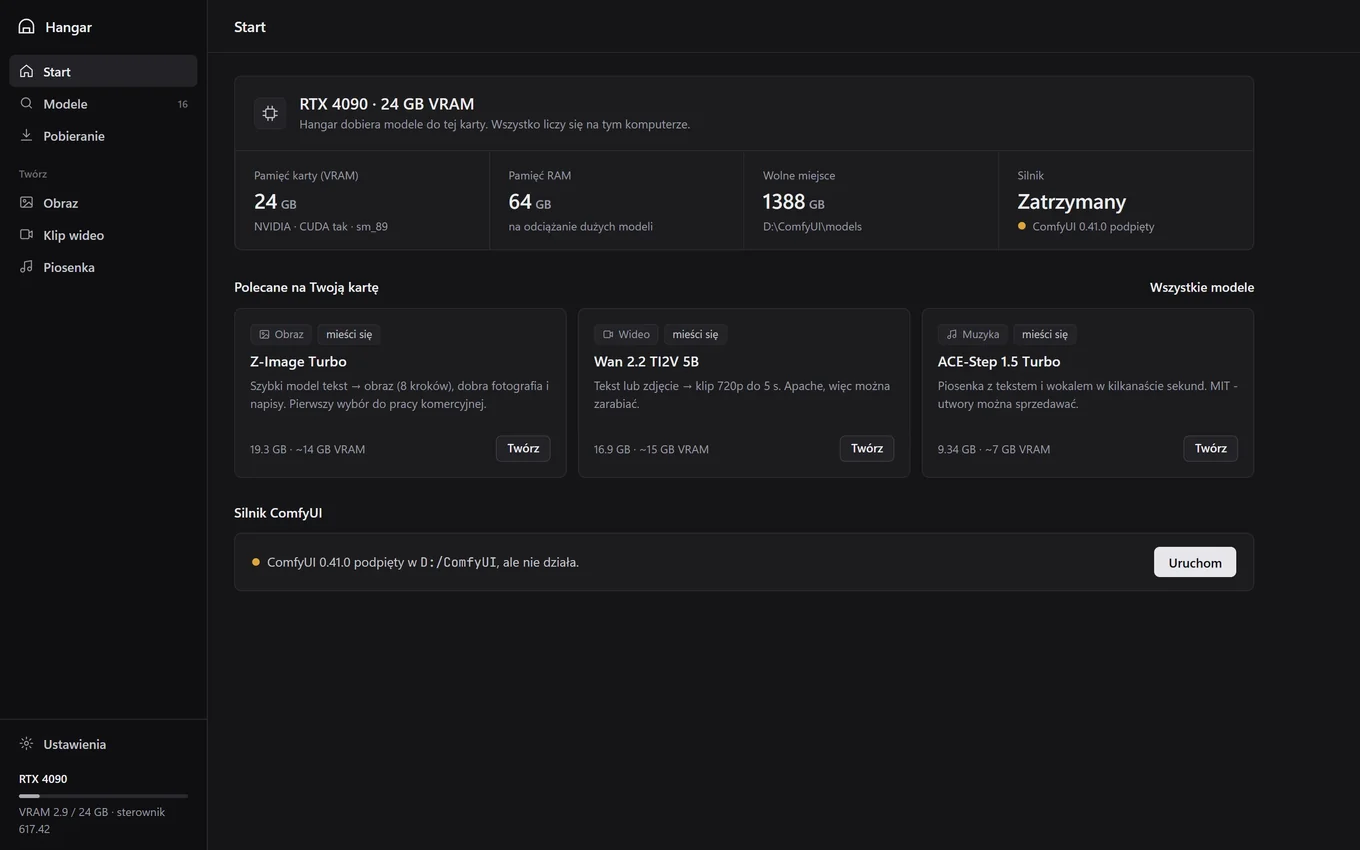
Hangar is a desktop manager for local AI models. ComfyUI runs underneath, but you do not need to know how to use it. Hangar handles three tedious jobs for you: checking your hardware, downloading the right files to the right locations, and selecting a ready-made generation template for your chosen model.
- Hardware detection - identifies your NVIDIA GPU, VRAM, RAM and available disk space. Each model listing shows whether it will fit on your GPU.
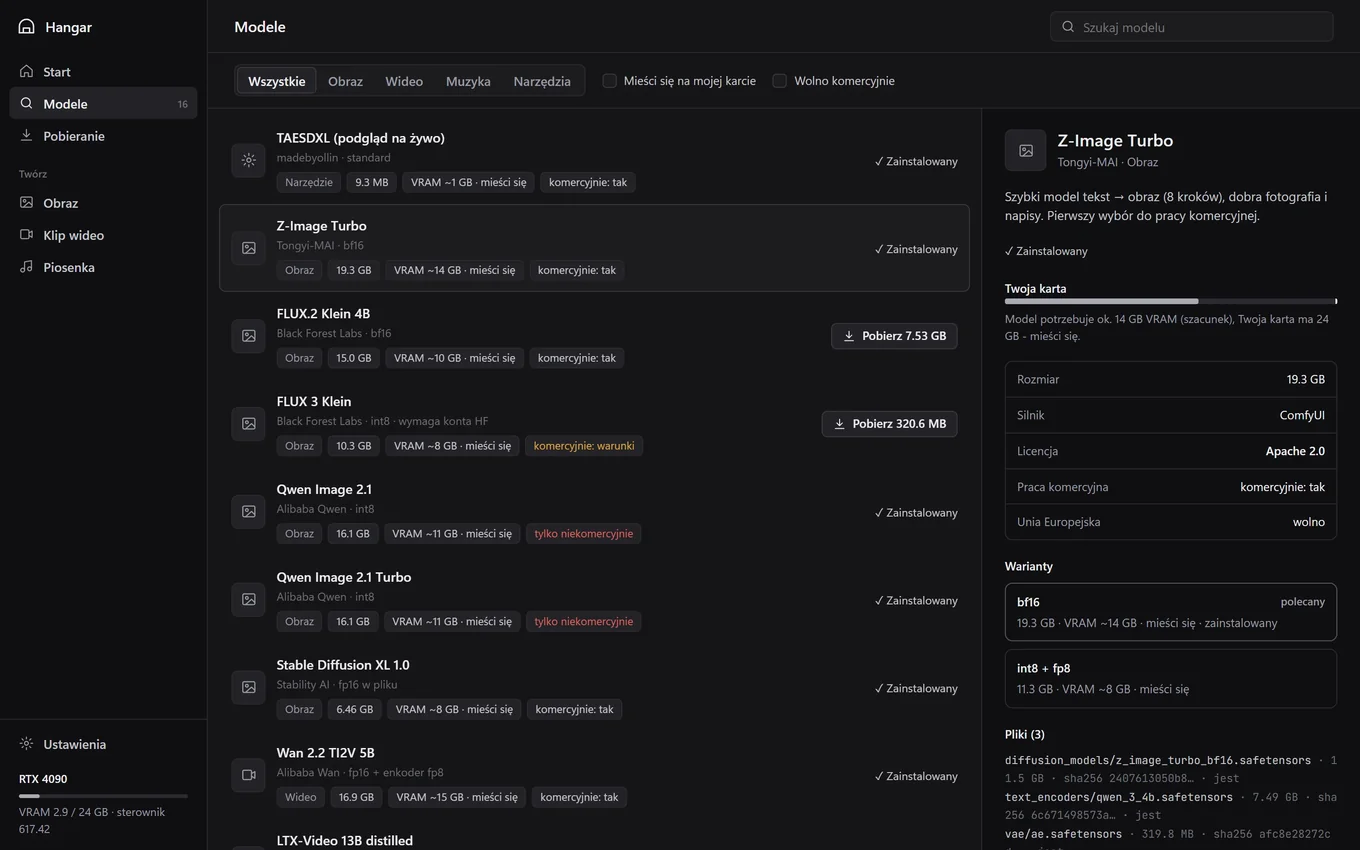
- Catalogue with license details - each model listing says whether commercial use is allowed and whether the model can be used in the EU. The “Fits my GPU” and “Commercial use allowed” filters hide models that do not qualify.
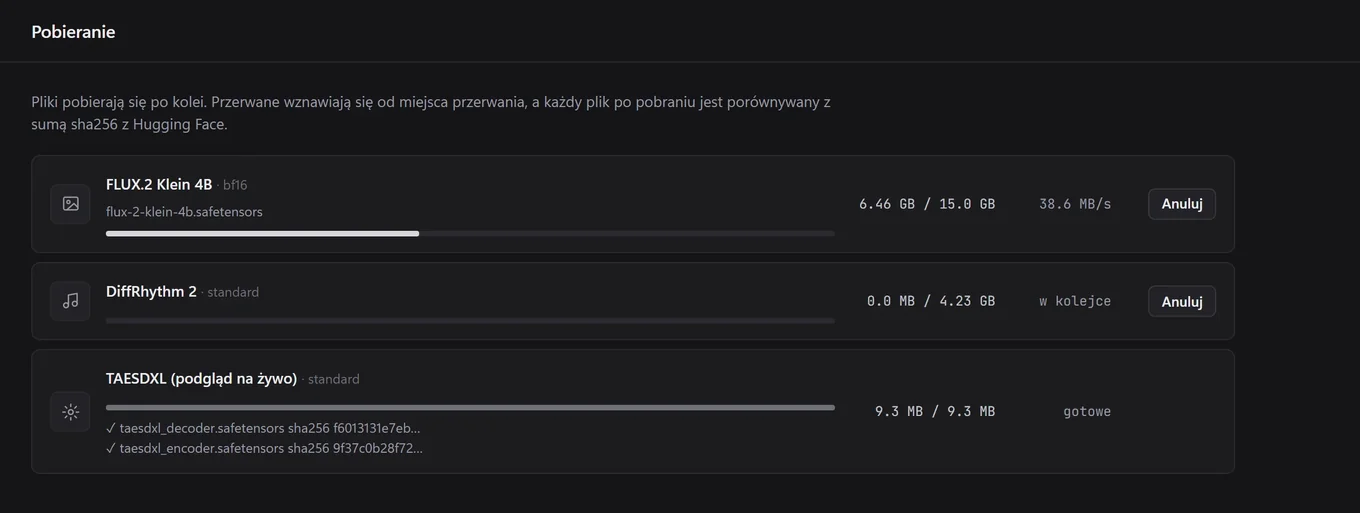
- Verified downloads - files are downloaded directly from Hugging Face, interrupted downloads resume where they left off, and every file is checked against its Hugging Face sha256 hash. Corrupt files are not passed to the engine.
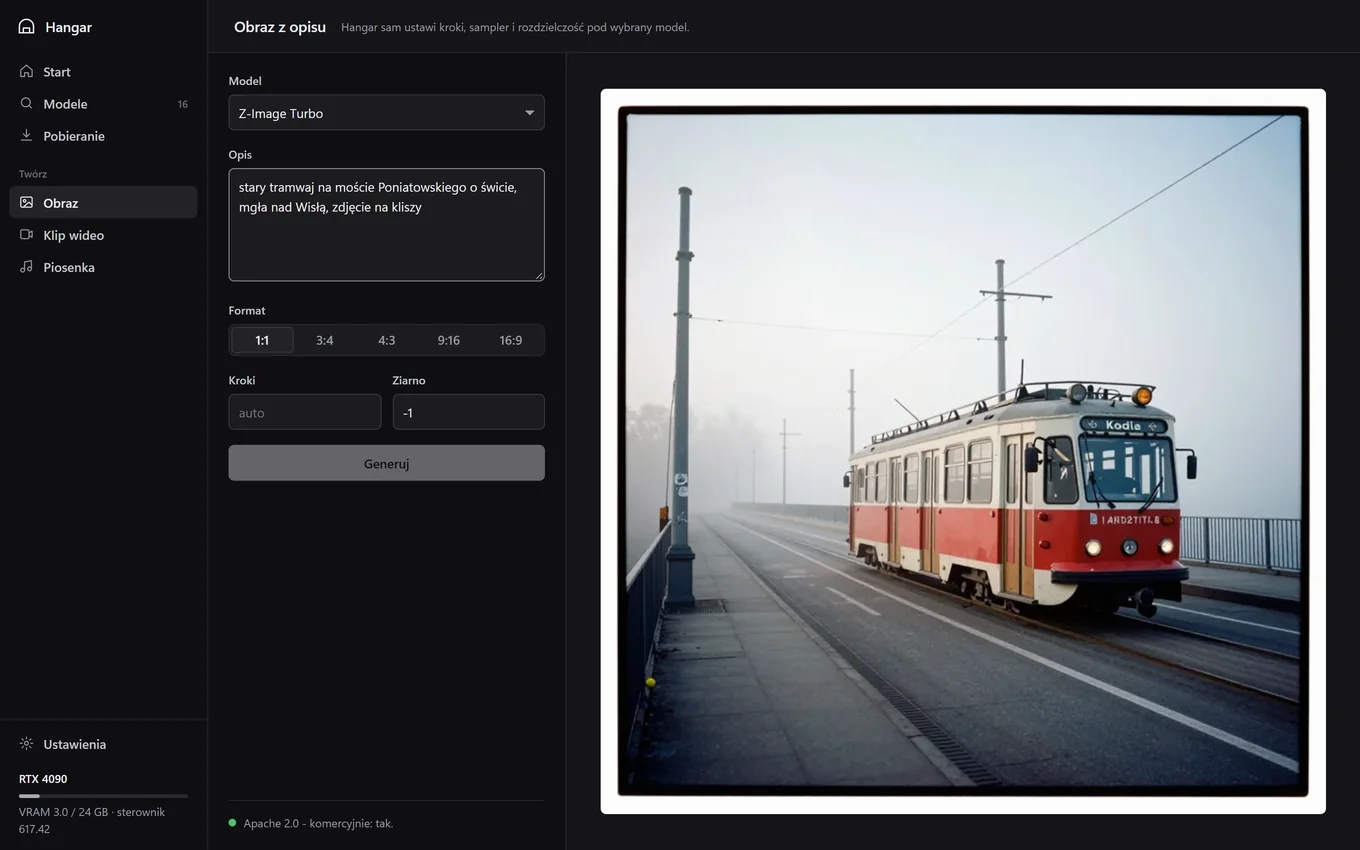
- Forms instead of nodes - enter a prompt for an image, clip or song. The model-specific template sets the steps, sampler and resolution.
- Your ComfyUI stays yours - Hangar can connect to an existing installation or download the official portable release from GitHub, also checking its sha256 hash.
Who is Hangar for?
| Who | Why use Hangar? | Where to start |
|---|---|---|
| Someone with an NVIDIA GPU who has never run local AI | Generate a first image or song without reading ComfyUI documentation | Z-Image Turbo (image) or ACE-Step 1.5 (song) |
| A creator who wants to earn money from generated content | Use the “Commercial use allowed” filter and check each model’s license | License overview |
| A ComfyUI user | Download models with sha256 verification into an existing models folder, without changing your nodes | Choose “Connect” on the Home screen |
| Someone with a less powerful GPU (8-12 GB) | Choose model variants suited to your VRAM, such as int8 instead of bf16 | How much VRAM do you need? |
Hangar may not be right for you if you want to chat with a text model (try LM Studio or Ollama instead), have an AMD or Intel GPU (the catalogue models require CUDA), or use a Mac or Linux computer.
What works now, and what is still missing?
This is version 0.2.0, dated 20 October 2026. It has a new window design, with the same features as version 0.1 from 17 October 2026. Here is what I have tested and what is still planned.
Works now
- Detects an NVIDIA GPU, VRAM, RAM and disk space (tested on an RTX 4090).
- Downloads models from Hugging Face, resumes interrupted downloads and verifies sha256 hashes.
- Installs portable ComfyUI from scratch (it took 231 seconds on my computer) or connects to an existing installation.
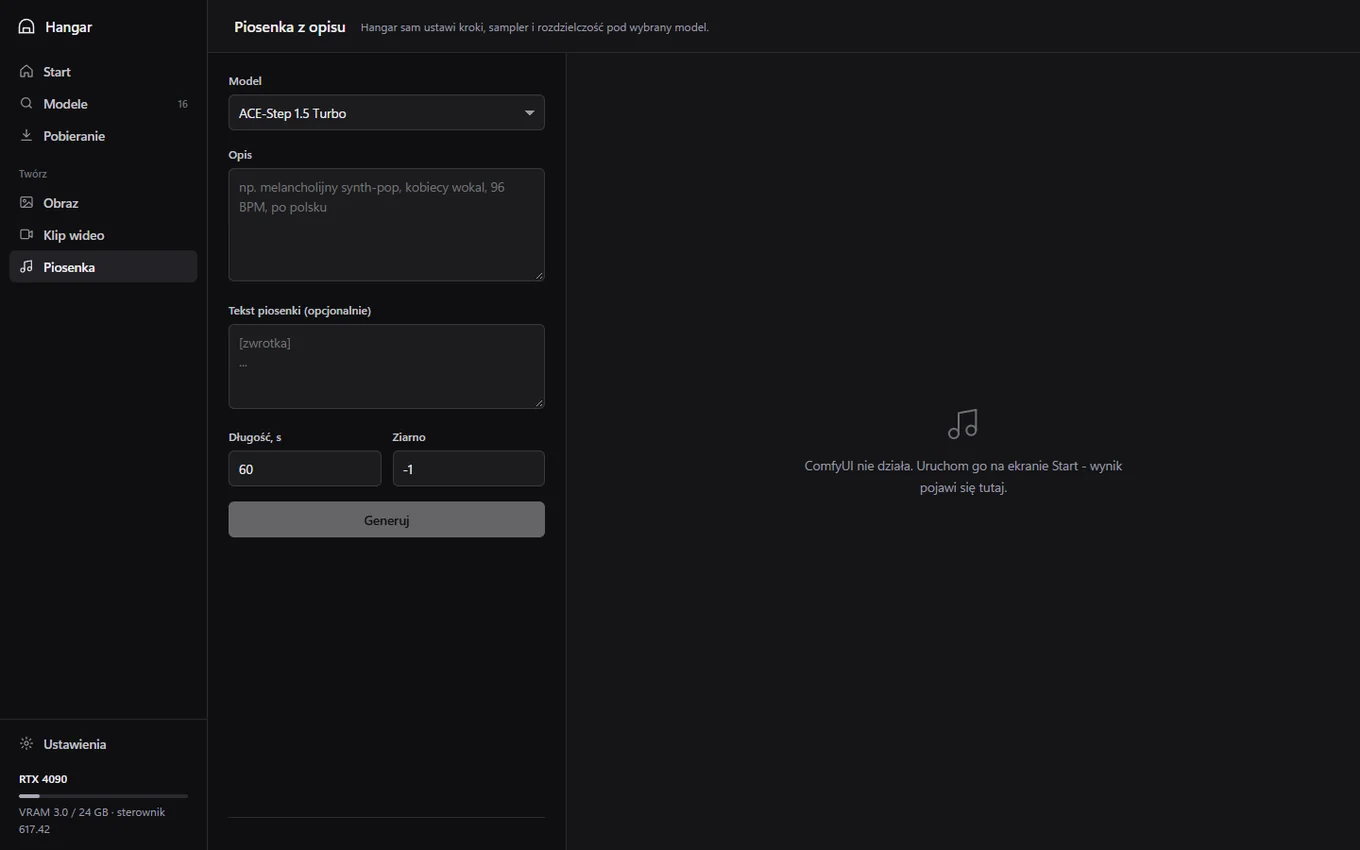
- Generates inside the app, tested from start to finish: an image from a prompt (Z-Image Turbo) and a song from a prompt and lyrics (ACE-Step 1.5).
- Generation templates for 8 models passed a single technical test on an RTX 4090 in ComfyUI 0.41.0 (times in the tables below include model loading).
Not available yet
- A digital signature for the installer. Windows SmartScreen will show an “unknown publisher” warning. The installation steps and FAQ explain how to proceed knowingly and verify the file.
- Engines other than ComfyUI. Hangar can already download and verify Kandinsky 6 (requires diffusers) and DiffRhythm 2 (its own engine), but in-app generation with them is not available yet.
- Verified templates for FLUX.2 Klein 4B, FLUX 3 Klein and YuE2. You can download the files, but for now you need to generate in ComfyUI.
- Testing on a computer without an NVIDIA driver or on GPUs other than the RTX 4090. VRAM estimates for less powerful GPUs are calculated from a formula, not measured.
- AMD and Intel GPUs, macOS and Linux.
System requirements
- System: Windows 10 or 11, 64-bit. Installs for your account only, without administrator privileges.
- GPU: NVIDIA with CUDA support. Hangar estimates the lightest variants in the catalogue need: Stable Audio 3 (small music) - around 4 GB; DiffRhythm 2 - around 6 GB; YuE2 3B - around 6 GB; ACE-Step 1.5 Turbo - around 7 GB. In practice, image generation needs at least 8 GB, video at least 9 GB (LTX-Video 2B), and 12 GB or more is more comfortable.
- Disk space: Portable ComfyUI is around 2 GB to download and around 4 GB when unpacked. Each model ranges from 3.5 GB to 80.6 GB (Kandinsky 6 Pro).
- Internet: required only to download ComfyUI and models. Generation works offline.
VRAM figures in the catalogue are estimates based on a formula (the largest model file or the combined encoder sizes, plus headroom). My measurements for some models are in the table in the local AI guide. See also what VRAM is.
How to install Hangar
- Download the installer. The Hangar-Setup-0.2.0.exe file (14.2 MB) is available from the Hangar page. To check that it is the same file, run
Get-FileHash .\Hangar-Setup-0.2.0.exein PowerShell. The result must match the hash below. - Proceed through SmartScreen. The installer is not yet signed, so Windows will show a blue warning window. Click “More info”, then “Run anyway”. Installation goes into your user folder and does not ask for an administrator password.
- Launch Hangar and check the Home screen. At the top, you will see your GPU, VRAM, RAM and free disk space. The ComfyUI Engine section tells you whether Hangar found ComfyUI.
- Connect to or install ComfyUI. If you already have ComfyUI, click “Connect” and models will go into its models folder. If not, click “Install ComfyUI” and Hangar will download the official portable version for NVIDIA GPUs from GitHub.
- Choose a model in the Models tab. Select the “Fits my GPU” filter (and “Commercial use allowed” if you want to earn money). I recommend starting with Z-Image Turbo for images or ACE-Step 1.5 for songs. Click “Download”.
- Wait for the download. The Downloads tab shows the queue. Interrupted downloads resume where they left off, and files with an incorrect sha256 hash are not used.
- Generate. On the Home screen, click “Start” next to the engine, then open Image, Clip or Song, enter a prompt and click “Generate”. The first run takes longer because the model has to load into GPU memory.
Hangar 0.2.0 installer sha256 hash:
4d8393f4dcee6f103d218db513f2e709029fccef83725129be6bb3e6c593ca7b
Models in the Hangar catalogue
The catalogue has 16 entries: 15 models and one tool (TAESDXL, a tiny decoder that previews an image during generation, around 10 MB). File sizes and sha256 hashes are fetched by a script from the Hugging Face API; I do not enter them manually. Hangar estimates VRAM and compares the estimate with the GPU it detects on your computer. “Template works” times are from a single run on an RTX 4090 on 17 October 2026, including model loading.
Images (6)
Text-to-image models. For commercial use, the simplest options are Z-Image Turbo and FLUX.2 Klein 4B (both Apache 2.0).
| Model and Hangar status | Download size | VRAM (estimate) | License |
|---|---|---|---|
| Z-Image Turbo Tongyi-MAI - template works: 59 s on RTX 4090 (1024×1024, including model loading) |
bf16: 20.7 GB int8 + fp8: 12.2 GB |
bf16: around 14 GB int8 + fp8: around 8 GB |
Apache 2.0 - commercial use allowed |
| FLUX.2 Klein 4B Black Forest Labs - downloads work; generation template not yet tested |
bf16: 16.1 GB fp4 encoder: 11.9 GB |
bf16: around 10 GB fp4 encoder: around 10 GB |
Apache 2.0 - commercial use allowed |
| FLUX 3 Klein Black Forest Labs - downloads work; generation template not yet tested |
11.0 GB | around 8 GB | FLUX Kommunity - commercial use allowed if company revenue is below USD 5 million |
| Qwen Image 2.1 Alibaba Qwen - template works: 52 s on RTX 4090 (1024×1024, including model loading) |
int8: 17.3 GB int8 + w4a8 encoder: 14.2 GB |
int8: around 11 GB int8 + w4a8 encoder: around 9 GB |
Qwen Research - non-commercial use only |
| Qwen Image 2.1 Turbo Alibaba Qwen - shares a template with Qwen Image 2.1; Turbo has not been tested separately |
17.3 GB | around 11 GB | Qwen Research - non-commercial use only |
| Stable Diffusion XL 1.0 Stability AI - template works: 28 s on RTX 4090 (1024×1024, including model loading) |
6.9 GB | around 8 GB | OpenRAIL++ - commercial use allowed, subject to a list of prohibited uses |
Video (4)
Short clips from a prompt or an image. Video puts the greatest load on your GPU, so check the VRAM requirement before downloading.
| Model and Hangar status | Download size | VRAM (estimate) | License |
|---|---|---|---|
| Wan 2.2 TI2V 5B Alibaba Wan - template works: 105 s on RTX 4090 (2-second clip, including model loading) |
18.1 GB | around 15 GB | Apache 2.0 - commercial use allowed |
| LTX-Video 13B distilled Lightricks - template works: 58 s on RTX 4090 (2-second clip, including model loading) |
13B fp8: 20.9 GB 2B fp8: 9.6 GB |
13B fp8: around 19 GB 2B fp8: around 9 GB |
LTXV Open Weights - commercial use allowed subject to a revenue limit |
| Kandinsky 6 Lite distill Kandinsky Lab - downloads work; generation is not available yet (a separate engine is planned) |
26.7 GB | around 23 GB | MIT for the model, but the VAE file comes from HunyuanVideo, whose license does not apply in the EU - details |
| Kandinsky 6 Pro distill Kandinsky Lab - downloads work; generation is not available yet (a separate engine is planned) |
80.6 GB | around 64 GB | MIT for the model, but the VAE file comes from HunyuanVideo, whose license does not apply in the EU - details |
Music (5)
Songs with vocals and instrumental tracks. ACE-Step 1.5 is the fastest option and uses the MIT license.
| Model and Hangar status | Download size | VRAM (estimate) | License |
|---|---|---|---|
| ACE-Step 1.5 Turbo ACE Studio - template works: 32 s on RTX 4090 (song up to 20 s, including model loading) |
10.0 GB | around 7 GB | MIT - commercial use allowed |
| MiniMax Music 3 MiniMax - template works: 57 s on RTX 4090 (song up to 20 s, including model loading) |
14.3 GB | around 11 GB | MiniMax-Music3 Community - commercial use allowed if the model name is displayed |
| Stable Audio 3 Stability AI - template works: 24 s on RTX 4090 (song up to 20 s, including model loading) |
medium: 10.4 GB small music: 3.5 GB |
medium: around 11 GB small music: around 4 GB |
Stability Community - commercial use allowed if revenue is below USD 1 million |
| DiffRhythm 2 ASLP-lab - downloads work; generation is not available yet (a separate engine is planned) |
4.5 GB | around 6 GB | Apache 2.0 - commercial use allowed |
| YuE2 3B M-A-P - downloads work; generation template not yet tested |
5.3 GB | around 6 GB | CC BY-NC 4.0 - non-commercial use only |
Intentionally excluded from the catalogue: MiniMax H3 (its license excludes the EU, so its weights cannot be used there), modified model versions without content filters, and nvfp4 variants that require RTX 50-series GPUs.
Model licenses: which ones allow commercial use?
“Open weights” does not mean “anything goes.” I checked the model cards and LICENSE files on Hugging Face. Hangar displays license information alongside each model; here is a summary:
- Commercial use allowed: Z-Image Turbo, FLUX.2 Klein 4B, Wan 2.2 (Apache 2.0), ACE-Step 1.5 (MIT), DiffRhythm 2 (Apache 2.0), and Stable Diffusion XL (OpenRAIL++, subject to a list of prohibited uses).
- Commercial use allowed with conditions: FLUX 3 Klein (under the FLUX Kommunity License, you can sell outputs if your company’s annual revenue, including affiliates, is below USD 5 million; the repository requires a Hugging Face account and acceptance of the terms); MiniMax Music 3 (you must visibly display the name “MiniMax-Music3”, and permission is required above USD 20 million in revenue); Stable Audio 3 (free below USD 1 million in annual revenue); and LTX-Video (free commercial use up to the revenue limit in the model card).
- Non-commercial use only: Qwen Image 2.1 and Qwen Image 2.1 Turbo (Qwen Research License - research and testing), and YuE2 (CC BY-NC 4.0).
- Kandinsky 6 - caution: The model card says MIT, but a VAE file in the repository (vae/diffusion_pytorch_model.safetensors) has the same sha256 hash as the VAE from Tencent’s HunyuanVideo. The Tencent Hunyuan Community license does not apply in the EU, the UK or South Korea. Until this is clarified, I would not use Kandinsky 6 commercially in those regions. Hangar does not yet support Kandinsky 6 generation anyway.
The license applies to the model, not Hangar. Hangar is free, but it does not change the terms of any model.
Hangar compared with other local AI apps
- ComfyUI - gives you full control, nodes and thousands of extensions. Hangar uses it but puts a form in front of the nodes.
- Pinokio - installs complete AI apps with one click. Hangar has a narrower focus: it manages models, selects variants to match your VRAM and shows each model’s license.
- LM Studio and Ollama - for text models and chat. Hangar does not replace them because it does not support language models.
- Fooocus, Forge and InvokeAI - convenient image-generation interfaces. Hangar adds video and music in one window.
Hangar 0.2.0 for Windows - free
14.2 MB installer. Hangar downloads ComfyUI and models when you select them.
Download Hangar →
FAQ
Is Hangar safe?
The installer is not digitally signed yet, so SmartScreen displays a warning. You can verify the file’s sha256 hash, shown above and on the download page. Hangar installs without administrator privileges, and its window runs as a local server accessible only from your computer (address 127.0.0.1). Hangar downloads models only from Hugging Face, and ComfyUI and 7-Zip from GitHub; it checks every file against its sha256 hash.
Are my prompts and images sent anywhere?
No. Your GPU does all the processing, and your prompts, images, clips and songs stay on your disk. Hangar has no account system or cloud service. It connects to the internet only to download ComfyUI and models.
Can I sell what I generate?
That depends on the model, not Hangar. Commercial use is allowed under Apache 2.0 and MIT. FLUX 3 Klein, MiniMax Music 3, Stable Audio 3 and LTX-Video have conditions. Qwen Image 2.1 and YuE2 are not for commercial use. The “Commercial use allowed” filter in the Models tab hides models you cannot use to earn money.
How much does Hangar cost?
Nothing. There is no account, subscription or paid version. You only pay for the electricity your GPU uses.
Will it work with an AMD or Intel GPU?
Hangar will detect the GPU, but the models in the catalogue require CUDA, which means an NVIDIA GPU.
I already have ComfyUI. Will Hangar break anything?
It should not. Hangar finds your existing installation and asks whether you want to connect it, then adds models to its models folder. It does not change your nodes or workflows.
Why do I need a Hugging Face token?
Only for models that require license acceptance, such as FLUX 3 Klein. Accept the terms on the model page, create a token in your Hugging Face account and paste it into Hangar’s Settings. You can download other models without an account.
Why are there no text models?
There are already good free apps for chatting with local models: LM Studio, Ollama and Open WebUI. Hangar focuses on images, video and music, where getting started is harder.
More about local AI
Model tests and guides to help you choose hardware:
- Local AI: a guide to models on your own computer
- New local AI models, October 2026
- What is VRAM, and how much GPU memory do you need for AI?
- Which GPU should you choose for AI in 2026?
- A computer for AI video: VRAM, RAM and storage
- ComfyUI: Windows installation and your first image
- Pinokio: install AI apps with one click
- Fooocus, Forge, AUTOMATIC1111, InvokeAI or ComfyUI?
- Run Z-Image Turbo locally
- Run FLUX 3 Image Klein locally
- Run FLUX.2 Klein 4B locally
- Qwen-Image-2.1: ranking, tests and license
- Run Qwen-Image 2.1 Turbo locally
- Run Stable Diffusion on your own computer
- Local AI video generation: Wan 2.2, LTX and Kandinsky 6
- Run Wan 2.2 locally
- Wan 2.2 in ComfyUI: step-by-step guide
- Run LTX-Video locally
- Run Kandinsky 6.0 Video locally
- Run ACE-Step 1.5 locally: a song in Polish
- YuE2 in Polish: a test of song generators
- Run DiffRhythm 2 locally
- MiniMax Music 3: local use and license
- Stable Audio 3: instrumentals and license
- Offline Polish text-to-speech
- Free video subtitles: run Whisper locally
- LM Studio: an AI model without an account or internet
- Ollama: installation and test
- Local model or API: what does AI on your own GPU cost?
Sources and verification date
- Hangar catalogue: file sizes and sha256 hashes from the Hugging Face API (17 October 2026)
- Generation template tests: RTX 4090, ComfyUI 0.41.0 (17 October 2026)
- ACE-Step 1.5 model card (MIT license) - huggingface.co/ACE-Step/Ace-Step1.5 (20 October 2026)
- Kandinsky 6.0 Lite distill, repository files - huggingface.co/kandinskylab (20 October 2026)
- HunyuanVideo diffusers version, VAE file - huggingface.co/hunyuanvideo-community/HunyuanVideo (20 October 2026)
- Tencent Hunyuan Community license - huggingface.co/tencent/HunyuanVideo (20 October 2026)
- FLUX Kommunity License - huggingface.co/black-forest-labs (17 October 2026)
- Qwen Research License - huggingface.co/Qwen/Qwen-Image-2.1 (17 October 2026)
- ComfyUI portable - github.com/Comfy-Org/ComfyUI (17 October 2026)


More on this from QUANTSLANT

 guides·80% Charging Limit: How to Set It Up and When It HelpsAn 80% charging limit can help preserve battery health, but it is not right for everyone. Here’s where to find it and when to use it.